OneDrive-Ordner als Quelle in Datenflüssen verwenden

Verbinden Sie einen Dataflow mit OneDrive-Ordner | Power Query | Dataverse

Inhaltsverzeichnis

Let’s suppose we have a folder in OneDrive that we want to create a Dataflow from, and connect it to a Dataverse Table:
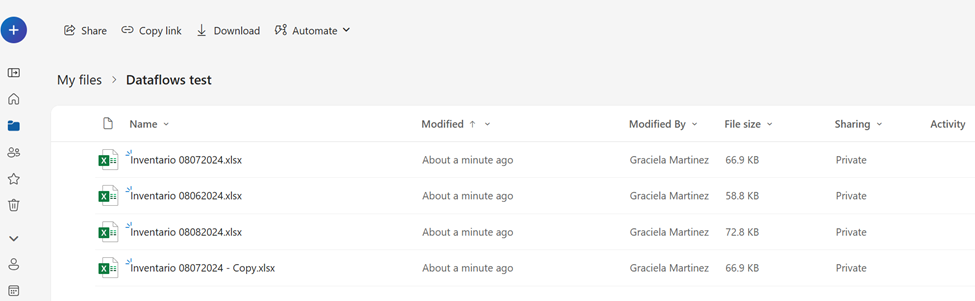
But when working with Dataverse Dataflows, for now there is no direct way to extract a list of folders from OneDrive, when searching the options, only local folders and SharePoint show up.
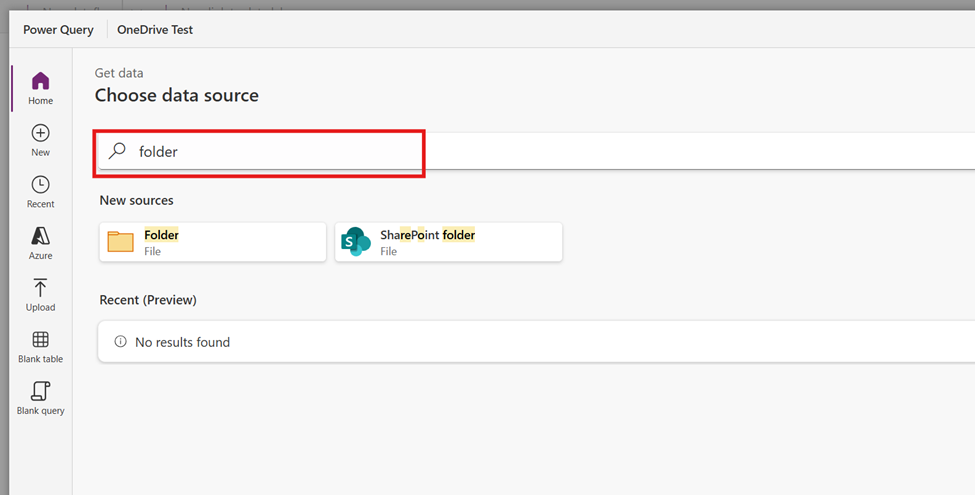
In this blog we will show a workaround of how to connect to OneDrive folders in Power Query using the SharePoint option.

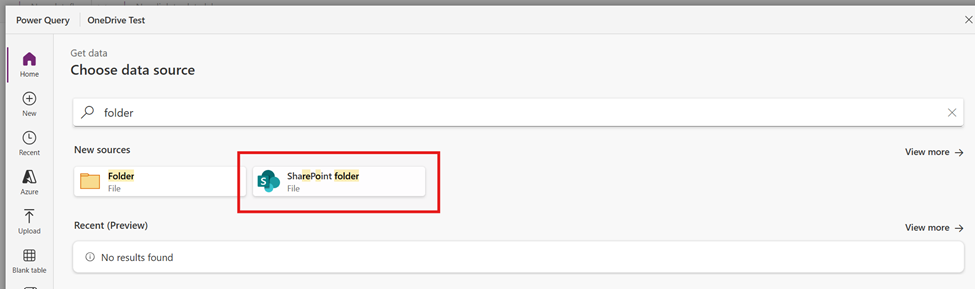
Step 1. Create Dataflow and select “SharePoint folder” as source

Go to make.powerapps.com and browse to “Dataflows” to create a new dataflow.

Automatisieren Sie Aufgaben, die Sie verlangsamen

Geben Sie Ihrem Team mehr Zeit und ermöglichen Sie ihm, sich auf strategische Aufgaben zu konzentrieren, dank digitaler und robotergestützter Automatisierung.

When prompted to select a source, select “SharePoint folder”
Step 2. Extract your OneDrive URL

Go to the OneDrive Folder that you want to connect to and grab the URL in the browser, all the text before “/my”
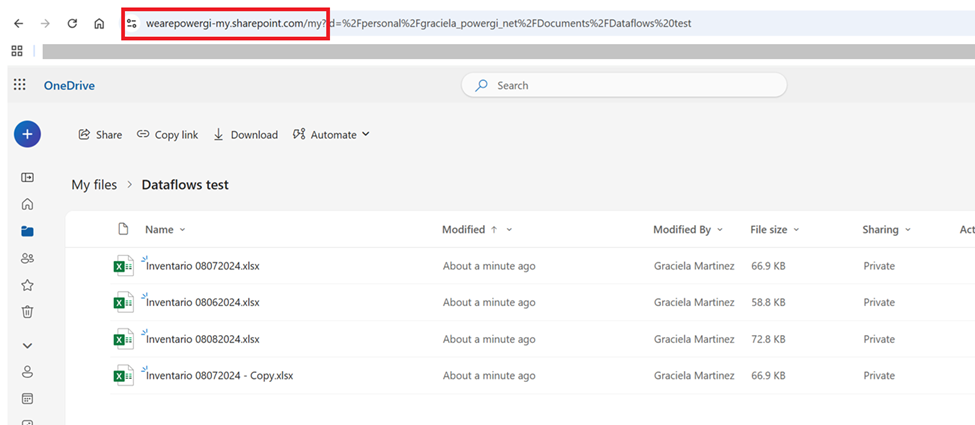
It should look something like this:

https://wearepowergi-my.sharepoint.com/

After that URL, add “personal/youremail_yourdomain”. (Replace the “@” and the “.” by a “_”)

The result should look like this:

				
					https://wearepowergi-my.sharepoint.com/personal/graciela_powergi_net


Step 3. Use OneDrive URL in the Site URL

In the Dataflow set up, use the above URL in the “Site URL” field and create a connection by signing in
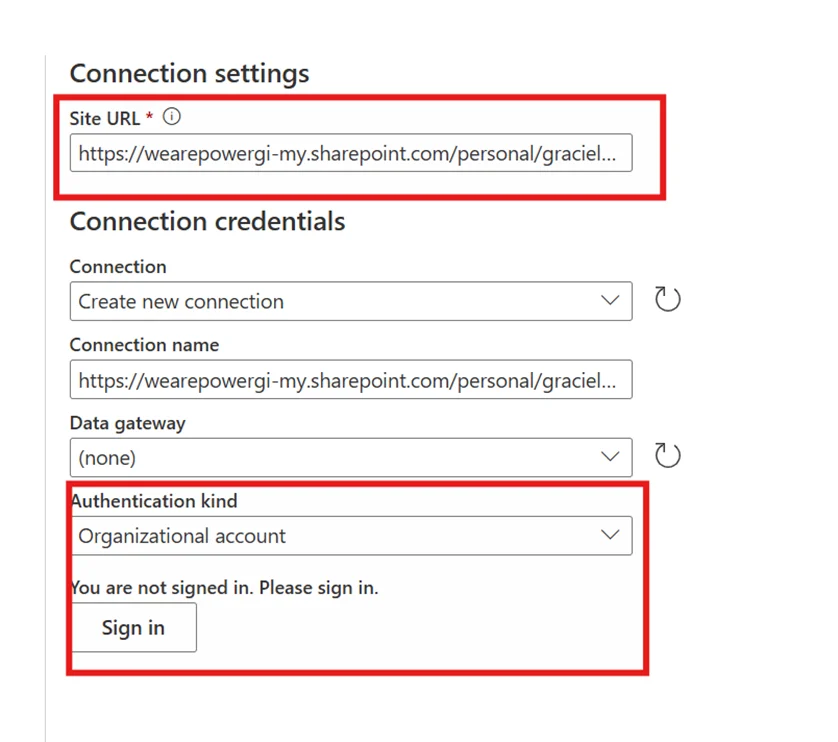
Then click Next and Click on Transform Data.

Step 4. Filter by the desired folder

Fild the “Folder path” column and filter by the folder name.
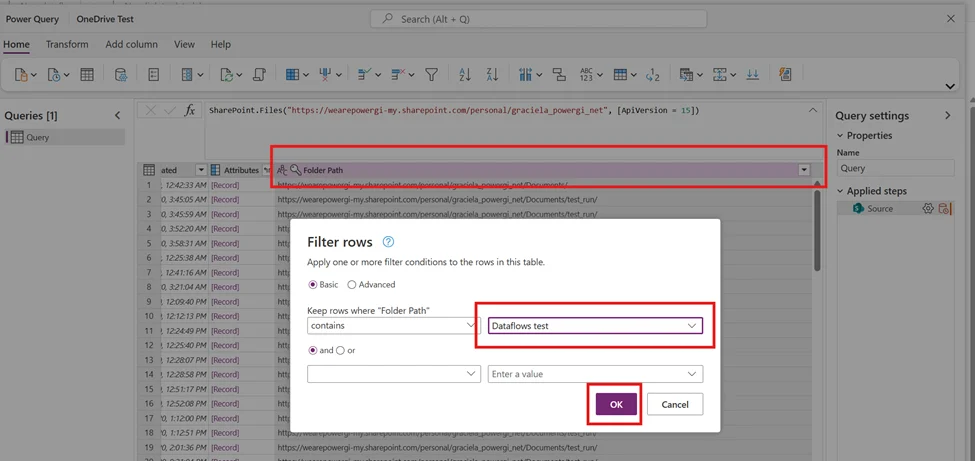
This will list only the files under the “Dataflows Test” folder.

Step 5: Merge documents and apply transformations

Click on the “merge” icon to have the files merged into a single query. This will create a separate query for file transformations as it would do for any other folder connection from Power Query. After merging everything, you’ll be able to apply more transformations and connect the dataflow to a an existing Dataverse table or create a new one.
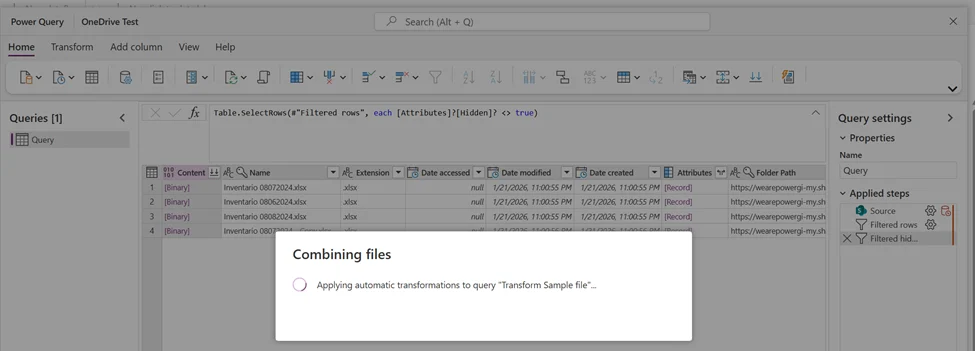
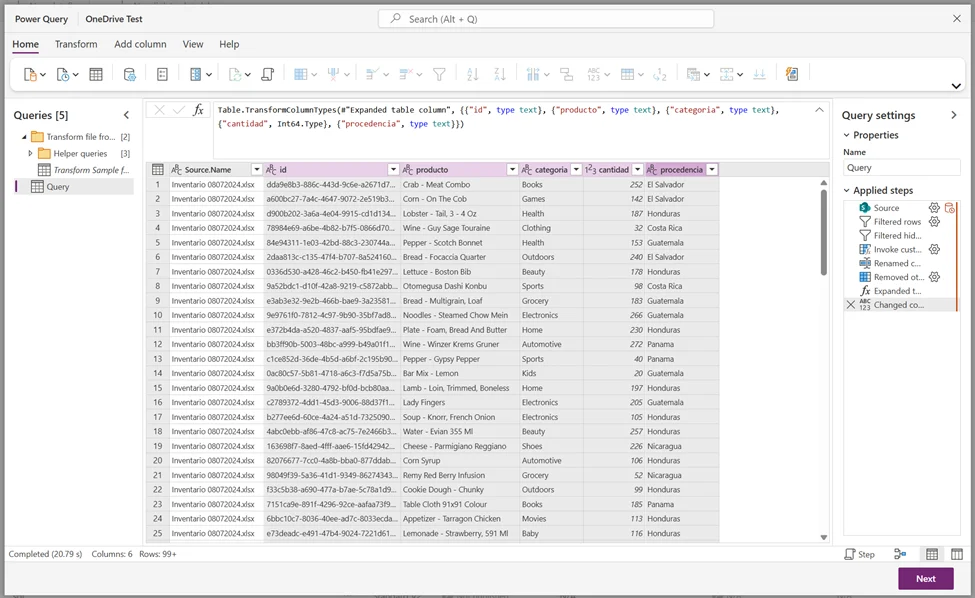
Power Query code

Is your business ready for automation?

Automate processes with Microsoft Power Platform.

				
					let
  Source = SharePoint.Files("https://wearepowergi-my.sharepoint.com/personal/graciela_powergi_net", [ApiVersion = 15]),
  #"Filtered rows" = Table.SelectRows(Source, each Text.Contains([Folder Path], "Dataflows test")),
  #"Filtered hidden files" = Table.SelectRows(#"Filtered rows", each [Attributes]?[Hidden]? <> true),
  #"Invoke custom function" = Table.AddColumn(#"Filtered hidden files", "Transform file", each #"Transform file"([Content])),
  #"Renamed columns" = Table.RenameColumns(#"Invoke custom function", {{"Name", "Source.Name"}}),
  #"Removed other columns" = Table.SelectColumns(#"Renamed columns", {"Source.Name", "Transform file"}),
  #"Expanded table column" = Table.ExpandTableColumn(#"Removed other columns", "Transform file", Table.ColumnNames(#"Transform file"(#"Sample file"))),
  #"Changed column type" = Table.TransformColumnTypes(#"Expanded table column", {{"id", type text}, {"producto", type text}, {"categoria", type text}, {"cantidad", Int64.Type}, {"procedencia", type text}})
in
  #"Changed column type"


Important considerations for the folder and files

In terms of Folder structure, make sure to set up a consistent nomenclature in OneDrive for long-term scalability. If you have more than one dataflow connected to OneDrive, use a single root folder per dataflow and avoid deeply nested or frequently changing paths, as these can break refreshes.

To avoid file-related issues, make sure that all the files to be merged into a single table have the same structure. In general, it’s recommended that sheet names are the same across all files if the sheet content is being extracted. If a table is being extracted, the table name is recommended to be the same as well.

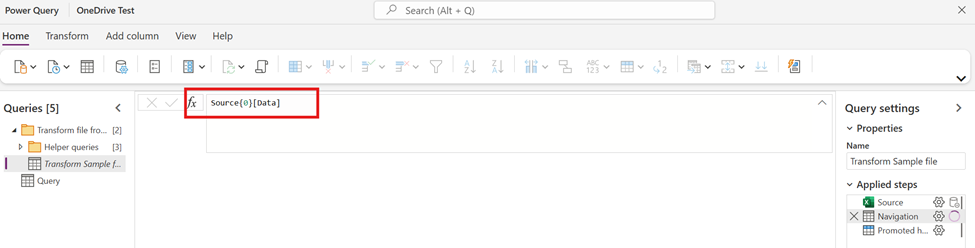
In case the sheet name or table might be different, in the “transform sample file” query, you can replace the navigation step with an index instead of the Item name and kind.

How our Power Platform Development services can help

If you’re looking to implement or optimize Dataverse dataflows, connect to external systems or create optimized and robust Power Query transformations, our Power Platform consulting services could be of help.

Kontaktieren Sie uns and we’ll be more than happy to have a conversation and see how we can be of help to your team.

Autor
Power Platform Berater | Experte für Geschäftsprozessautomatisierung
Microsoft Certified Power Platform Berater und Lösungsarchitekt mit über 4 Jahren Erfahrung in der Nutzung von Power Platform, Microsoft 365 und Azure, um kontinuierlich Automatisierungsmöglichkeiten zu entdecken und Prozesse neu zu gestalten.