Excel Vorlagen mit Power Automate

Ausfüllbare Excel-Vorlagen mit Power Automate | Tabellen und einzelne Zellen

Inhaltsverzeichnis

Introduction to Excel templates in Power Automate

Filling out an Excel file with repeating data is a very common scenario in many departments:

  1. Invoices
  2. Project charters
  3. Marketing proposals

In this blog, we will show how to create fillable Excel templates with Power Automate that can be populated automatically with information from a SharePoint list, using Office Scripts and out-of-the-box table actions.

We will cover both tables (for lists or repeating rows) and single cells (for key details like names, dates, or totals). A combination of both Office Script and out-of-the-box table actions will be used.

Anwendungsfallbeschreibung

We have a Power Apps application that is being used to create projects and add different pieces of information: general project data, budget details and team members.
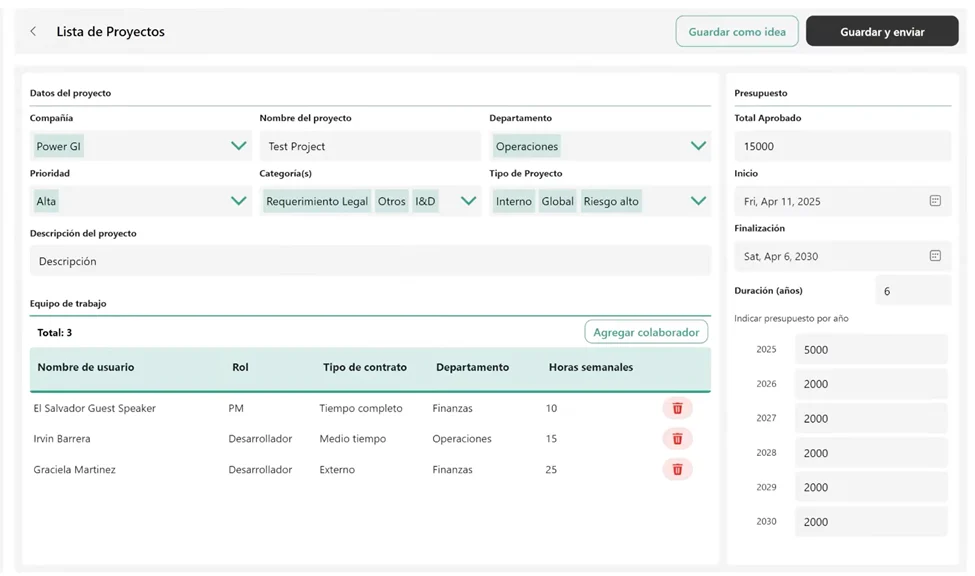
The Excel file will serve as a standardized project overview document. Once the project is submitted, the template will be automatically populated with information gathered from a Power Apps form (like the one shown above) that’s connected to multiple SharePoint lists. Using Power Automate, we’ll pull all relevant project data and fill it into the Excel template.

Automatisieren Sie Aufgaben, die Sie verlangsamen

Geben Sie Ihrem Team mehr Zeit und ermöglichen Sie ihm, sich auf strategische Aufgaben zu konzentrieren, dank digitaler und robotergestützter Automatisierung.

Below is an example of how it will look:
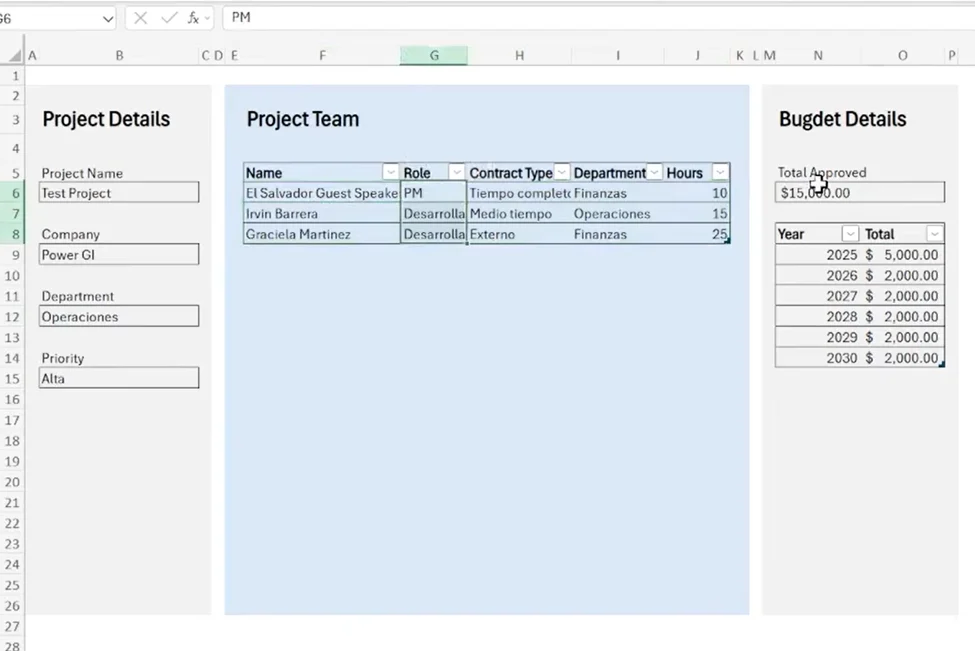
Here’s what the flow will populate:

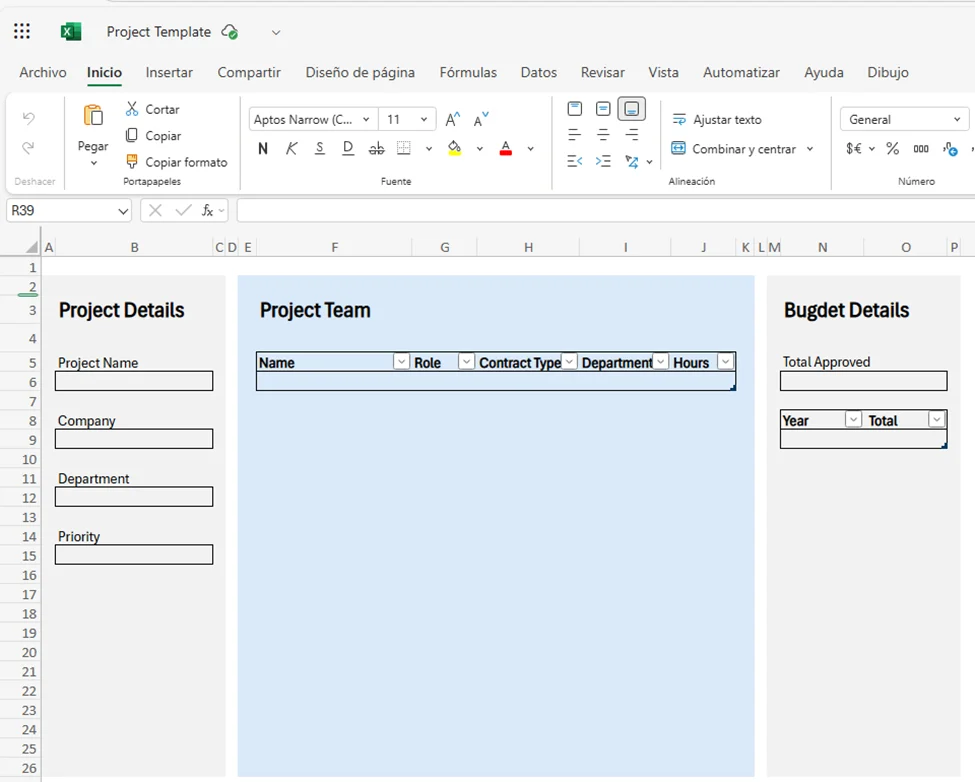
  • General Project Details (single cells): Company, Project Name, Department, Priority and Total Approved Budget.
  • Budget Table (table): Annual budget distribution per year, with columns for Year and Approved Amount.
  • Team Members Table (table): List of project collaborators, including Name, Role, Contract Type, Department, and Weekly Hours.

Schritt-für-Schritt-Anleitung

Create Excel template and upload to SharePoint

Make a list of all the details that will be stored in the template and add the cells, tables and format required in a regular Excel file.
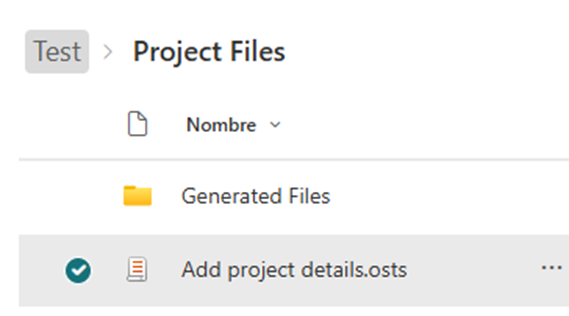
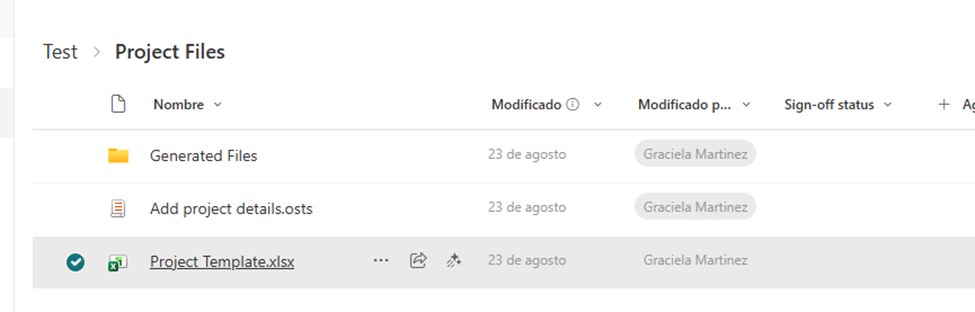
Upload the file to a SharePoint location:
Create an Office Script

Since there are some plain cells that will need to be populated, an Office Script is a really good option to update the file from Power Automate.
The
The script will require some “input” parameters because we need to pass some information from Power Automate to the Script so it can write correctly in the cells we define.

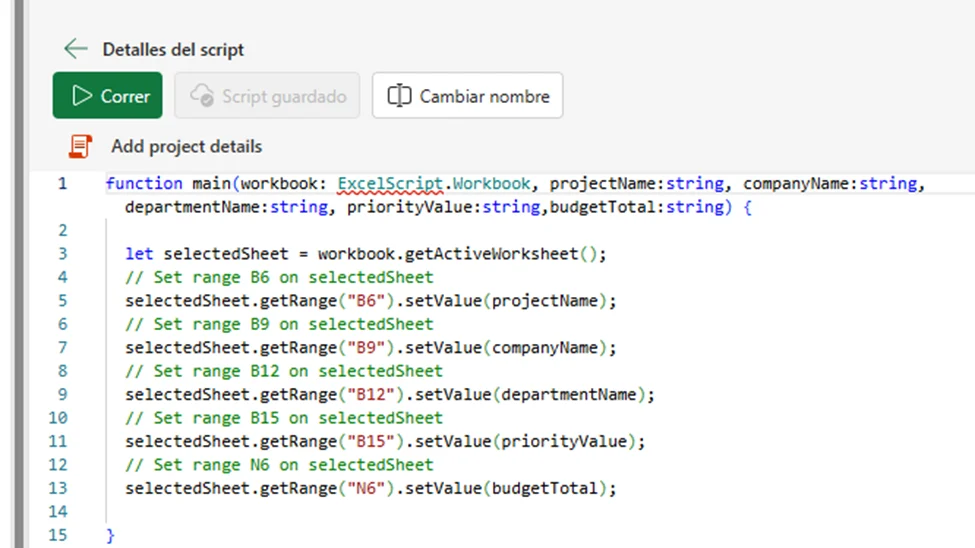
The code for the Office Script we’ll be using should look as follows:

				
					function main(workbook: ExcelScript.Workbook, projectName:string, companyName:string, departmentName:string, priorityValue:string,budgetTotal:string) {

  let selectedSheet = workbook.getActiveWorksheet();
  // Set range B6 on selectedSheet
  selectedSheet.getRange("B6").setValue(projectName);
  // Set range B9 on selectedSheet
  selectedSheet.getRange("B9").setValue(companyName);
  // Set range B12 on selectedSheet
  selectedSheet.getRange("B12").setValue(departmentName);
  // Set range B15 on selectedSheet
  selectedSheet.getRange("B15").setValue(priorityValue);
  // Set range N6 on selectedSheet
  selectedSheet.getRange("N6").setValue(budgetTotal);

}


Move Office Script from OneDrive to SharePoint

When Office Scripts are created, they are stored in the user’s OneDrive account. It’s recommended that the script is moved to a SharePoint library. Download a copy of the script:

And move to a SharePoint location:
 

Create the Power Automate workflow

Set up trigger

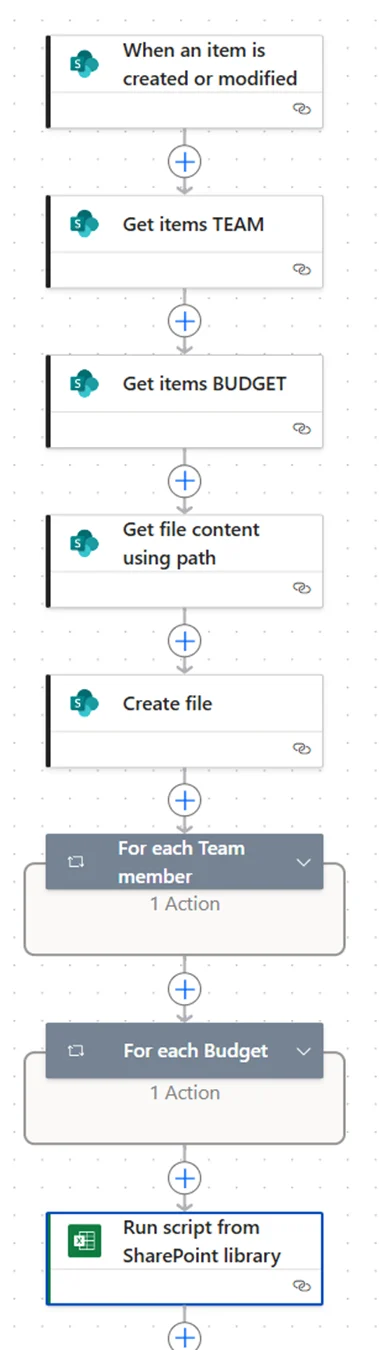
Create an automated cloud flow in Power Automate that runs when a SharePoint item (project) is created or modified.

Retrieve Project Data

Use Get Items actions to pull related data from multiple SharePoint lists (such as Project Team und Budget). This filter can be done through OData queries. Filter each dataset using the current project’s ID to ensure only relevant records are included.

Make a Copy the Excel Template.

Use the “Copy file” action to create the Excel template stored in a SharePoint library into a target folder for generated files.

Populate Excel Tables.

Using the “Add row to a table” action, insert the retrieved data from Project Team and Budget details into two Excel tables within the copied file:

  • Team Members Table: Add rows for each project team member.

Budget Table: Add rows for each annual budget record.

Update Header Fields with the Office Script

Use the “Run Office Script from SharePoint Library” action to fill single-cell project details (e.g., Project Name, Company, Department, Priority, and Total Approved Budget).

You’re ready to test!

Workflow is ready! Below is how the final flow should look.
Sind Sie bereit, die Freude an der Automatisierung zu entdecken?

Ob Sie ein Projekt im Sinn haben oder einfach nur wissen möchten, wie wir Ihnen helfen können, wir freuen uns auf ein Gespräch

Step-by-step video

Head to our YouTube channel and watch a full step-by-step video to learn how to use Power Automate to automate the creation of fillable Excel templates.

How our Power Platform Development services can help

Unsere Power Platform Beratungsleistungen, our team can help you bring automation ideas like above to life: from building user-friendly Power Apps and designing intelligent Power Automate flows, to integrating data seamlessly across SharePoint, Excel, and other business tools.

Kontaktieren Sie uns, Wir würden uns sehr freuen, uns mit Ihnen unterhalten zu können und zu sehen, wie wir Ihr Team unterstützen können.

Autor
Power Platform Berater | Experte für Geschäftsprozessautomatisierung
Microsoft Certified Power Platform Berater und Lösungsarchitekt mit über 4 Jahren Erfahrung in der Nutzung von Power Platform, Microsoft 365 und Azure, um kontinuierlich Automatisierungsmöglichkeiten zu entdecken und Prozesse neu zu gestalten.