
Inhaltsverzeichnis
We were recently working on an automation that syncs on demand 2 different systems, end users use a button in a Power Apps app to execute this synchronization any time of the day, this automation takes around 15 minutes to run. Since this involves Power Apps consulting, ensuring efficiency in automation is crucial.
It may happen that two users in two different departments request a synchronization at the same time, so we needed a way to control that only one run is happening at a time – there are different options to achieve this in Power Automate.
Option 1. Set up concurrency control
Power Automate’s triggers have a Concurrency control set up where you can define how many flows can be running at the same this, this is a very simple and easy way to limit the number of concurrent executions. Microsoft Power Platform consulting services often implement this approach to streamline automation processes.
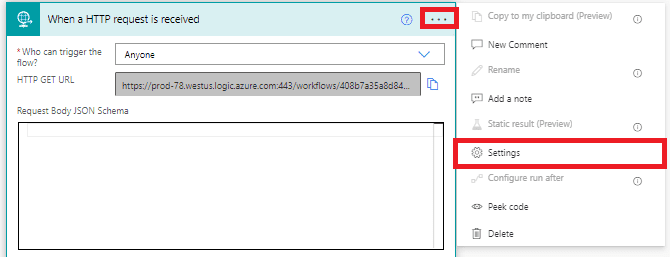
You just need to click on the ellipsis of the trigger card and then “Settings”.
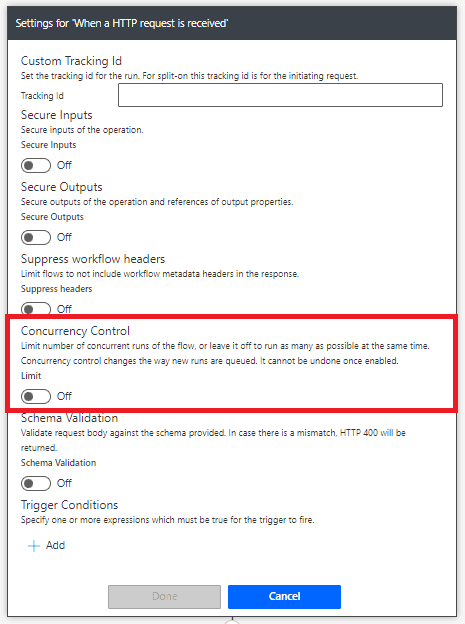
Then, you will see the concurrency control toggle, once this is set up, you can click on done, and that’s it!
The caveat to this approach is that sometimes Power Automate will just queue the runs one after the other finishes and for this specific scenario we don’t want 2 synchronizations to happen consecutively.
Option 2. Retrieve flow executions
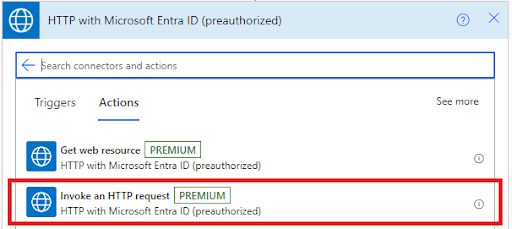
Step 1. Use the - HTTP With Microsoft Entra ID (Pre-authorized) connector to retrieve flow executions.
Find the HTTP With Microsoft Entra ID (Pre-authorized) connector
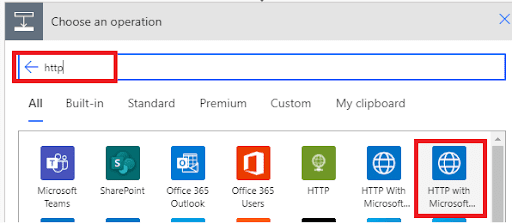
Wählen Sie die Aktion “HTTP-Anforderung aufrufen”
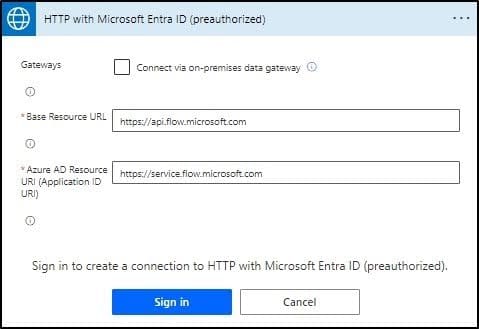
You will be prompted to create a new connection, use “https://api.flow.microsoft.com” as value in the first field, and https://service.flow.microsoft.com in the second one. It should look like this:
Next, select “GET” as a method.
/providers/Microsoft.ProcessSimple/environments/{environment-id}/flows/{flow-id}/runs?api-version=2016-11-01
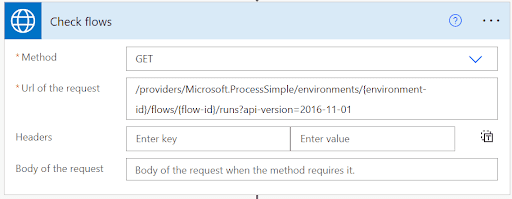
You can get the environment ID and flow ID from the URL while editing the flow:

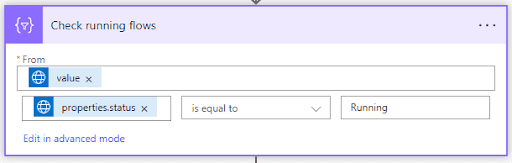
Step 2. Filter results from the HTTP action and retrieve only Running executions.
Find the “Filter array” action.
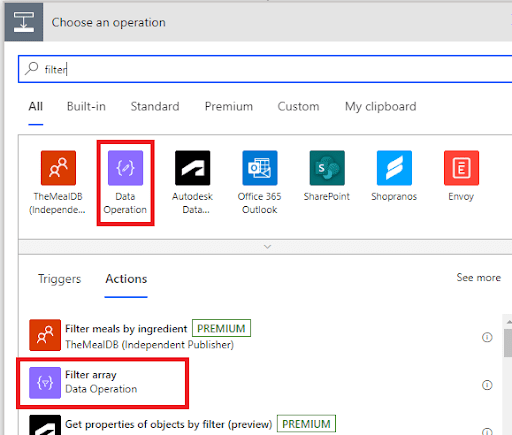
Set up like this:
We specialize in Power App consulting services that address complex automation challenges like the ones discussed here. Implementing customized solutions ensures seamless integration and operation.
Step 3. Check the number of running flows
Add a conditional and count the number of records the filter array action returns. If this number is equal to one, it means that only the current execution is running. If it’s not, it means that there is another run happening at the same time.
If the second scenario happens, cancel the run using the “Terminate” action.
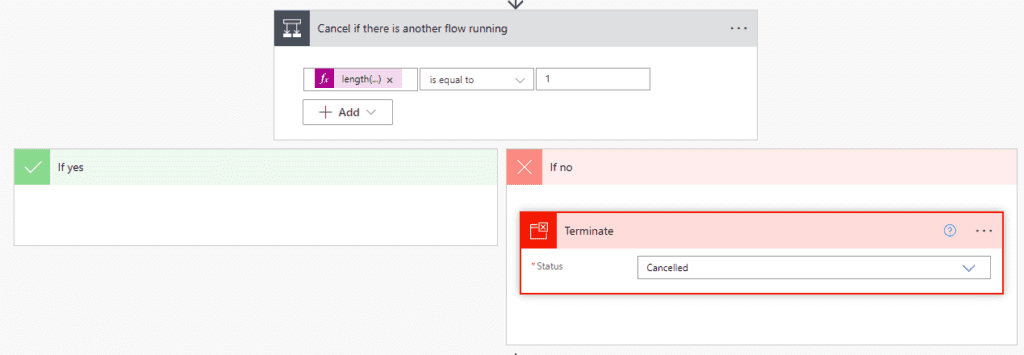
Use this formula to calculate the number or records from the “Filter array” action.
length(body(‘Check_running_flows’))
The caveat to this approach is that the HTTP With Microsoft Entra ID (Pre-authorized) connector is premium so you will require a Power Automate license if you want to run it in the long term.
