Tabla de Contenidos
In this blog, we will show how to convert the value of a Dataverse file column into base format in Power Apps. You only require 3 controls and the JSON function.
If your organization is exploring more advanced automation strategies, leveraging Servicios de Consultoría de Power Platform can help ensure your Canvas Apps solutions are scalable, maintainable, and aligned with business goals.
Enhance your business efficiency and drive innovation with our Servicios de Consultoría de Power Platform. Our expertise ensures that your Power Apps solutions not only streamline operations but also align with your strategic objectives, empowering your team to focus on impactful projects.
Step 1. Add image, button and text controls
In the screen where the base64 format is required, add an image, button and text controls.

Step 2. Set up value for the Image control
Select the image and in the “image” property, add the following formula:

Last(Table_Attachments).File.Value
Last(Table_Attachments) can be replaced by ThisItem. If the image is in a gallery, or by a variable name that contains the file you want to convert.
Step 3. Set a variable with the base64 content
In the button, add the following code on the OnSelect property:
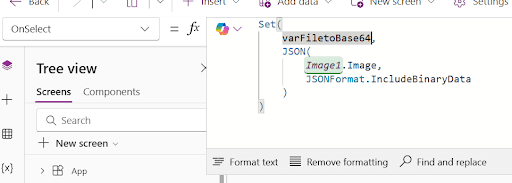
					Set(
    varFiletoBase64,
    JSON(
        Image1.Image,
        JSONFormat.IncludeBinaryData
    )
)
Step 4. Use the variable
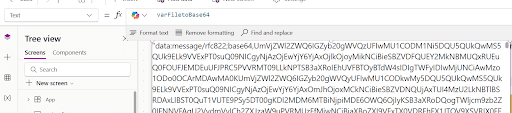
Now the varFiletoBase64 variable contains the representation of the file in base64 format. You can use it in the application as required.
For this simple example we are just displaying it in the text control:
Power Apps allows converting Dataverse files into base64 format by using the JSON PowerFx function in combination with the image control and save this result into a variable that can be used across all the application. Contáctanos if you have any questions or if you’d like some help on Power Apps or PowerFx!