Let’s suppose you are a legal company that receives hundreds of emails daily that relate to contracts for both Companies (legal entities) and Individuals. You need to separate those two different types of emails in different folders because they are processed differently.
Your mailbox looks something like this:
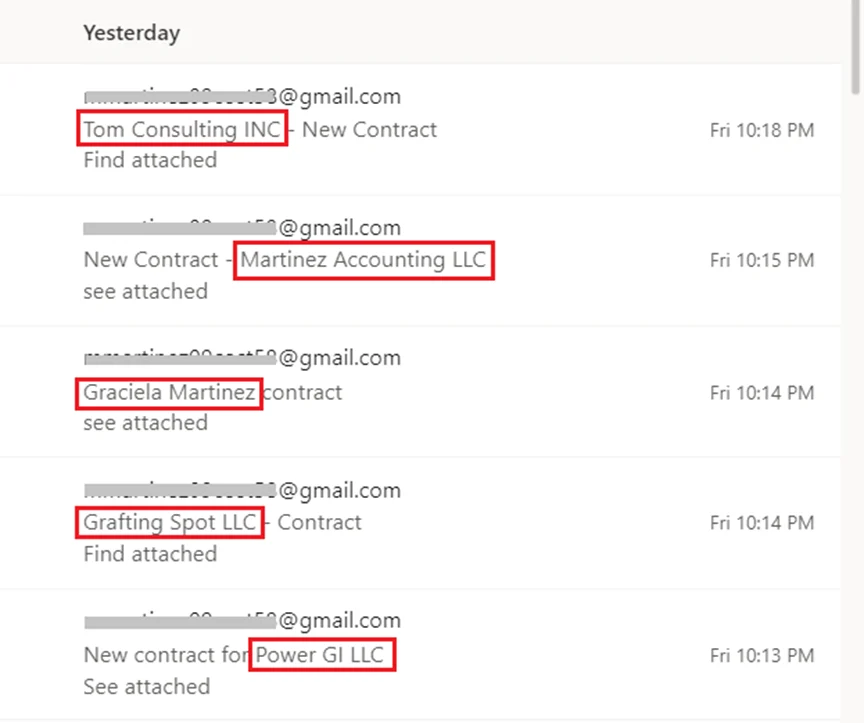
Your contacts always send you the name of the Legal or Natural person in the subject, but it is very hard to predict its location in the email subject or the length of the text. You could have somebody manually checking every single email or better – you can have AI do all the job for you and automatically separate Companies and Person Names.
We are going to use the Text Analytics’ Named Entity Recognition (NER) service from Azure. It provides the ability to identify different entities in text and categorize them into pre-defined classes or types such as: person, location, event, product, and organization. For this, we are interested in recognizing “Organization” and “Person”. This is a powerful example of how Consultoría de Microsoft Power Platform can streamline email classification and automation.
Set up service in Azure.
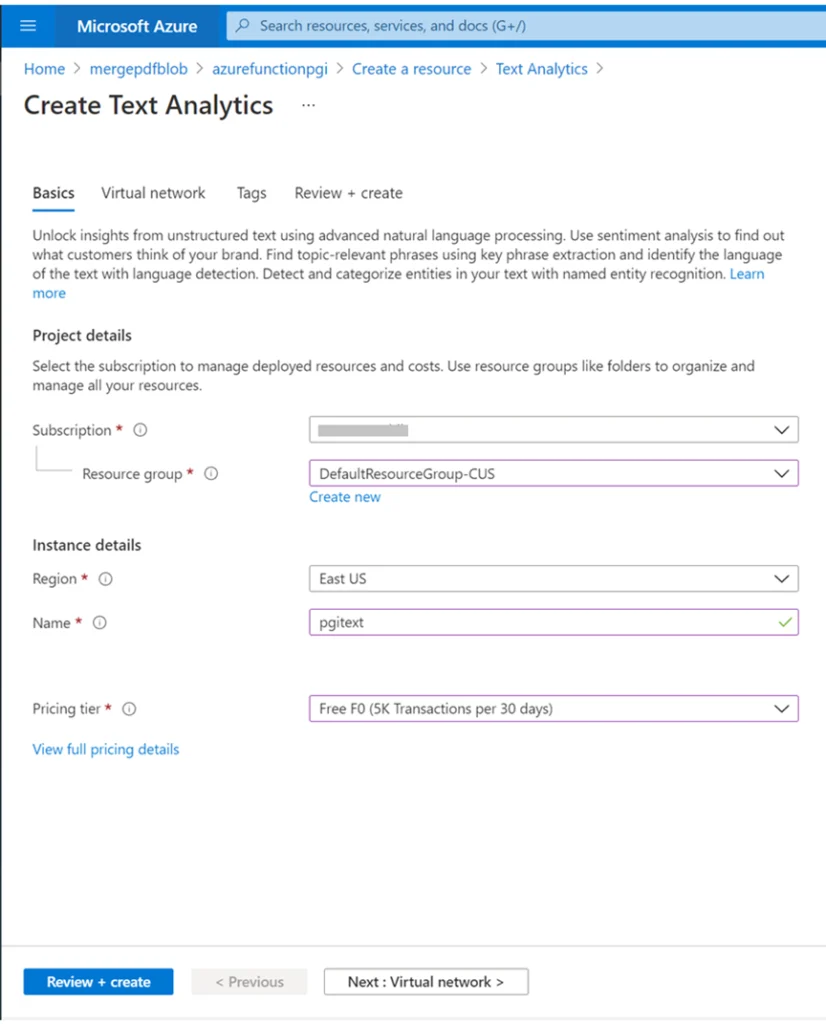
Let’s navigate to the Azure Portal and create a “Text Analytics” resource. Below is how I set up mine
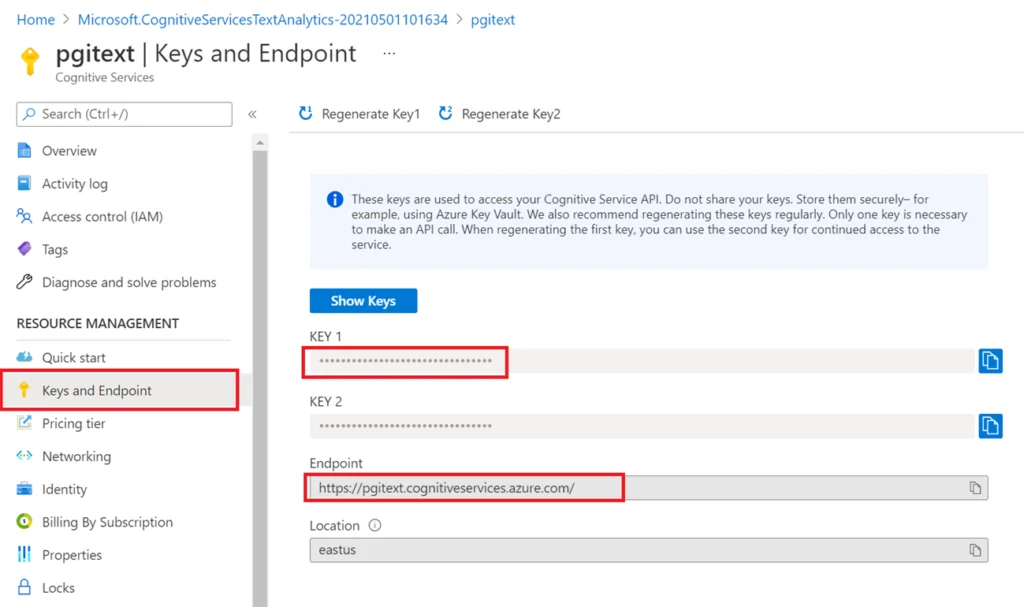
Once resource is ready, go the “Keys and Endpoint” blade and take note of your API Key and Endpoint.
Set up HTTP call and Test Service
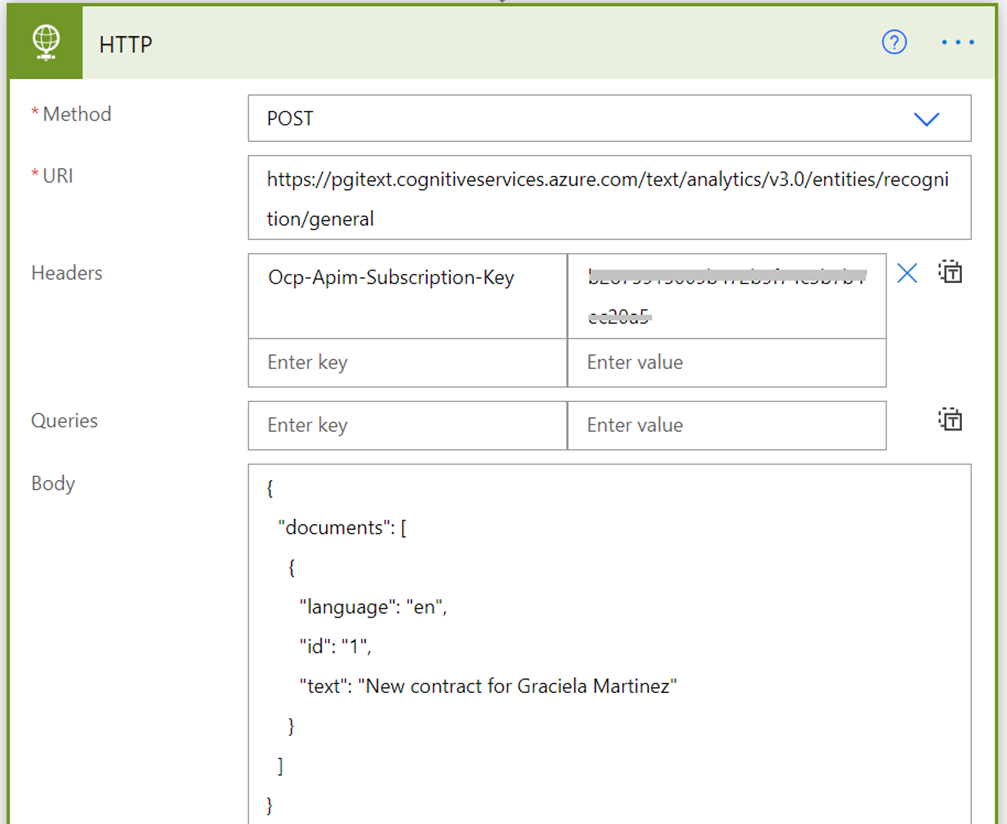
Let’s test the service. I will use Power Automate HTTP action card, but you can use Postman too. Below is the set up needed for the call
METHOD:
Publicación

URI:
{your-endpoint}/text/analytics/{version}/entities/recognition/general

HEADER:
Ocp-Apim-Subscription-Key {key-1}

BODY:
{
  "documents": [
    {
      "language": "{subject-language}",
      "id": "1",
      "text": "{email-subject}"
    }
  ]
}
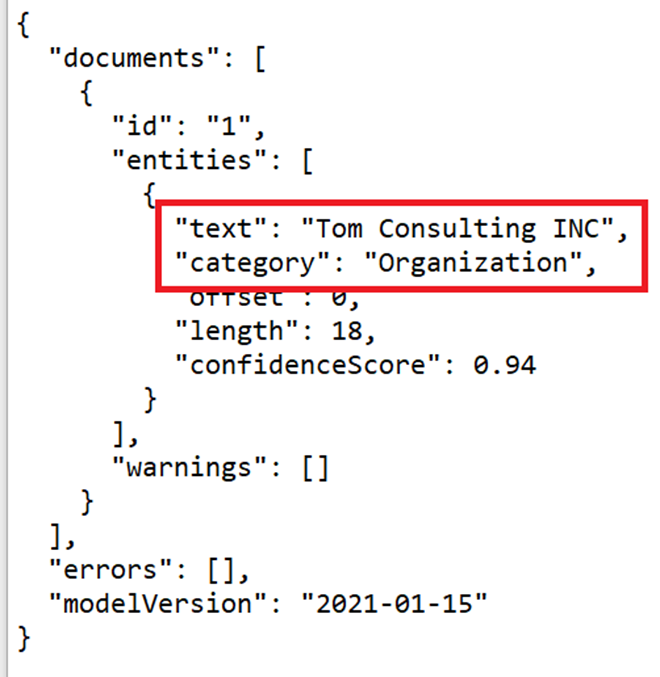
Once tested, this is how response from the service looks if the subject contains a company name:
If a person name is included in the subject, this is how it looks:
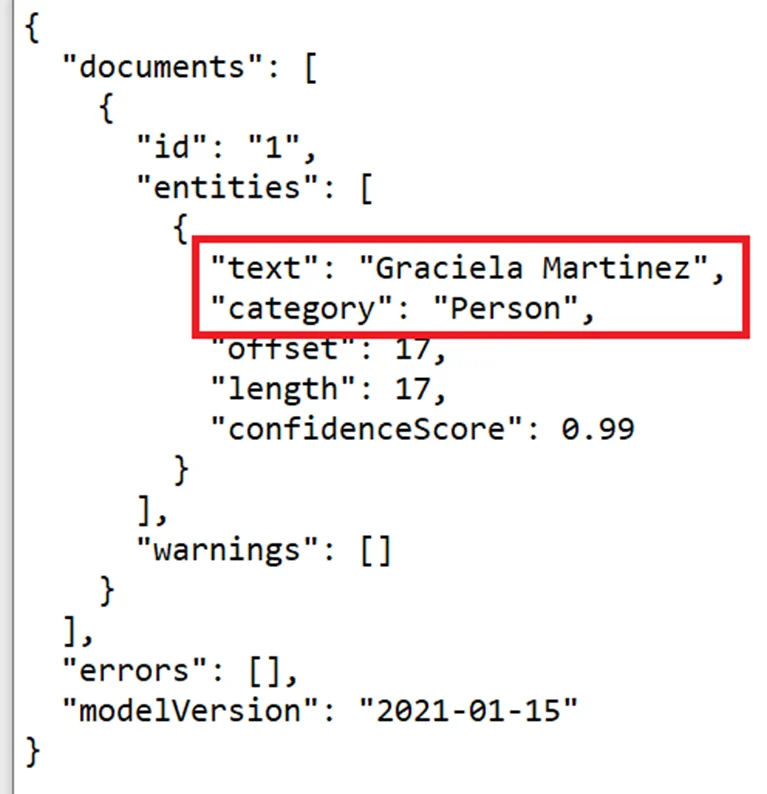
Regardless of where in the subject the company/person’s name is included, the service will automatically separate each entity/section from the subject and find the best match for Organization or Person.
Use the service for each email you receive.
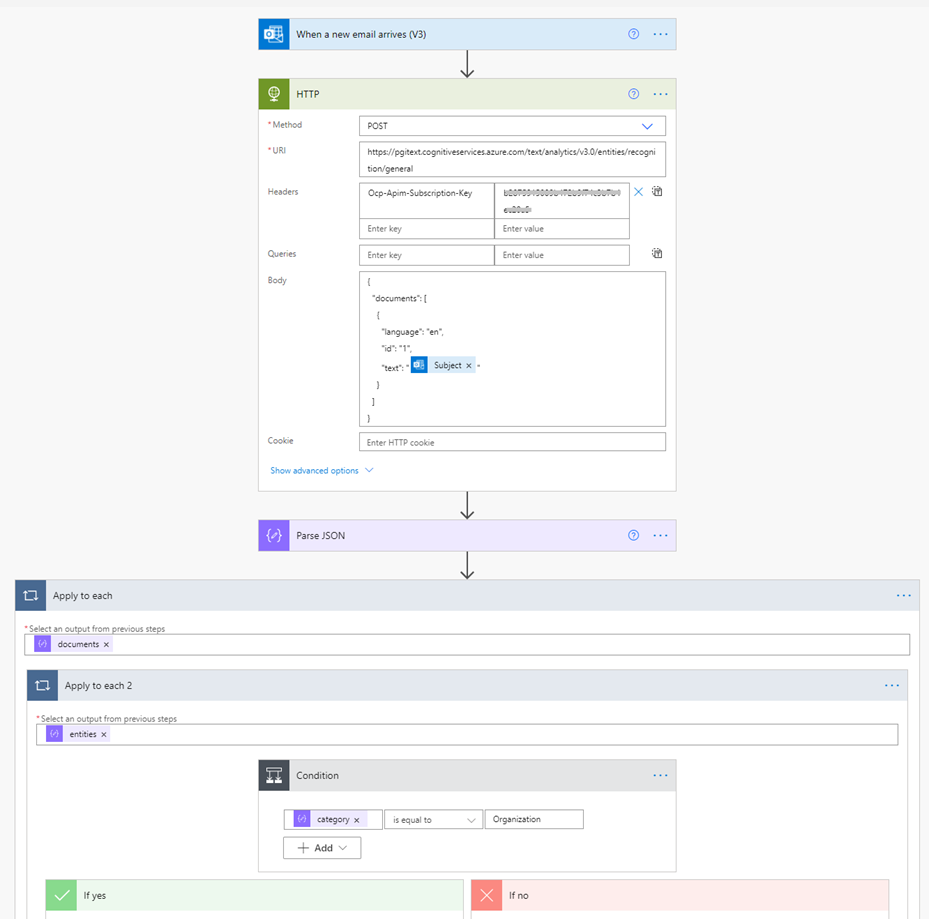
Now we can integrate this HTTP card with a “When a new email arrives” trigger in Power Automate and apply a condition based on the Category in the response to move the email to its corresponding folder.
All set! Save hours of work with this simple but effective classification/recognition AI service.