Tabla de Contenidos
Sending multipart/form-data in an HTTP request is sometimes a common requirement when integrating Power Automate with external systems, but configuring this correctly in Power Automate is not straightforward.
In this guide, we’ll show how to send multi form data in Power Automate through the HTTP action and how to convert a Postman form-data request into a format that works in Power Automate.
Step 1. Make sure your HTTP request works in postman
					curl --location 'https://test.api.com/v1/accounting/create' \
--header 'token: abc' \
--form 'id="123"' \
--form 'name="Power Automate Test"' \
--form 'user="1"' \
--form 'date="2025-12-31"' \
--form 'status="draft"'
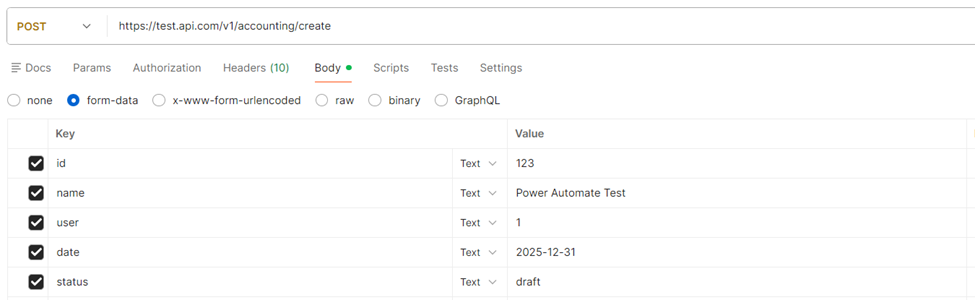
This is how it looks in Postman:
Step 2. Convert request to a Power Automate-friendly format
For each of the fields used in the HTTP request, we need to create a small object that contains the following:
					{
    "body": "{value}",
    "headers": {
      "Content-Disposition": "form-data; name={field name}"
    }
  }
For example, for the “status” field from above, it would result in the following:
					{
    "body": "draft",
    "headers": {
      "Content-Disposition": "form-data; name=status"
    }
  }
Once you have all fields, put them inside an array.
					[
{
    "body": "date",
    "headers": {
      "Content-Disposition": "form-data; name=2025-12-31"
    }
  },
{
    "body": "draft",
    "headers": {
      "Content-Disposition": "form-data; name=status"
    }
  }
]
This is how the end result should look
					[
{
    "body": "123",
    "headers": {
      "Content-Disposition": "form-data; name=id"
    }
  },
{
    "body": " Power Automate Test ",
    "headers": {
      "Content-Disposition": "form-data; name=name "
    }
  },
{
    "body": "1",
    "headers": {
      "Content-Disposition": "form-data; name=user"
    }
  },
{
    "body": "date",
    "headers": {
      "Content-Disposition": "form-data; name=2025-12-31"
    }
  },
{
    "body": "draft",
    "headers": {
      "Content-Disposition": "form-data; name=status"
    }
  }
]
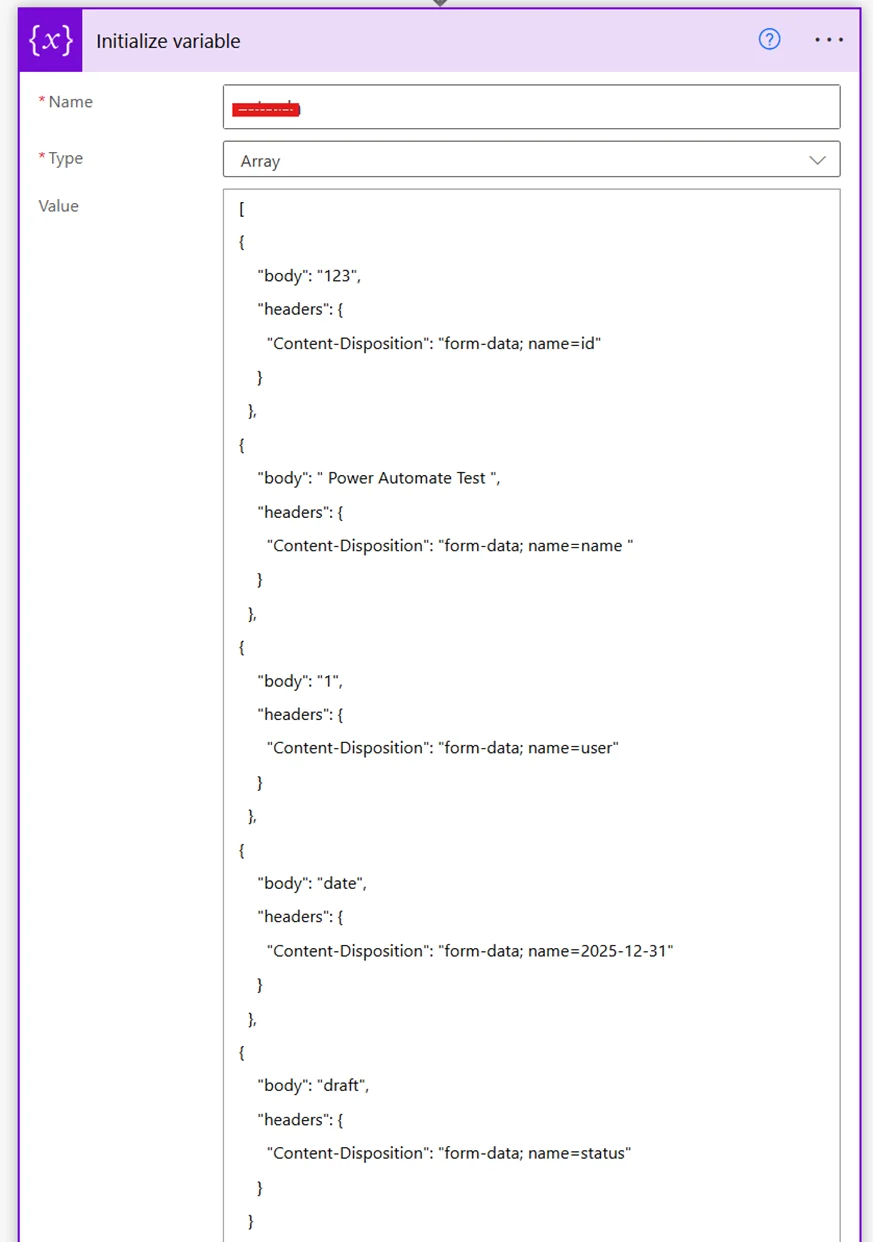
All the array can go in a variable:
Step 3. Send HTTP request
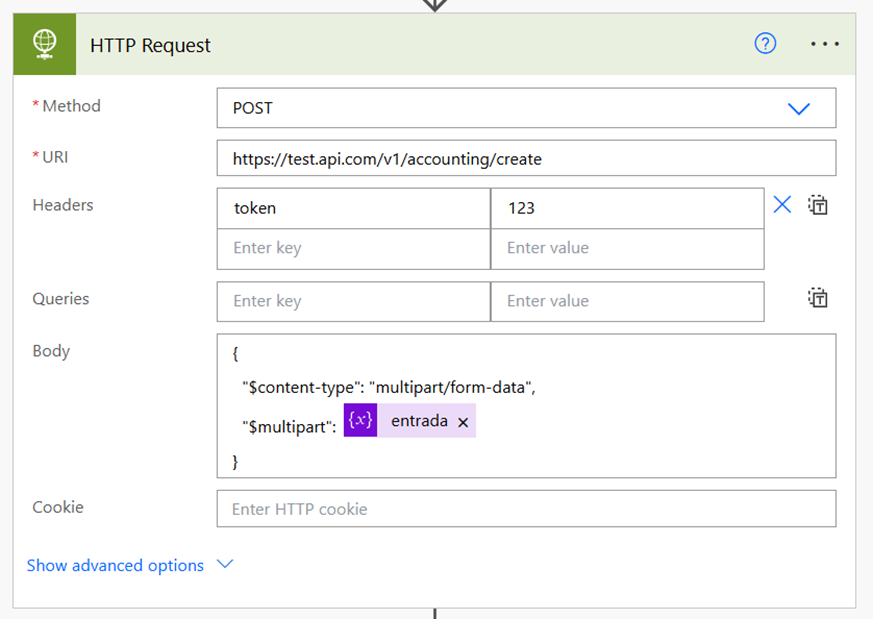
					{
  "$content-type": "multipart/form-data",
  "$multipart": [array from previous step will go here]
}
How our Power Platform Development services can help
If you’re looking to implement these HTTP request types as part of a broader Power Platform solution our Power Automate development services team can help.
Contáctanos, we’ll be more than happy to have a conversation and see how we can be of help to your team.