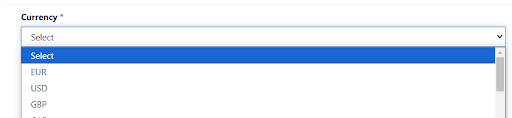
When creating a Power Pages site, if your form has a lookup column it will look a bit odd in the website for end users. It’s a very common scenario to prefer to display these types of columns as dropdowns instead. In this blog we will show you how to update the form configuration to replace lookup search with a nice and simple dropdown.
Explore our microsoft Power Platform Consulting Services to enhance your Power Pages experience. We ensure seamless integration of interactive components, like converting lookup columns into user-friendly dropdowns, thus boosting website navigation and user interaction. Discover how we can transform your digital journey today.
Step 1. Create the form that you will display in the Power Pages page
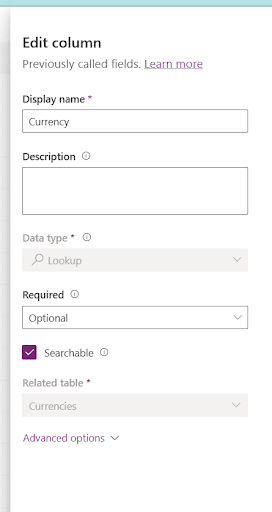
Add the lookup column in the table and in the form you want to link in the Power Pages site
Turn your ideas into digital solutions
Our team guides you step by step to build custom apps in Power Platform.
Step 2. Add the form in the Power Pages page
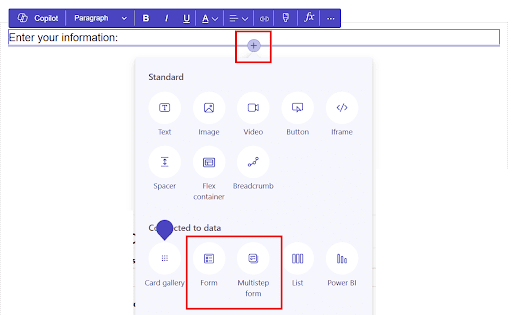
Link the page to the form by using the “+” icon in the Power Pages portal and then selecting the type of form you will add
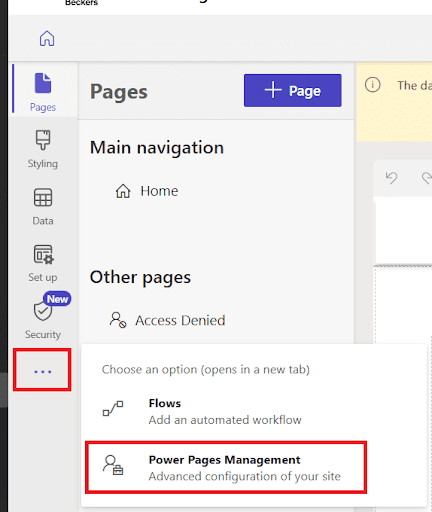
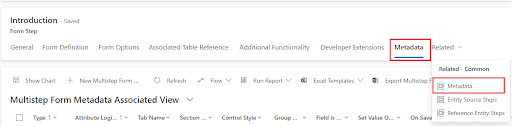
Step 3. Locate the form in the Power Pages Management portal
Open the Power Pages Management portal
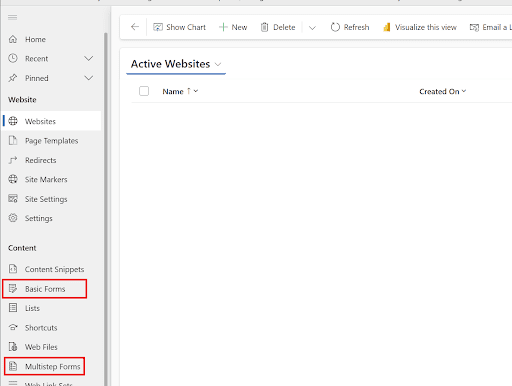
If basic form: you will find it under Basic Forms
If multistep: you will find it under multistep forms and then by selecting the relevant step
Click on the form to
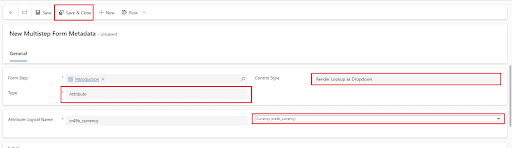
Step 4. Create a metadata record
Open form metadata
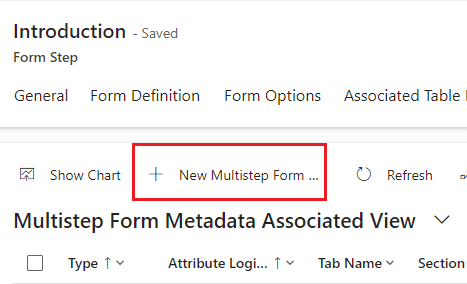
Click on New
Automate tasks that slow you down
Free up your team’s time and focus on strategic work with digital and robotic automation.
Go back to the Power Pages editing page, sync configurations and test the changes.
Conclusion
With the help of Power GI, you can quickly convert lookup columns in Power Pages into dropdown menus, improving form usability and end users’ experience on the website. This fast setup simplifies site interactions and improves data selection.
Power Platform Consultant | Business Process Automation Expert
Microsoft Certified Power Platform Consultant and Solution Architect with 4+ years of experience leveraging Power Platform, Microsoft 365, and Azure to continuously discover automation opportunities and re-imagine processes.