Table of Contents
Building a Power Platform solution goes beyond creating an isolated Power Apps application. Most solutions usually include a canvas or model-driven app with Power Automate flows that handle the back-end logic, Dataverse tables or SharePoint lists and connections. Managing all these components together safely and consistently is exactly why Application Lifecycle Management (ALM) exists. In this blog we will cover some important considerations for managing application lifecycle (ALM in Power Apps) and how it works in the Power Platform world.
What is application lifecycle management (ALM)?
ALM means “application lifecycle management” and it refers to the process of taking a software application from its development to production deployment.
When following ALM practices, it’s usually to target the following questions:
- What changed, and who changed it? How can this be tracked?
- How to we develop, test and deploy to production without breaking things and making sure all works as expected?
- How do we separate test data from prod data?
- Is it possible to roll back if something goes wrong?
What is ALM in Power Apps and why it matters?
Power Apps makes it easy to build applications; any pro-developer or citizen developer can connect to a SharePoint site and create an application in a few weeks or days. Without ALM practices in place, the scenario of users “just creating apps and flows” can become a mess: undocumented, untested, and impossible to safely update when bugs happen or when enhancements are requested.
The ALM concept is not a Power Platform or a Power Apps concept; it’s been used in the software development industry for a long time now, using source control tools like GitHub and working with environment separation. In the Power Platform world, the same principles apply, but just using Power Platform’s tools and components:
- Dataverse environments for environment separation (Dev, QA, Prod)
- Environment variables for data sources such as SharePoint and SQL
- Managed solutions for QA and Prod environments
- Deployment processes through Managed environments or Azure DevOps integrations
Making sure to apply best ALM practices in Power Platform solutions has plenty of benefits:
- Changes made in a dev environment are tested before reaching production
- Changes can be tracked, (what was deployed, when, and by whom)
- Enforce standards and audit the full history of changes across apps and flows.
- Manage all Power Platform solutions it without chaos
Core Components of ALM in Power Apps
Environments
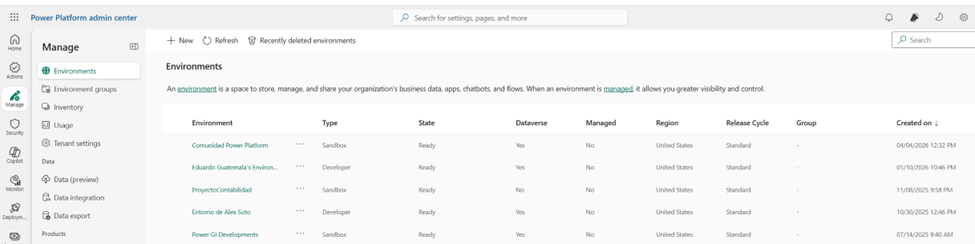
Power Platform environments are isolated containers for apps, data, connections, flows and any other Power Platform component. A typical ALM setup requires at least three environments:
- Development (where developer build solutions with apps and flows)
- Test/UAT (where users validate the full end-to-end experience)
- Production (where end users work)
Power Platform environments are managed from the admin center:
Solutions
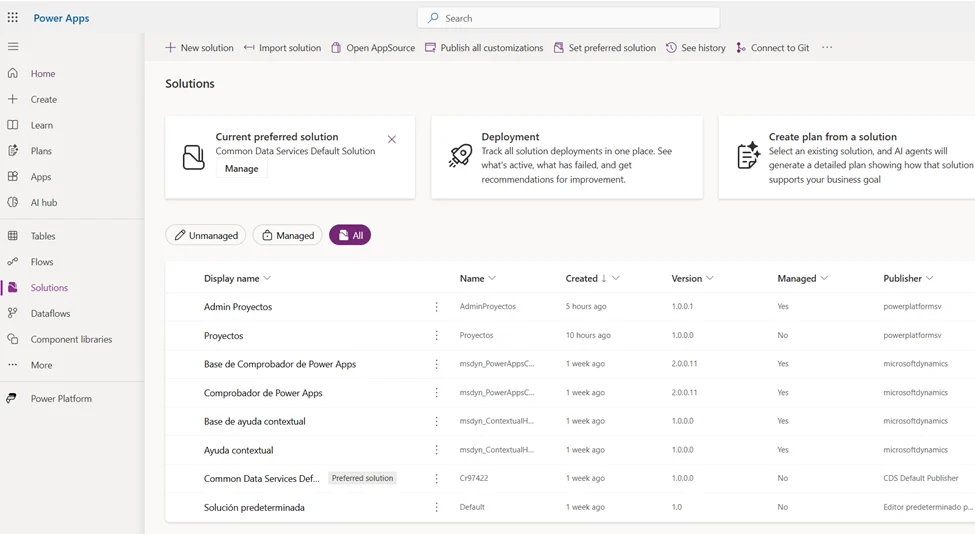
Solutions are like a “box” where apps, flows, connections are put to be “grouped” in a single package.
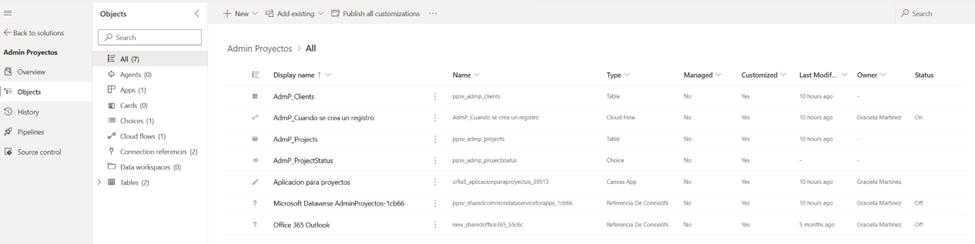
A canvas app, model-driven app, Power Automate flows, Dataverse tables, connection references, and environment variables can
all be under a single solution and moved across environments as a whole.
There are two types of solutions:
- Unmanaged (editable, where users develop the solution)
- Managed (used in test and production, they are supposed to be locked and not editable, but Power Platform has some options to allow developers to edit).
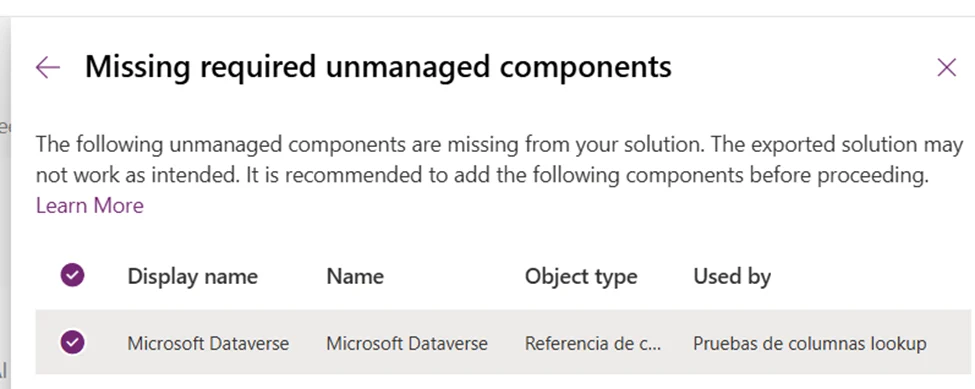
ALM approaches in Power Platform
Manual export and import
This is the most basic form of ALM in Power Platform. The process is simple:
- Export a solution from the development environment. When exporting the solution, you will be prompted to select if the solution will be exported as managed or unmanaged. If exporting to QA or Prod: select managed. Only select unmanaged if exporting to another development environment.
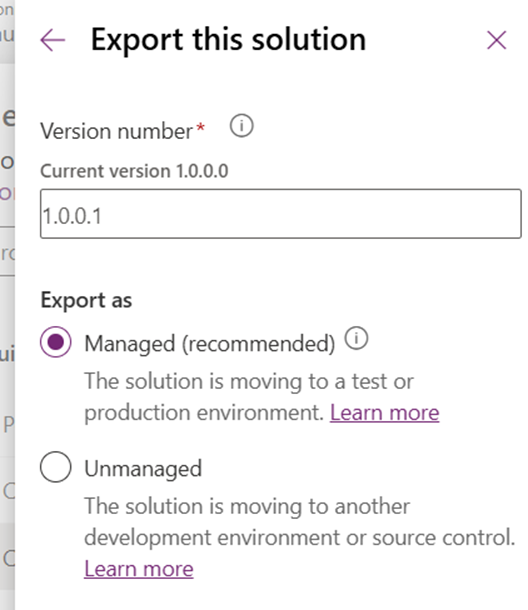
- Download the .zip file that is generated with all the solution components
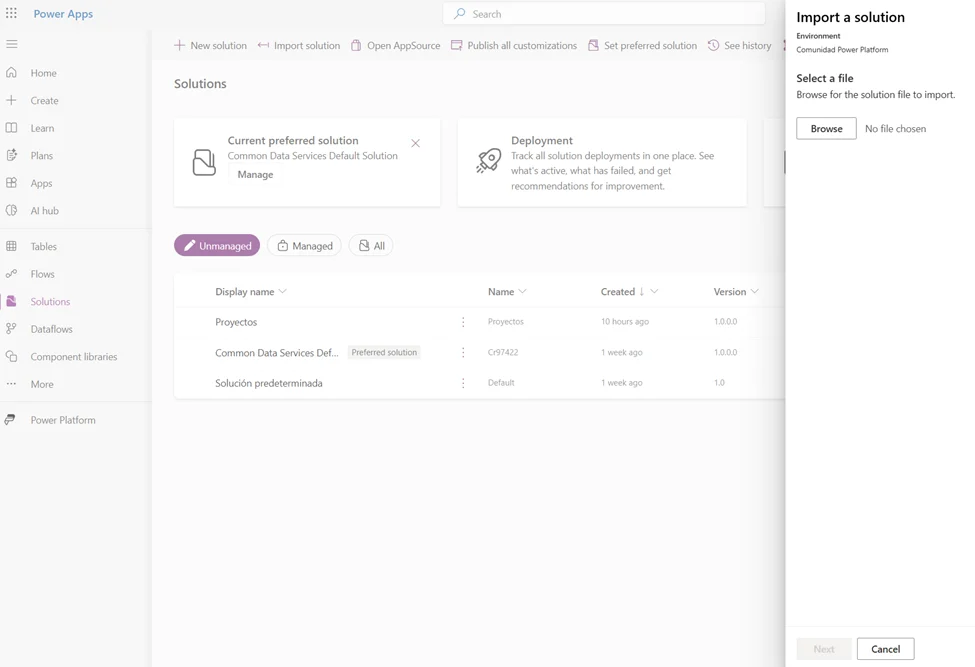
- Open the target environment, import the solution and follow the import wizard steps

Manual export/import requires no additional tooling beyond what’s already in the Power Apps or Power Platform portals. It’s accessible to all developers and makers, as soon as they have access to import solutions in the target environment. This approach is best for: individual developers, small teams, or not critical internal tools.
Solution pipelines
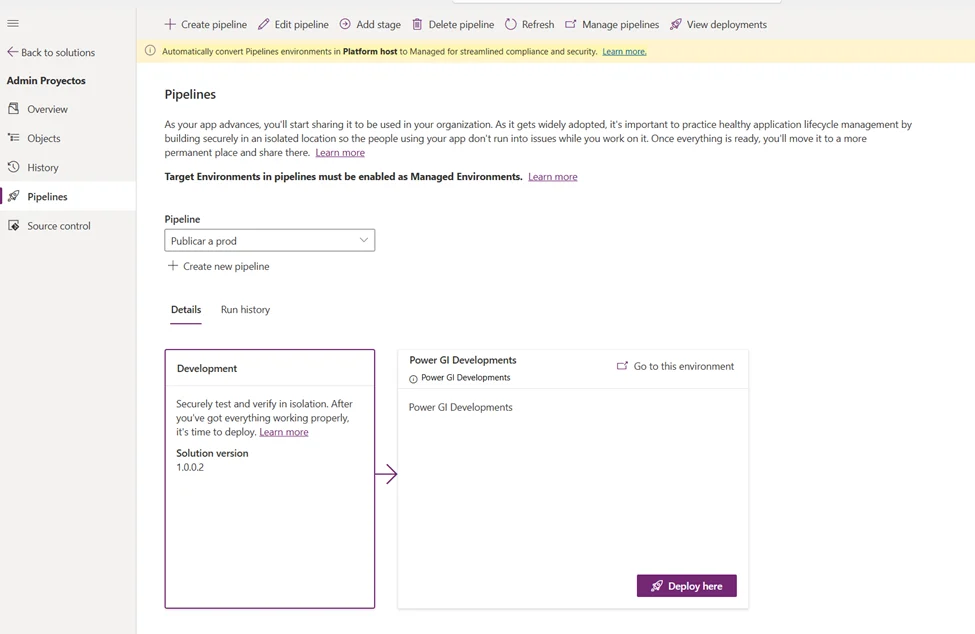
Managed Environments is Microsoft’s built-in tool for Power Platform ALM, it allows to create “pipelines” and select which Power Platform environments should be included in the pipeline.
The pipelines can be set up at each solution level, by defining your environments (dev → test → prod) and the platform handles the deployment of the entire solution in each of the selected environments. It’s pretty straight forward and it includes some DevOps concepts without the hassle of configuring a DevOps infrastructure.
Azure DevOps
For enterprise teams that require more powerful ALM practices, Azure DevOps offers the most robust and flexible implementation. Azure DevOps can be used to manage the ALM process for any kind of software application, with integrated repositories, version control and task boards.
Power Platform solutions are no exception, ALM using Azure DevOps is possible using the Microsoft Power Platform Build Tools extension. It comes with plenty out of the box action to manage solutions in Power Apps and Power Automate.
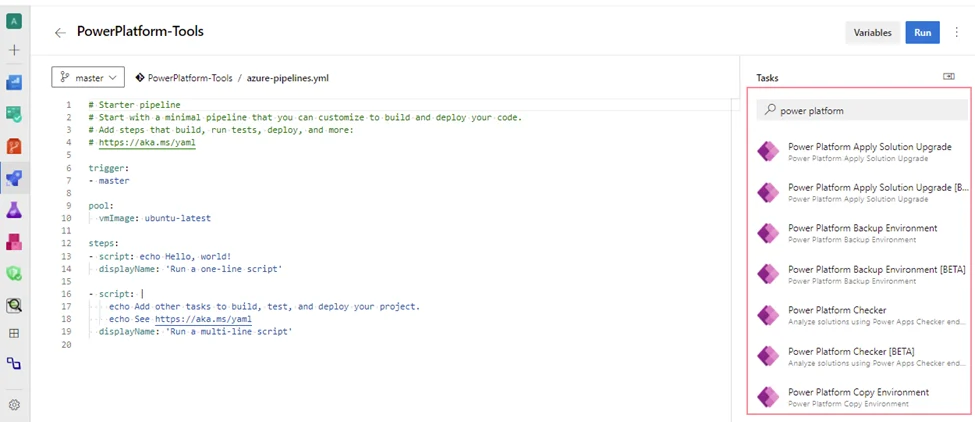
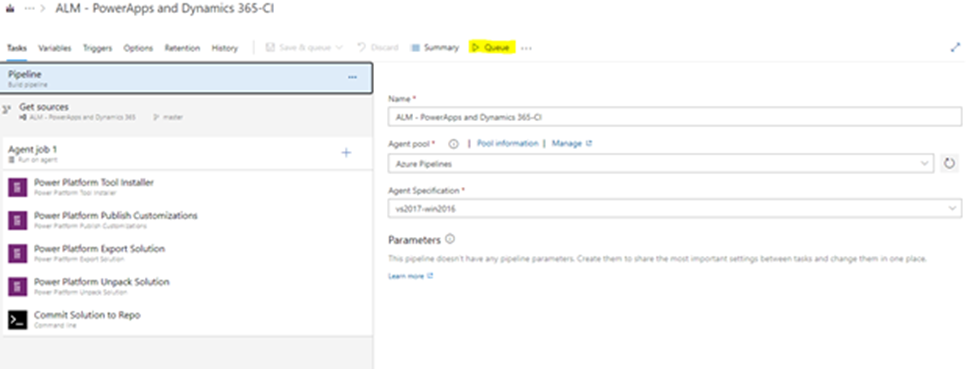
Setting up Azure DevOps pipelines requires DevOps knowledge and some set ups. When working with Azure DevOps, teams only need to configure the connection to the different environments that they will be working on and DevOps will connect to the solutions in each of them and allow the teams to:
- Export solutions and unpack them into source files
- Commit everything to a Git repository with version history
- Trigger automated builds
- Deploy to test and production environments
Azure DevOps is a good option for enterprise teams, pro-dev teams, regulated industries, or organizations already using Azure DevOps for other development work.
Best practices for Microsoft application lifecycle management
When it comes to ALM, there are general guidelines that can be applied regardless of it’s a Power Platform solution or not. Some of things to keep in mind are:
- Enforce coding standards (variable naming, adding comments).
- Write a list of tests and success criteria.
- Use version control, make sure all changes are tracked.
- Set up roles: who is a developer, who is a tester, who can deploy solutions to prod.
- Track all releases: create version numbers, list new features, enhancements and bugs fixed.
When it comes to Power Platform, there are specific recommendations to follow:
- Don’t use the default environment. Create dedicated environments for Power Platform Solutions, don’t use the “default” environment that comes along with the Microsoft 365 subscription. The default environment should be used only for small automations for personal productivity.
- Always use solutions. Always start by creating a solution and starting all the objects (tables, flows, apps) from the solution itself. If something is created outside a solution, make sure to use the “Add existing” option.
- Keep related apps and flows in the same solution. An app and its flows are a unit. Deploy them together, version them together, and test them together. Splitting them across solutions creates dependency headaches and deployment ordering problems.
- Separate environments. The minimum recommended practice is to at least have 2 environments: a development environment and a production environment. A test/UAT environment between them is strongly suggested!
- Use environment variables. Any value that can be different across environments can leverage environment variables for better separation of values between Dev/Test/Prod.
- Establish a naming convention for flows, apps, variables. Use prefixes to differentiate components across projects or solutions and inside flows and apps, name variables, actions and controls consistently.
- Always do some source control. Even if the manual export and import approach is used, make sure to always store a copy of the solution somewhere. Or export and unpack the solutions into a Git repository regularly. Make notes of enhancements, improvements or bugs that were fixed.
- Create tests in Power Apps. For faster testing and validation, use Power App’s default features for creating test cases and run all the test cases before deploying updates.
Discover the joy of automation
Whether you’re just getting started with Power Platform or looking to bring order to an existing solution portfolio, we’d love to have a conversation and see how we can help you implement ALM practices. Contact us and let’s discover the joy of automation together!