You can turn any PDF document or images into structured and usable data with Azure Content Understanding and Power Automate: contracts, invoices, extracting tables from reports, or reading PDFs with handwritten text. Microsoft Foundry has a lot of options for document processing, and the Content Understanding API is one of them.
In this blog, we’ll talk about what the service is all about, and we will show a walk through how to call the service directly from Power Automate.
Table of Contents
What Is Azure Content Understanding?
Azure Content Understanding is Microsoft’s newest generation of document processing service, it currently lives inside the Microsoft Foundry portal.
Content understanding evolved from what used to be called Azure Document Intelligence (formerly part of Azure Cognitive Services, called Form Recognizer). The consolidation of services into a single platform shows Microsoft’s strategy to unify all AI capabilities (agents, models, speech, and document reading) into a single place.
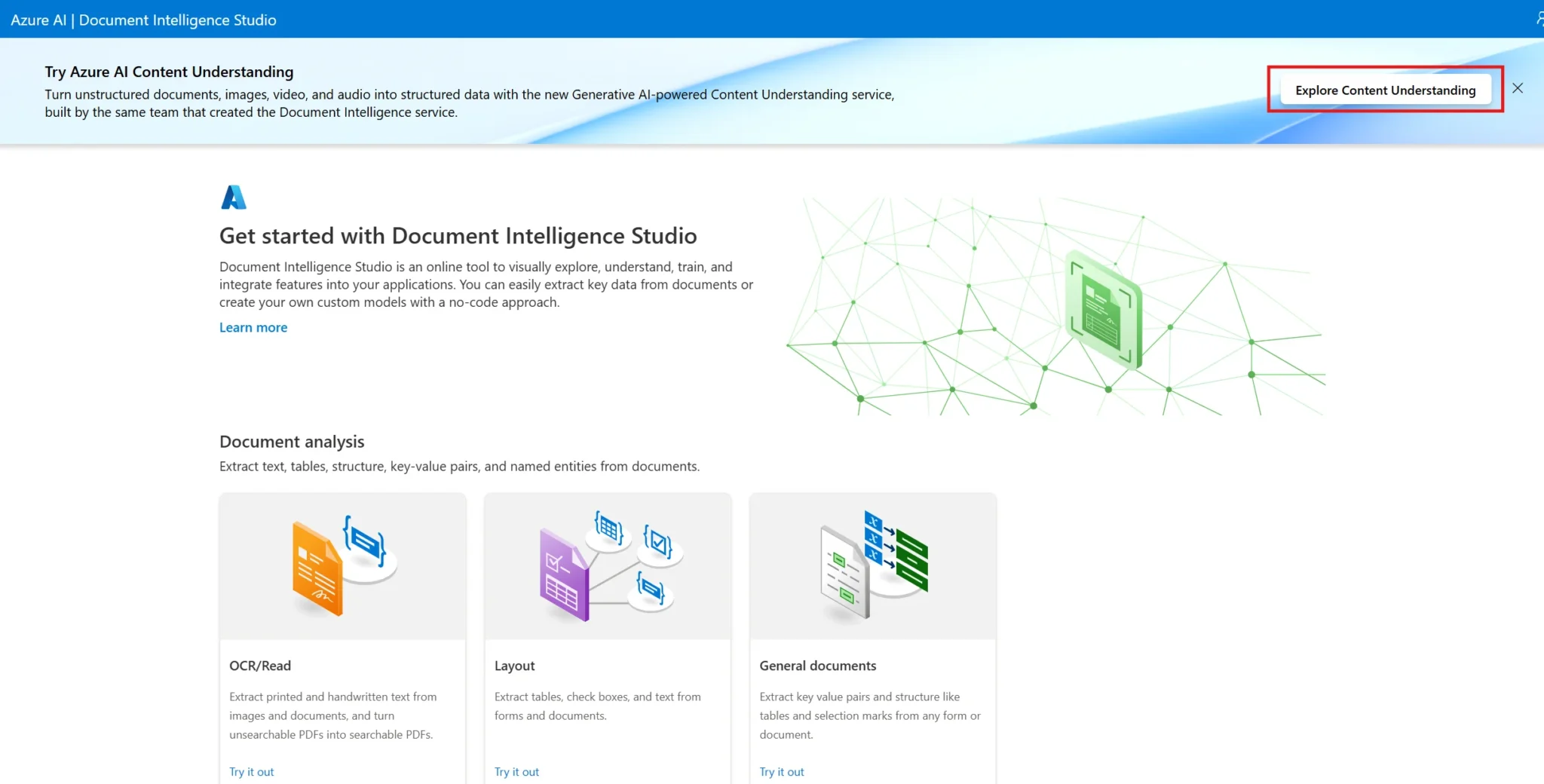
Content Understanding supports a wide variety of services through a unified API.
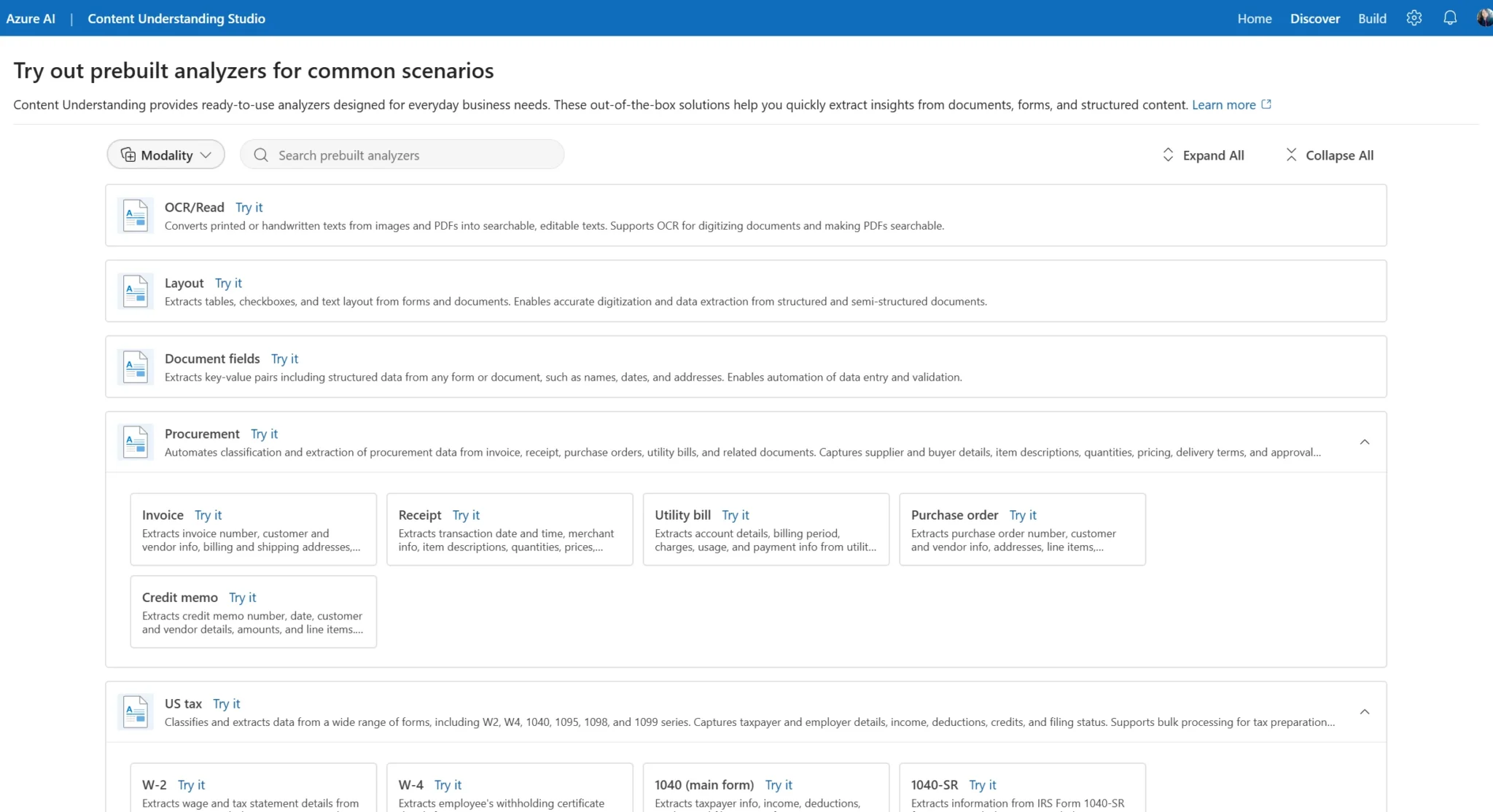
You can learn more about the ready-to-use models and services in our blog dedicated to this topic. For this blog, we’ll focus on the prebuilt layout analyzer, which can extract text, paragraphs, and images from PDFs without any model training needed.
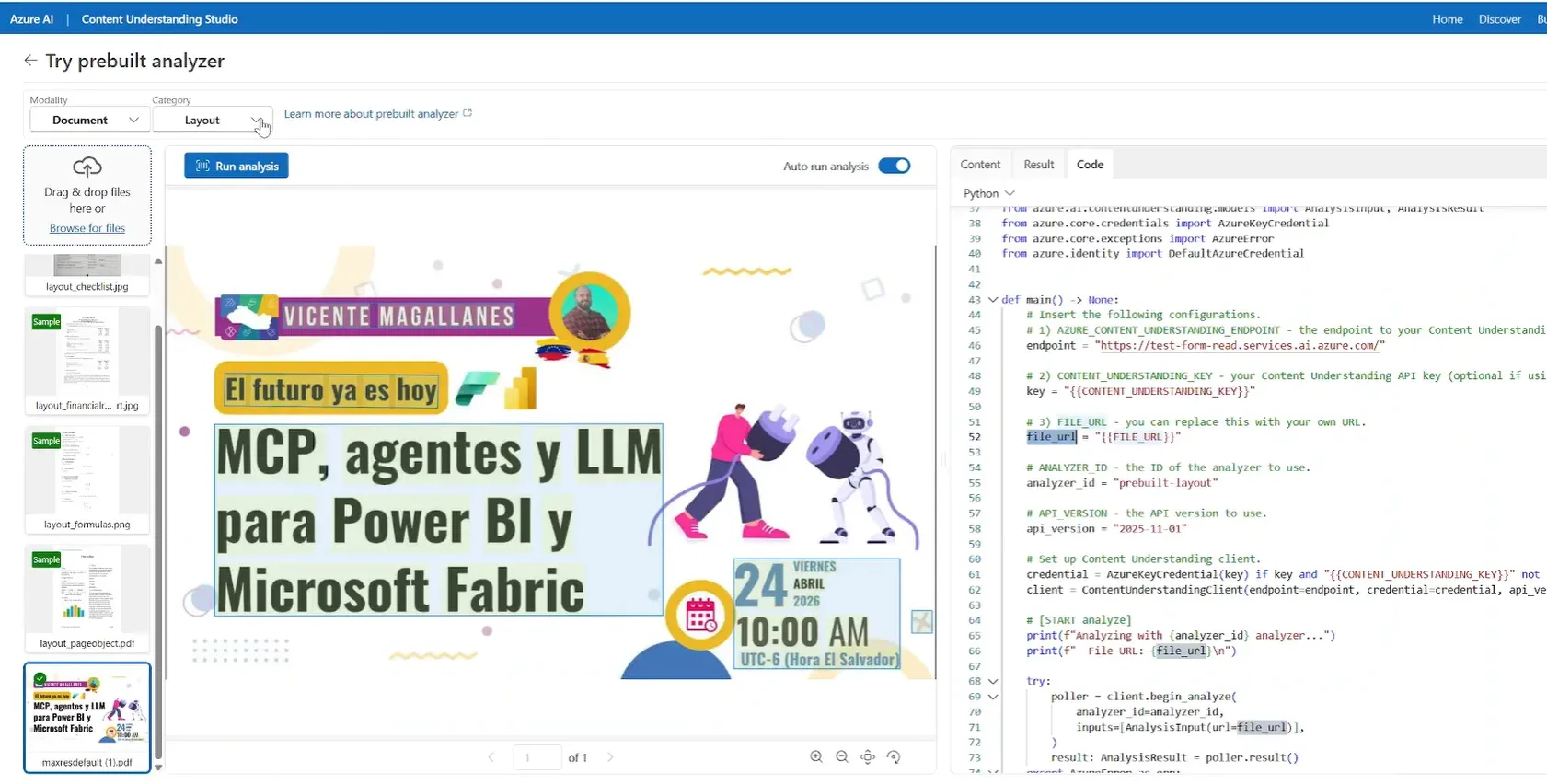
Step-by-Step: Use Content Understanding Service from Power Automate
Prerequisites
You need a Microsoft Foundry resource deployed in the Azure portal before starting. To learn more about creating a Microsoft Foundry resource in 2026, you can watch this tutorial in our YouTube channel
Once deployed, get the endpoint and subscription key from the Keys and Endpoint section under the AI services tab or from the resource management section
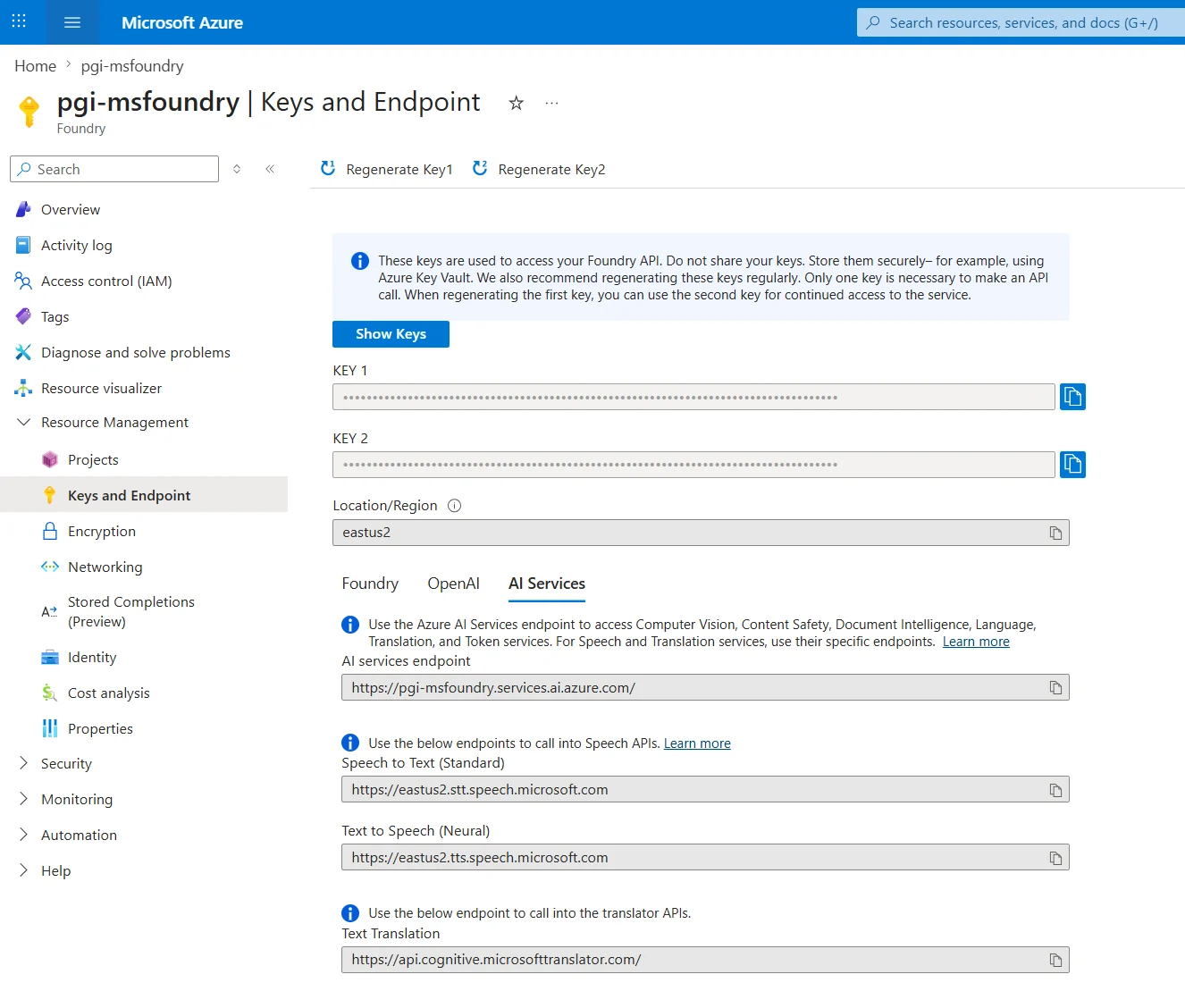
Step 1. Create a new instant cloud flow in Power Automate
Go to the Power Automate portal and create an instant flow. Give it a descriptive name like Azure_ContentUnderstanding_Example.

Step 2. Get the file content from SharePoint
Add a Get file content using path action. Select your SharePoint site, then provide the file path to your PDF.
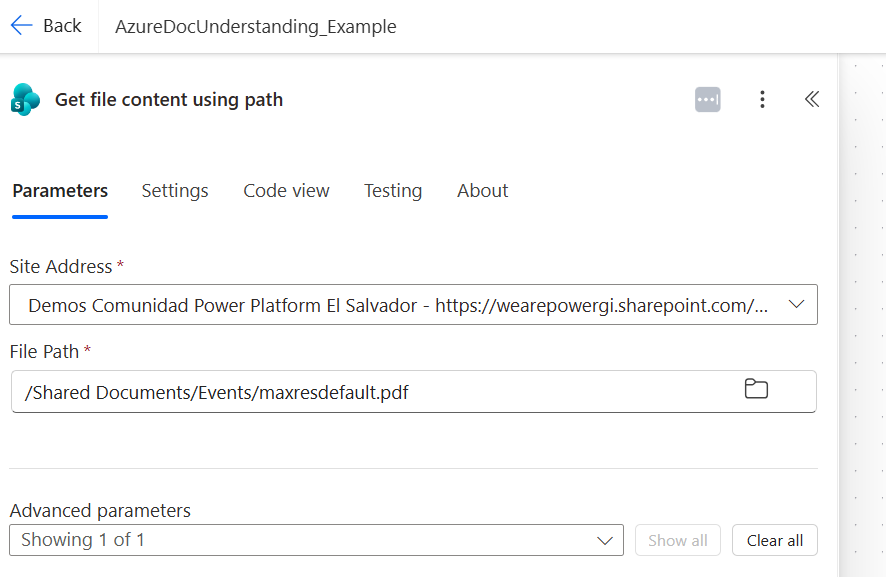
Step 3. Add an HTTP action to submit the document
Add an HTTP action and set the method to POST. The URL follows this pattern from the Content Understanding documentation:
{endpoint}/contentunderstanding/analyzers/prebuilt-layout/analyze?api-version=2025-11-01
Headers:
					Content-Type: application/json
Ocp-Apim-Subscription-Key: {your key}
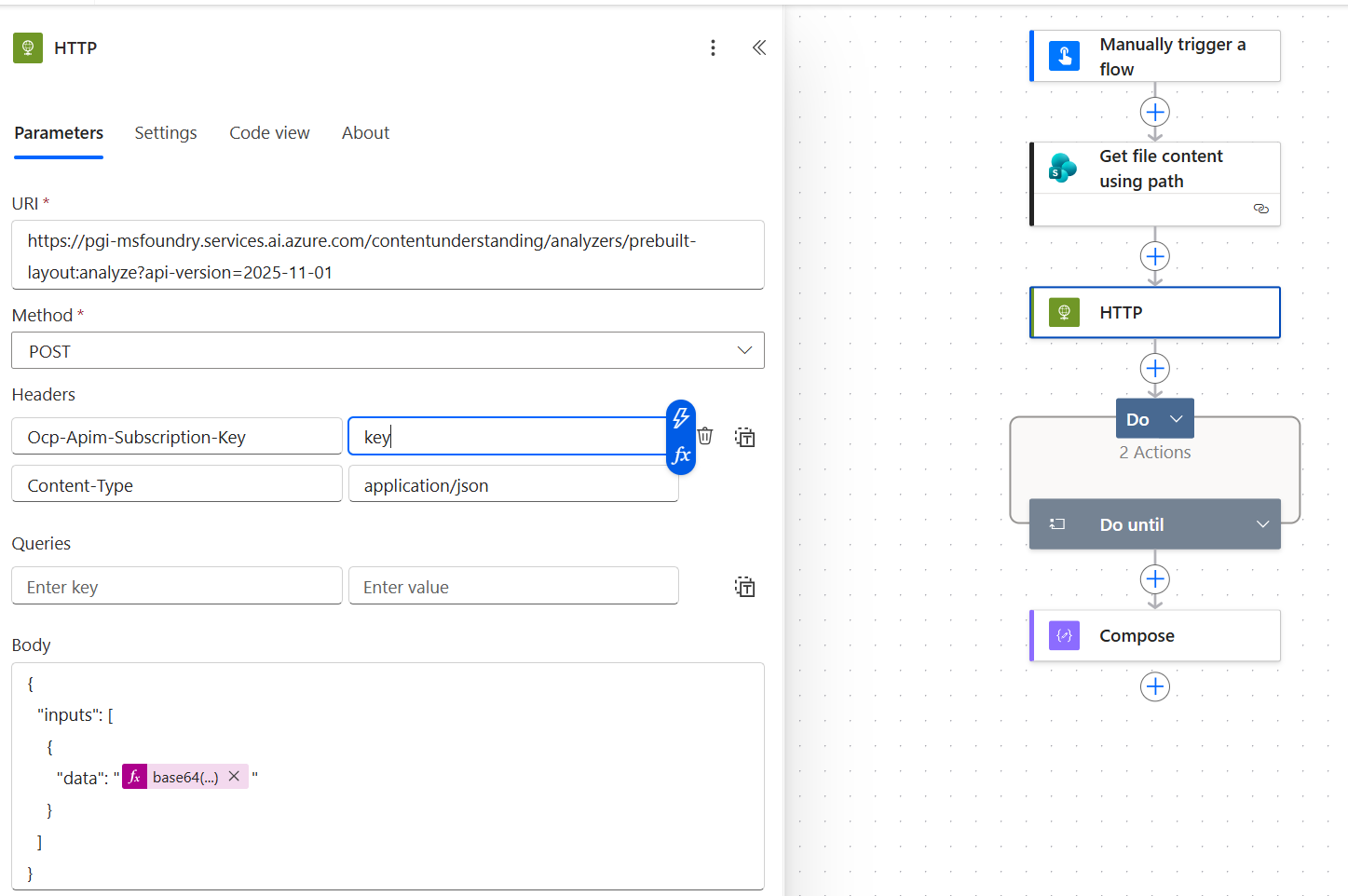
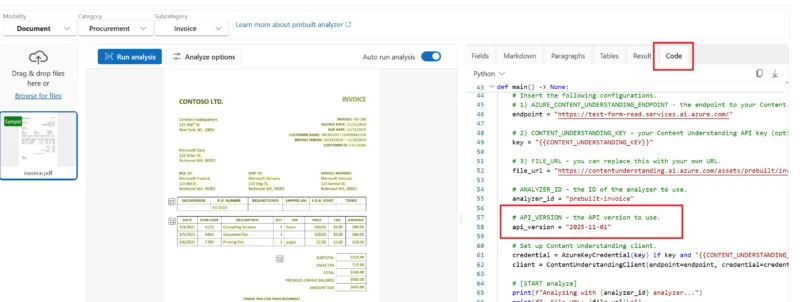
The API version can be extracted from the Content Understanding studio.
Step 4. Convert the file to Base64 and set the request body
The Content Understanding API expects file content in Base64 format. In the HTTP body, use the expression builder and wrap the SharePoint file content with the base64() function:
					{
  "inputs": [
    {
      "data": "@{base64(body('Get_file_content'))}"
    }
  ]
}
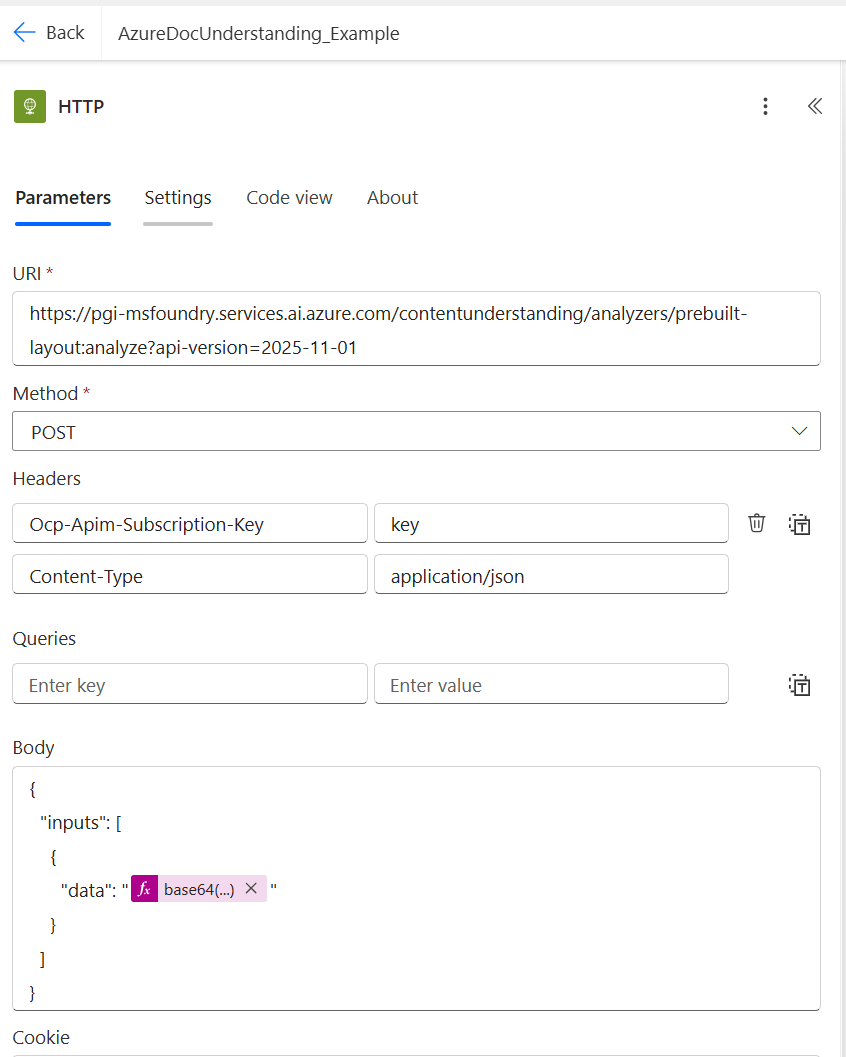
Step 5. Extract the operation location from the response headers
The POST call does not return the extracted content immediately. Instead, the response headers contain an operation-location URL where the result will be available.
Extract it using this expression:
@{outputs('HTTP')?['headers']?['operation-location']}

Step 6. Add a Do Until loop to wait for the result to be available
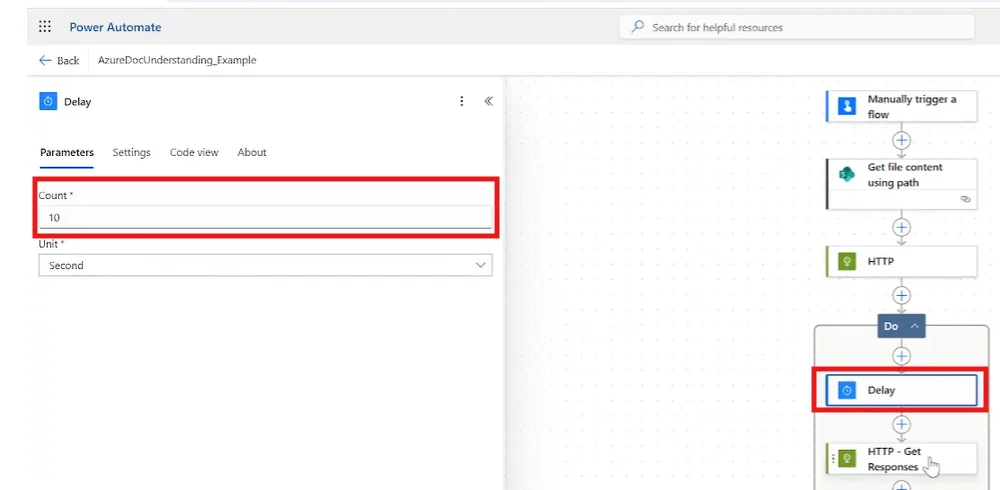
Add a Do Until control action. Inside the loop, place a Delay of 10 seconds followed by a new HTTP GET action that calls the operation location URL (with the same subscription key header). Configure the Do Until to keep running while the response body status equals running:
@{body('HTTP_Get_Responses')?['status']} not equal to "running"
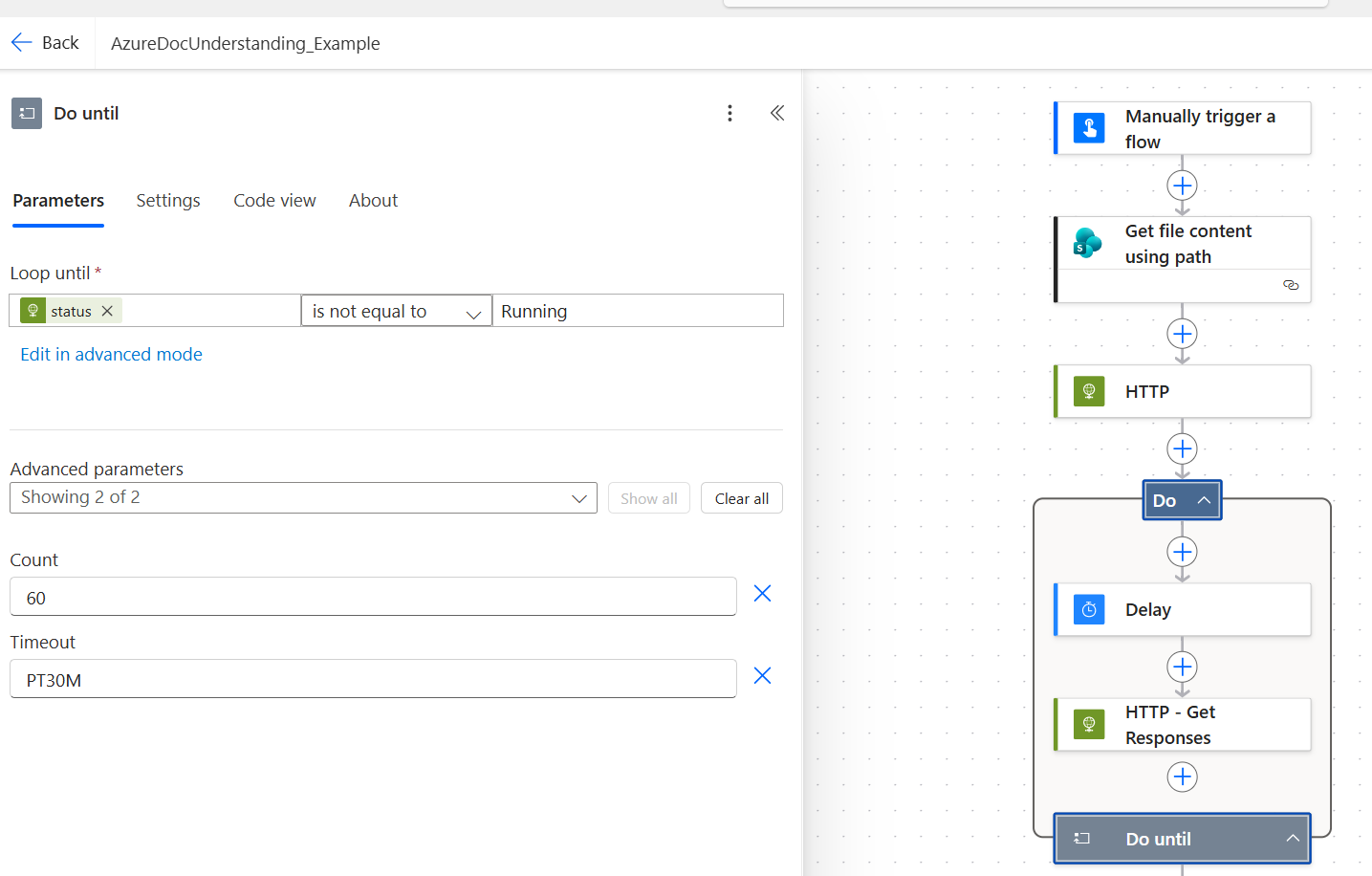
This is how the Get action should look to extract the status of the response.
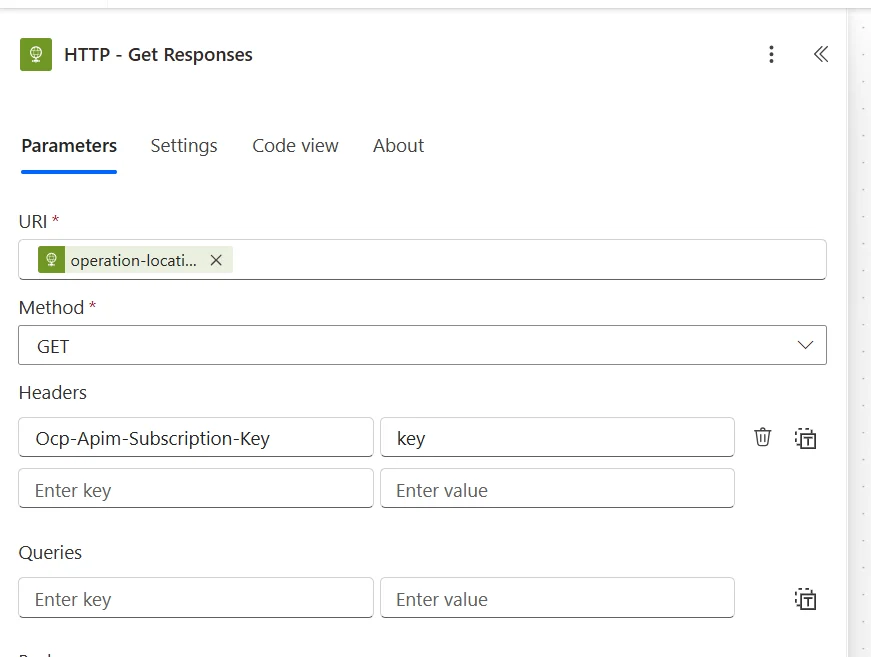
Step 7. Access the final result
Once the loop exits (status is succeeded), we can extract the results by referencing the body from your HTTP GET action. This gives us the full JSON response containing paragraphs, text content, image locations, page count, and everything we need.
This is the function that can be used:
@{body('HTTP_-_Get_Responses')}
Azure Content Understanding Inputs and Outputs Examples
The prebuilt analyzers in Content Understanding handle a variety of document types, each returning structured JSON you can work with directly in Power Automate.
Supported input types
- PDF files (single and multi-page)
- Invoices, receipts, utility bills, credit memos
- US tax forms
- Contracts
- Images (JPEG, PNG, TIFF, BMP)
- Identity documents (passports or generic ID documents)
- Audio files for transcription
- Video files (for multimodal analysis)
- Public file URLs
What gets extracted
- Full OCR text per page
- Paragraph blocks with bounding boxes
- Tables with rows, columns, and cell values
- Detected images and their positions
- Page count and dimensions
- Default key-value pairs (for example, for invoices or US tax form)
- Custom key-value pairs (for your own-trained models)
- Structured fields with confidence scores
After the async operation completes, the body looks like this:
					{
  "status": "succeeded",
  "result": {
    "pages": [
      {
        "pageNumber": 1,
        "paragraphs": [{ "content": "Event details..." }],
        "figures": [{ "boundingRegions": [] }],
        "tables": [{ "rowCount": 5, "columnCount": 3 }]
      }
    ],
    "content": "Full extracted text of the document..."
  }
}
In Power Automate, we can navigate this structure using the ?[‘result’]?[‘content’] expression to pull out exactly the field we need for downstream logic.
Each model may return a different JSON response depending on the model that is being called. Exploting the Content Understanding studio is the best option to better understand the inputs and outputs for each requirement:
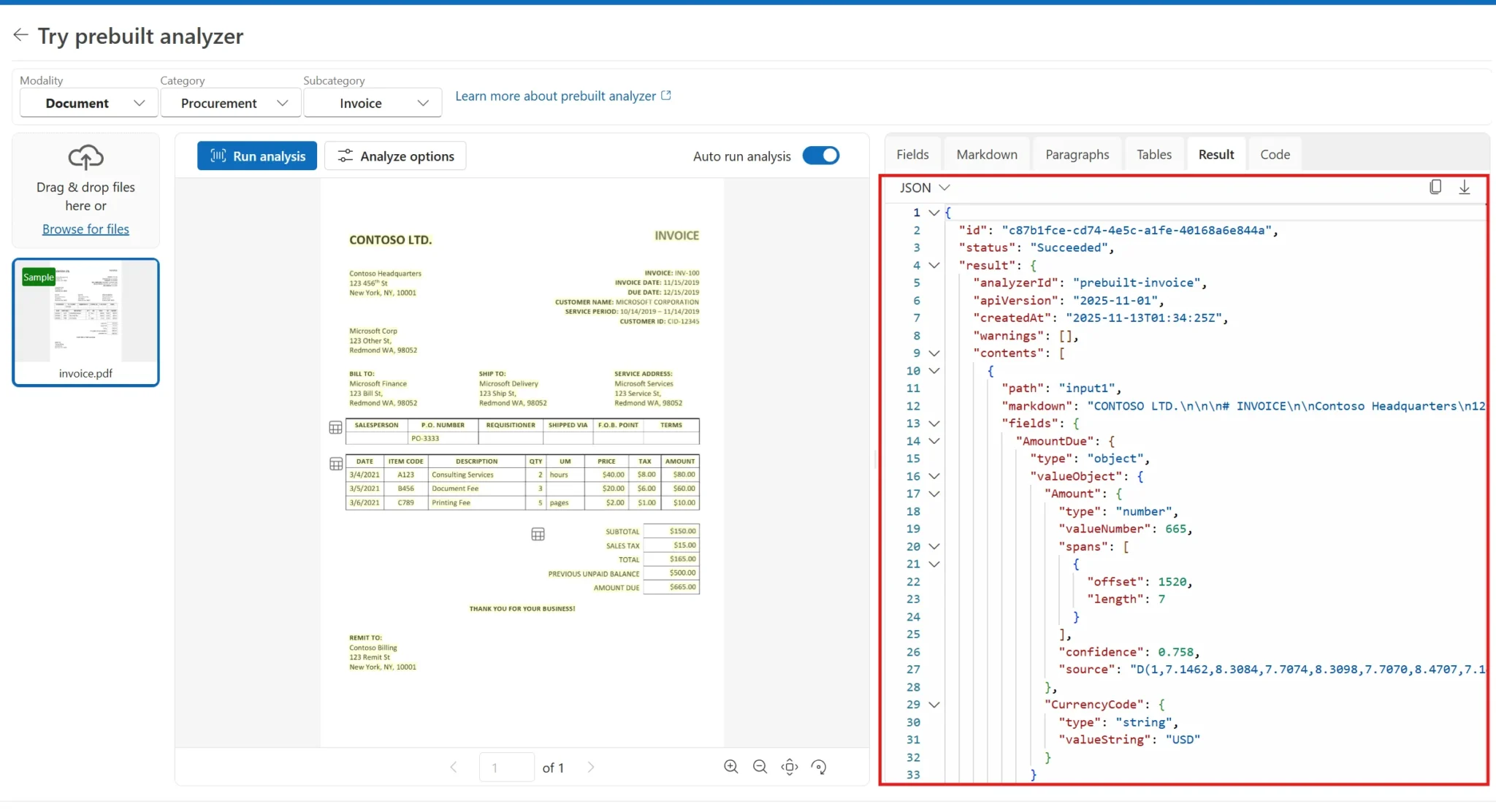
Common issues when using Azure Content Understanding from Power Automate
File content is in binary: API returns an error
When you get a file from SharePoint using Get file content, the output is binary:

@{base64(body('Get_file_content'))}
Using a deprecated or preview API version
API versions 2024-12-01-preview and 2025-05-01-preview are being retired on July 15, 2026. Using a preview version in production also means no SLA coverage and potential breaking changes with no notice.
Fix: Use the GA version 2025-11-01 in your endpoint URL. You can confirm the current recommended version by checking the code sample shown in Content Understanding Studio on any sample document.
Flow consumes too many API calls by polling too frequently
Without a delay, the Do Until loop can iterate dozens of times per second, consuming Power Automate action quota and potentially hitting Content Understanding rate limits.
Fix: Always add a Delay step inside the loop. Ten seconds is a practical default; 5 seconds is acceptable for time-sensitive flows.
Best Practices for AI-Powered Content Automation
- Always use async polling, not fixed delays. Never trust the response will be ready in 5 or 10 seconds, always add a proper waiting system for document understanding worflows.
- Use child flows for reusable extraction logic. If you will implement document understanding from multiple flows need to read documents, wrap the polling loop in a single child flow that can be called from any of the other flows.
- Store your API key and endpoint in a environment variable. It’s better to not hardcode subscription keys directly in HTTP actions.
- Use confidence scores to route documents for review. The API returns confidence values for extracted fields. Use these values to route low-confidence results to a human review step rather than having them processed automatically.
- Keep an eye on the General Availability (GA) API version. Make sure to check if the API version being used will be deprecated or replaced and keep your workflows updated.
Video tutorial: use Content Understanding service from Power Automate
We also created a step-by-step walkthrough in our YouTube channel where Graciela shows how to use the content understanding service and how to implement the waiting system with a Do-while set of actions.
Automate Content Understanding workflows with PowerGI
Whether you’re ready to implement AI document processing or exploring what’s possible, contact us and discover the joy of automating document understanding processes.