Table of Contents
What are environment-aware Office Scripts in Power Automate?
When building a Power Automate flow that runs an Office Script, the Power Automation prompts for the SharePoint site, the document library, the list name, and the script and workbook IDs, which by default lets makers select from a dropdown of folder selection:
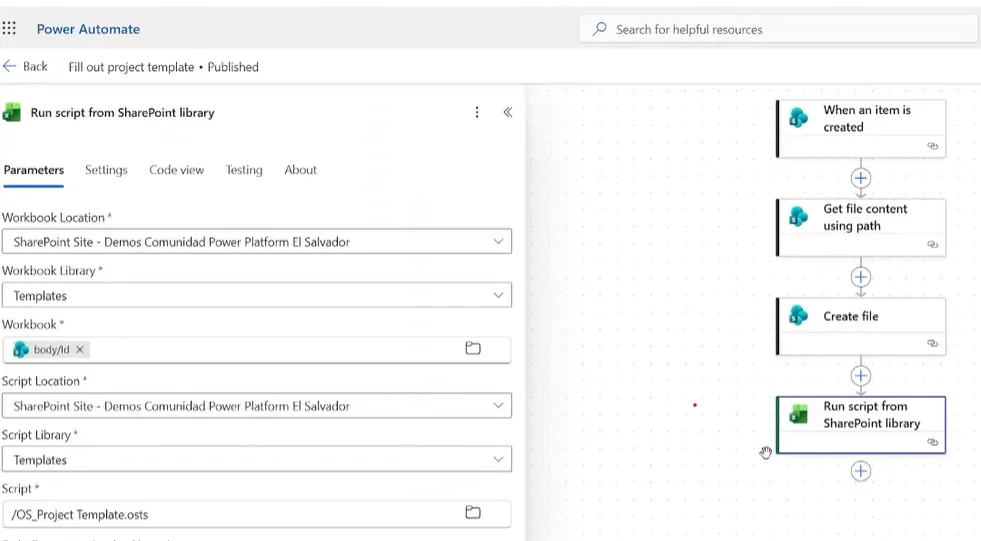
Above works well until we deploy the solution in QA or Prod and we need to make updates to the office script without affecting any of the environments.
An “environment-aware” Office Script setup means the Power Automat workflow uses environment variables or configuration tables with values that are different in each of the environments, to so that each environment will point to different SharePoint sites, libraries, and Office Scripts. Envrionment separation for office script is really important because it lets us keep a clean separation between development, QA and production.
How to Run Office Scripts in Power Automate Across Environments
This blog will show the step-by-step process for setting up a Power Automate workflow that runs an office script that is connected to separate SharePoint sites. You can also watch a walkthrough in our YouTube channel
The example used for the video and for this blog is a simple Excel template automation:
- Trigger: whenever a new project is added to a SharePoint “projects” list,
- Actions: get the contents of a template file, create a copy of the template, and finally run an Office Script that fills in the copy using four input parameters (project name, company, department, and investment).
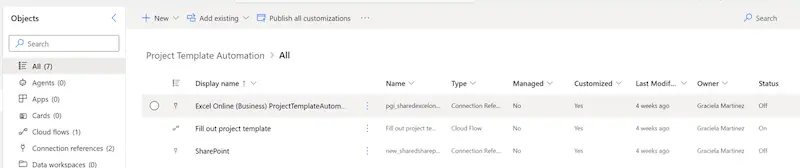
Pre-requisite: Make sure your workflow is part of a solution
Make sure the flow already lives inside a solution, for the example in the video and this blog, the solution name we are using is “Project Template Automation”.
Step 1: Create SharePoint library and lists with matching structures
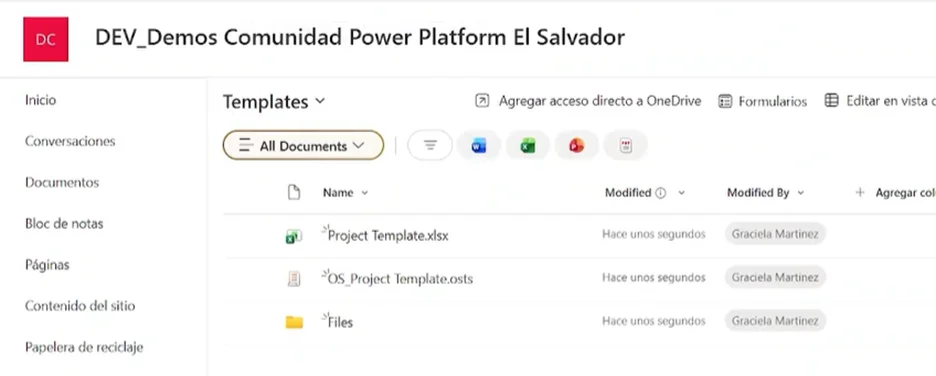
It is recommended that the SharePoint sites for each environment have identical structures:
- Same document library name (e.g., “Templates”),
- Same subfolder for generated files (e.g., “Files”),
- Same template file and Office Script uploaded to both sites.
- Same SharePoint list for the trigger
Step 2: Create an environment variable for the SharePoint site
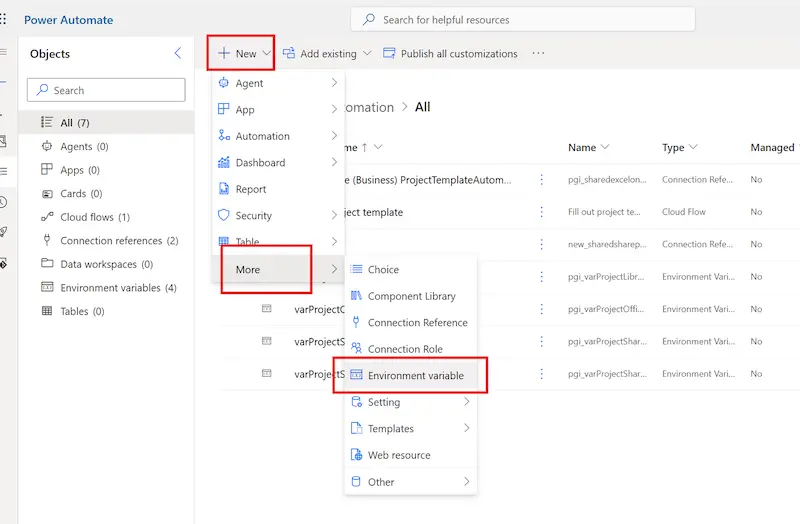
Open the solution, and go to New > More > Environment Variable.
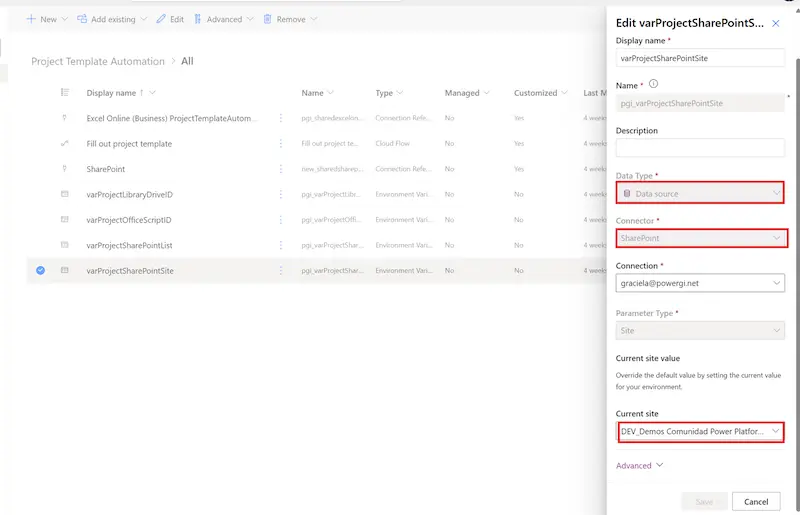
Set the data type to Data source, then choose SharePoint, and select Site. Paste the URL of the development SharePoint site as the value or select from the dropdown:
Step 3: Create an environment variable for the SharePoint list
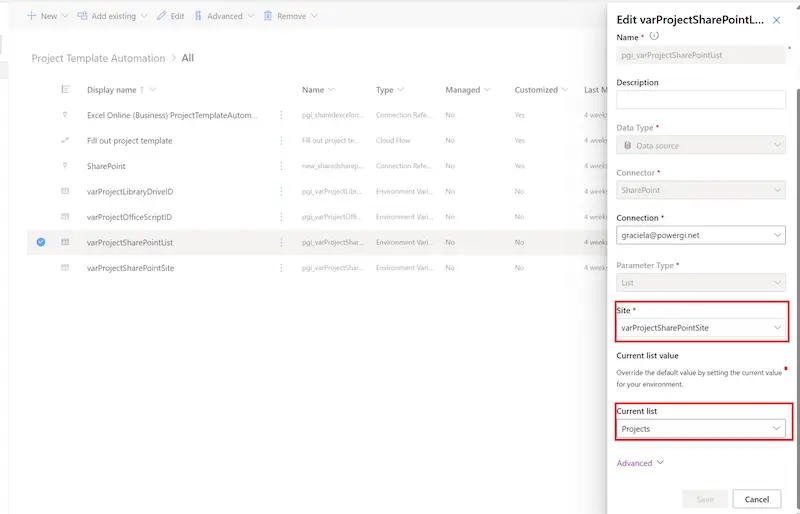
Now let’s the same but for the SharePoint list. This time we will pick SharePoint > List. This is the variable that will be used in the trigger, the SharePoint list that will have the project data
Step 4: Create the workflow and set the trigger to a dynamic SharePoint site
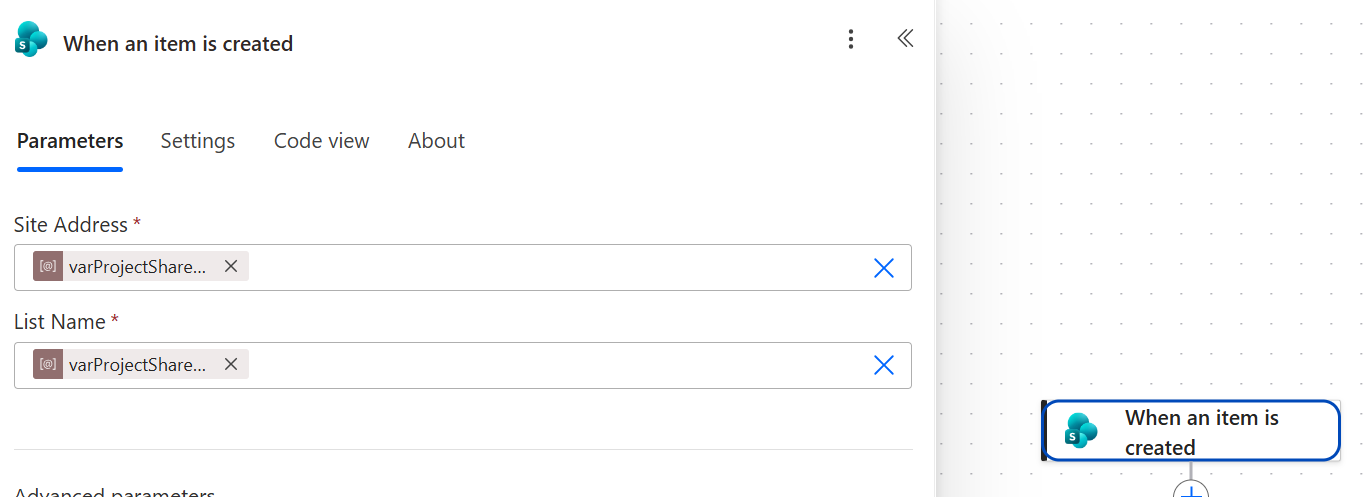
In the SharePoint site and list selection, choose Enter custom value, and select the dynamic environment variables we just created.
Step 5: Make a copy of the template from the Power Automate workflow
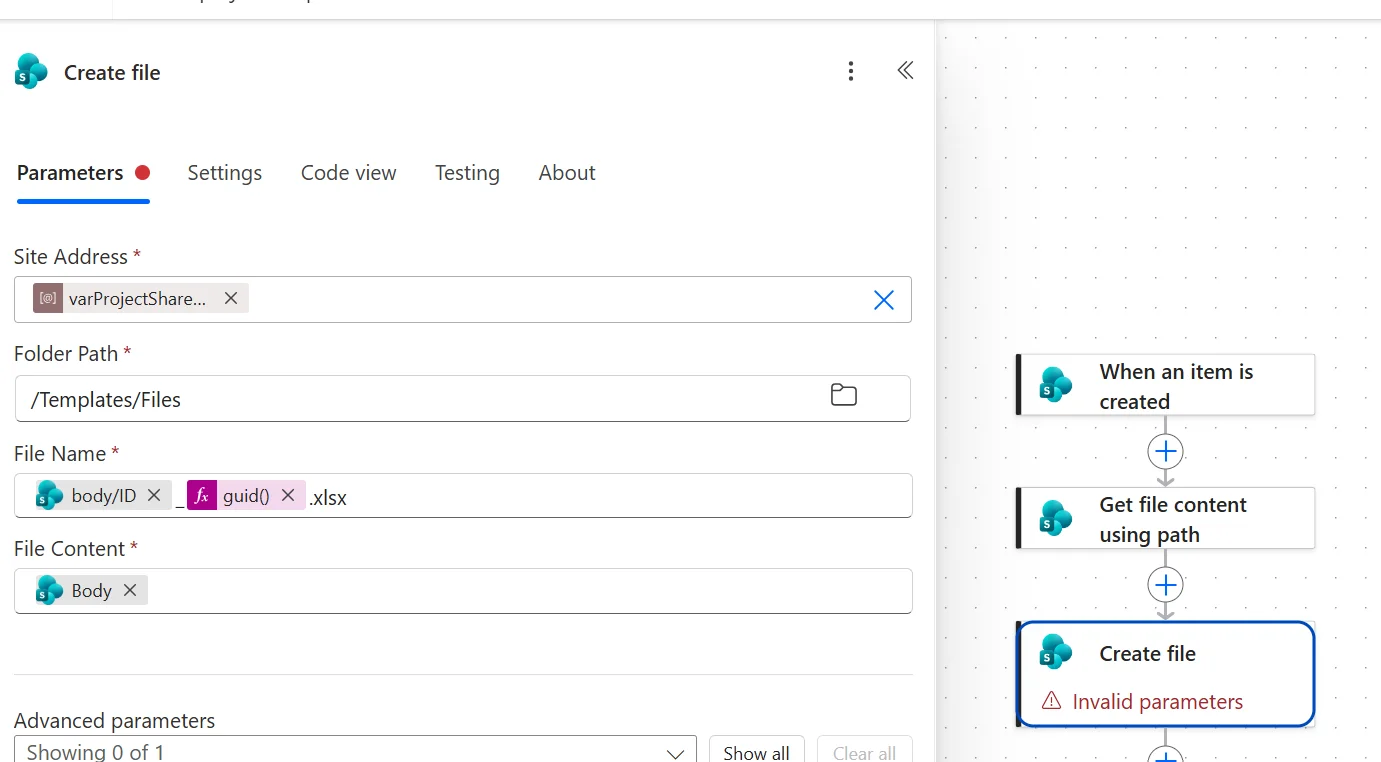
Add a “Get file content using path” and a “Create file” actions from the SharePoint connector in Power Automate.
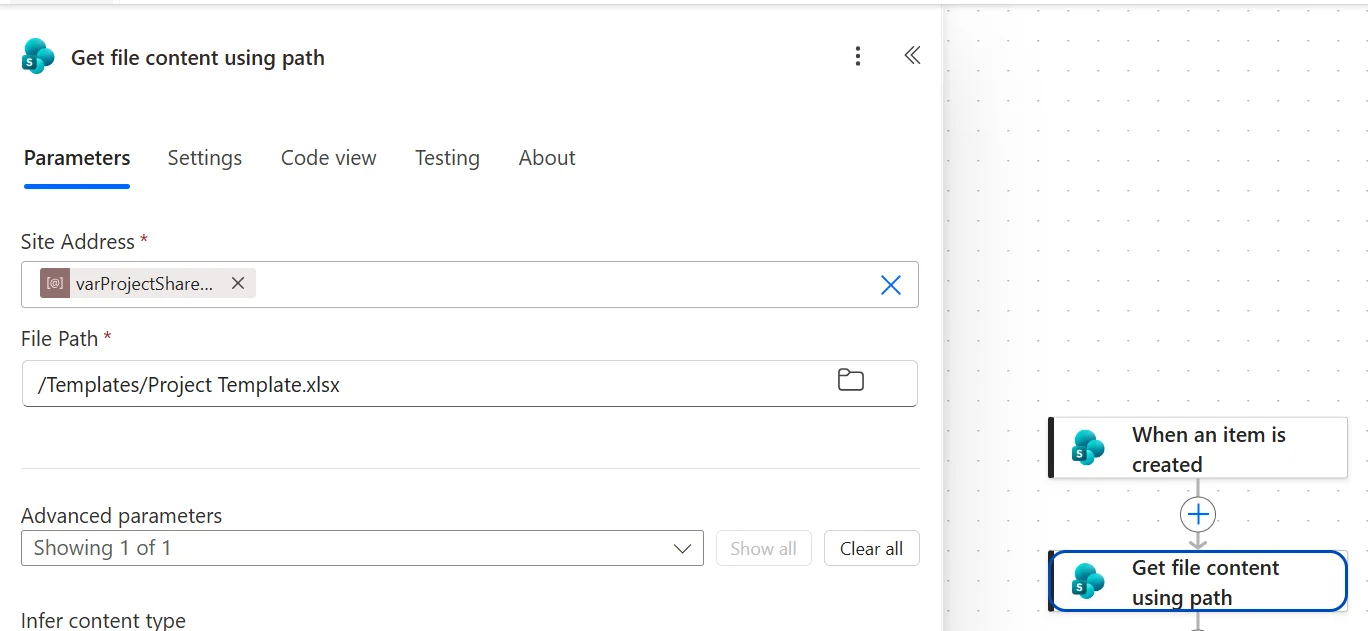
Use the environment variable for the SharePoint site for both of them
Step 6: Get the drive ID and script ID for the Office Script in each site
The Run script from SharePoint library action needs workbook location, workbook library, script location, and script library to work.
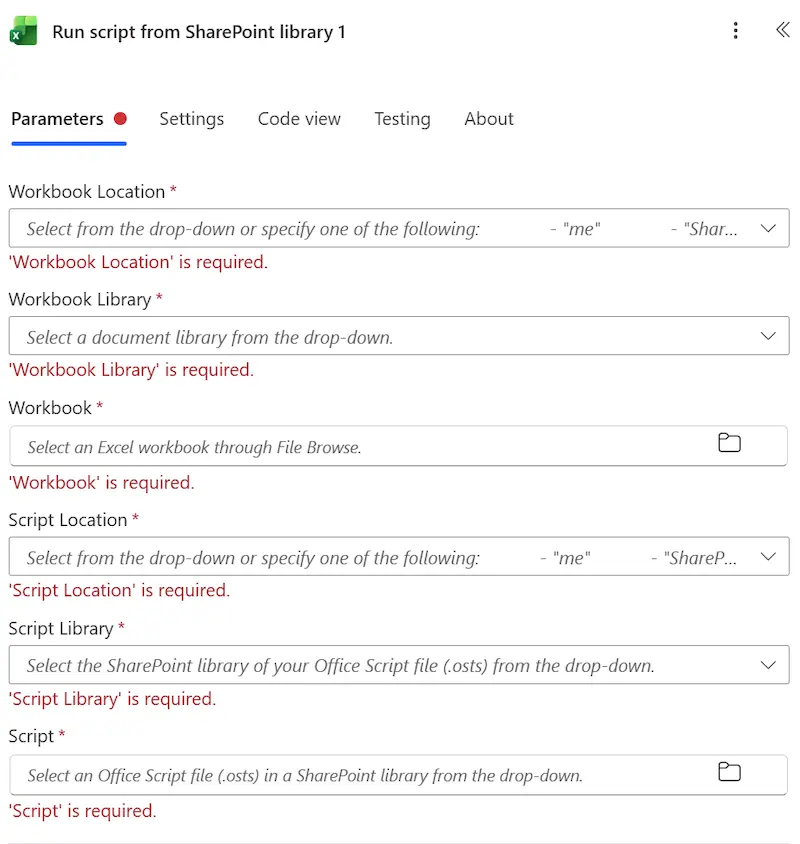
For workbook library and script library, we need to get the library drive id. And for the Office script field we need the item drive id.
One way to get these drive ids is to manually select the script and libraries from the Power Automate and use the code view action.
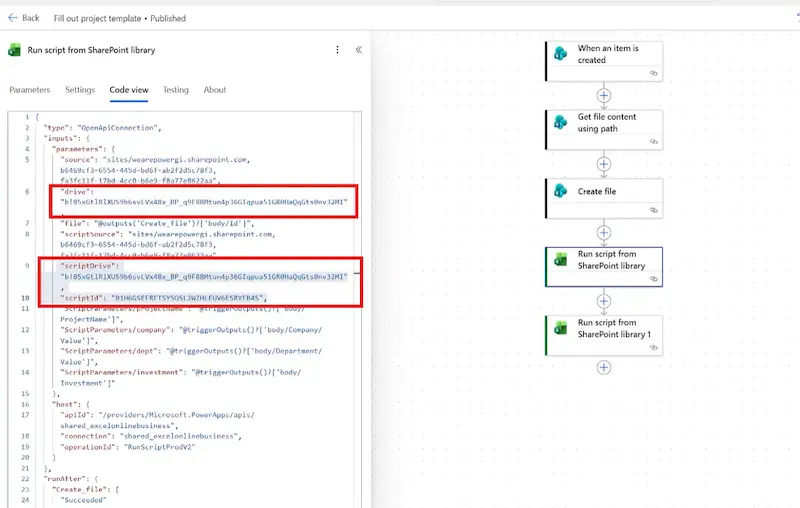
Step 7: Create text environment variables for the drive ID and script ID
Let’s go back to the solution and create two new environment variables. These must be Text type.
					•	var_project_library_drive_ID, with the development drive ID as both the default and current value.
•	var_project_office_script_ID, with the development script ID as both the default and current value.
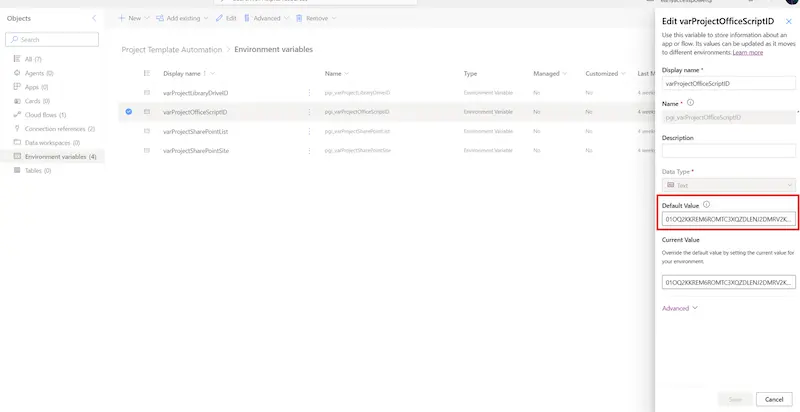
Note: if a single automation uses several Office Scripts, creating one environment variable per script ID can be too much so a configuration table listing all script IDs could be a cleaner approach.
At this point we should have the following environment variables:
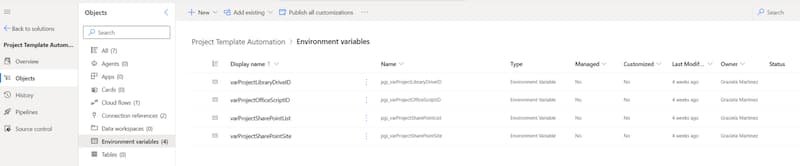
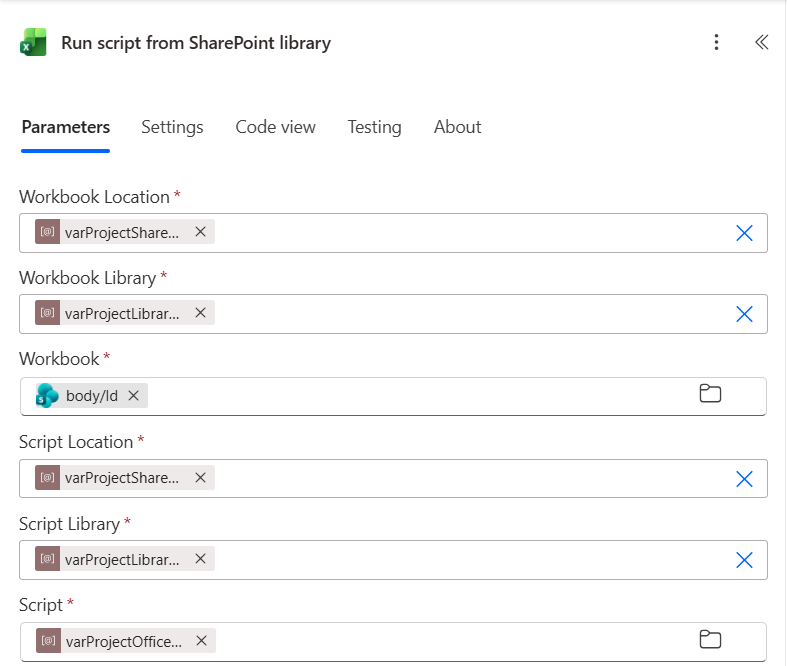
Step 8: Apply the new variables to the Office Script action
Set the workbook library and script library fields to the drive ID variable, and the script ID field to the script ID variable. It should look as follows
Step 9: (Optional) Fill out parameters, if the office script has input variables
When working with environment variables, you’ll be prompted right away to fill out all parameters:
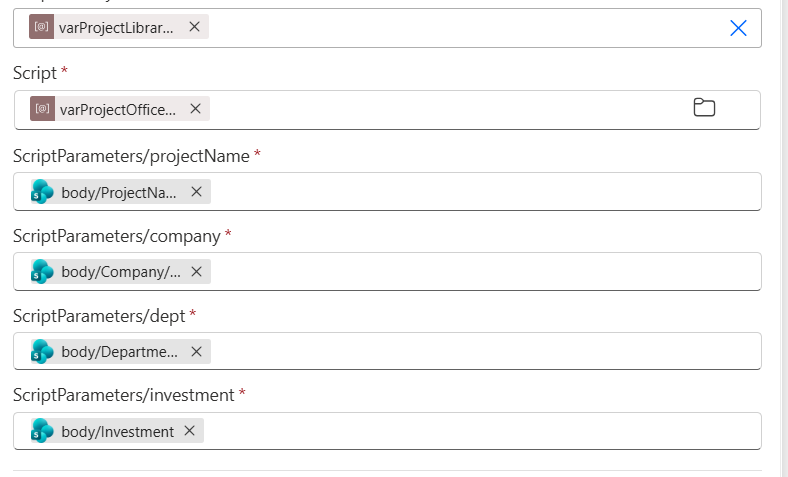
If instead of straightforward environment variables a configuration table, condition or expression is used, Power Automate can no longer calculate the script’s parameters at build time, so it will not know which are the parameters. In this scenario this is how it should be filled out as follows:
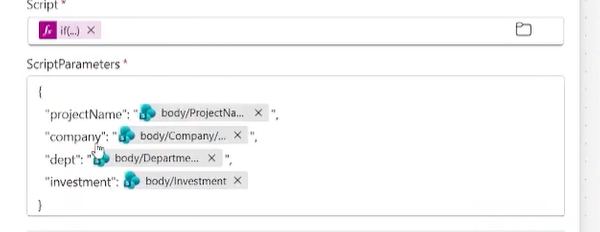
If no parameters are needed, just input @{null}.
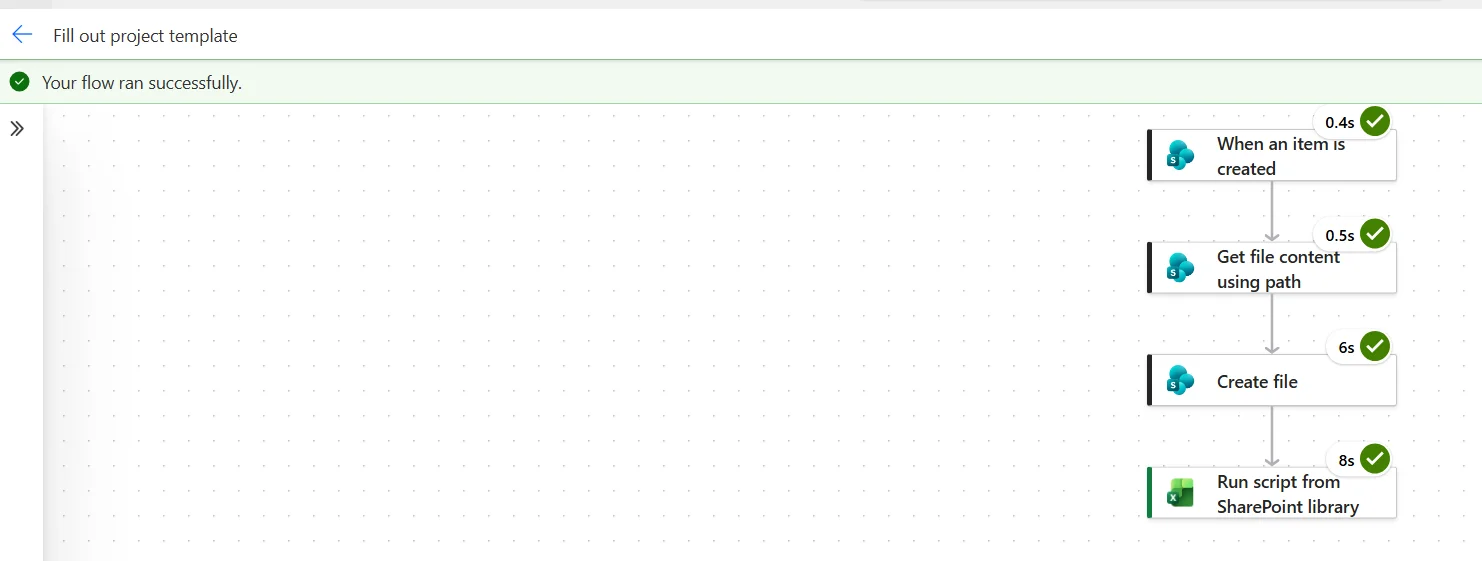
Step 10: Test in the development environment
Create a SharePoint item and make sure all runs as expected.
Step 11: Prepare and export the solution
Make sure to add any missing required objects to the solution (e.g., Power Automate connections).
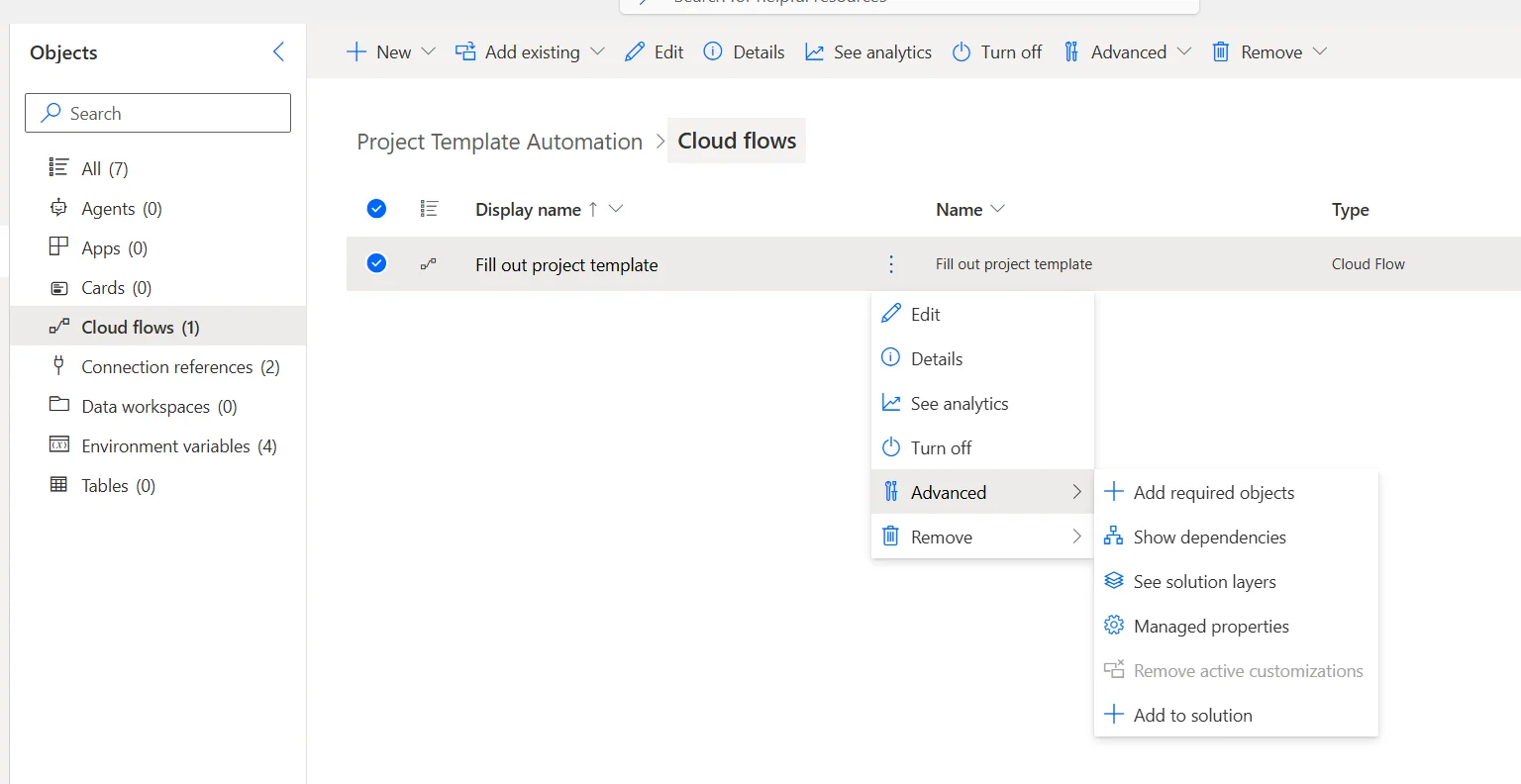
Publish all customizations, then go to Export, choose Managed solution, and export.
Step 12: Import into the production environment
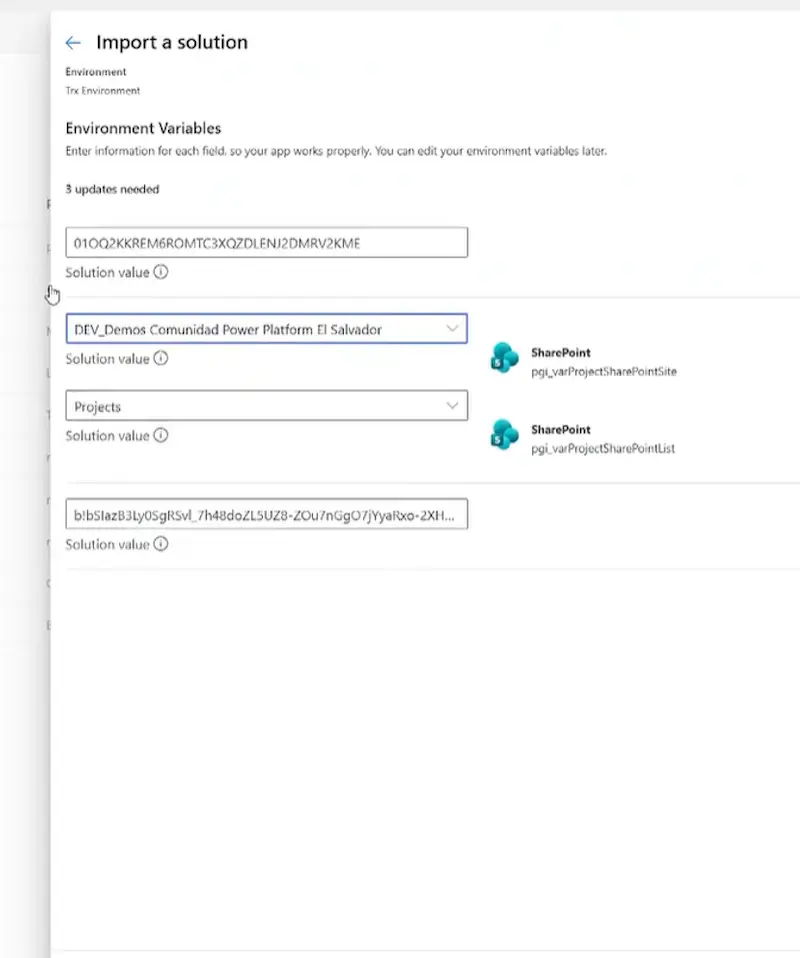
In the production environment, import the solution file. During import, we’ll be prompted to sign in to any required connections, and then to supply the values for each environment variable:
Step 13: Test in production
Let’s add a new project to the production SharePoint list and confirm the flow runs against the production site, library, and Office Script. All is set now and our environments are completely separate!
Common issues when running Office Scripts in Power Automate
Issue 1: Environment variables are not recognized in Power Automate
When we just created an environment variable, sometimes Power Automate refuses to recognize them. To fix this, just open the workflow in incognito mode, or wait a few minutes.
Also make sure that the Power Automate workflow is part of the solution.
Issue 2: List environment variables don't work for Office Script library/script fields
The Office Script action’s workbook and script library fields expect a drive ID, while the standard SharePoint list-type environment variable stores a different GUID (the library ID as Power Automate represents it elsewhere). So unfortunately, Data source environment variables can’t be used for Excel automations, Text type values with the drive id are the solution for this issue.
Issue 3: Script parameters and values get cleared when switching the SharePoint site field
If at some point we had a workflow that had hardcoded values in the SharePoint and file selection, once the SharePoint site field on the Office Script action is changed to a dynamic value, the values are cleared out in the modern editor. Having a window open with a duplicate of the workflow can help so we don’t have to remember everything.
Issue 4: Script parameters collapse into a single field with conditional logic
If expressions or conditions are used in the office script action, the individual parameter fields disappear and are replaced by one combined field.
The fix to this is entering a JSON payload with the parameter names or use @{null} if the script doesn’t have parameters.
Best Practices for Office Script ALM and Handover
Some key points to remember when working with Power Automate and Office Scripts across different environment are:
- Try to keep SharePoint site structures identical across environments. Same library names, folder names, and file names in development, QA (testing) and production.
- Upload the Office Script and template to every SharePoint site.
- Use environment variables for anything that changes between environments (SharePoint site, list, drive ID, and script ID)
- Consider a configuration table instead of individual environment variables if your solution involves more than a couple of Office Scripts, to keep things maintainable.
Build environment-aware Power Automate solutions with PowerGI
If you’re working with Excel automations and need some help setting up the correct configuration for environment separation, we’d love to have a conversation and see how we can help you implement ALM practices with our Power Automate consulting services. Contact us and let’s discover the joy of automation together!