Table of Contents
How Can Human in the Loop Prevent AI Mistakes in Copilot Studio?
Even if technology can now do a lot on its own without supervision and AI agents take on more of the work, there are some scenarios or situations where it’s important for humans to jump in and review or provide confirmation or additional data.
In Microsoft’s ecosystem we now have two main options for a human review checkpoint: the Human in the Loop/Human review action in Copilot Studio Workflows, and the Approvals connector that has been around Power Automate for years and that is also available in Copilot Workflows. In this blog, we will cover the two options and when to use which.
What Is Human-in-the-Loop Automation?
Human-in-the-loop (HITL) automation is a pattern where a workflow pauses at a defined point and waits for a person to do something before continuing. This person can either approve, reject, correct data, or provide missing information. The key idea is that the workflow waits and receives the human’s input to it in the next step.
There are usually common roles for the human in this type of automation pattern:
Role of the human | What they do | Example |
Approver | Says yes or no to a proposed action | Approving a purchase request |
Reviewer / editor | Checks and corrects the agent’s output | Fixing an AI-drafted customer reply |
Information provider | Supplies data the agent doesn’t have | Confirming a contract number or a missing date |
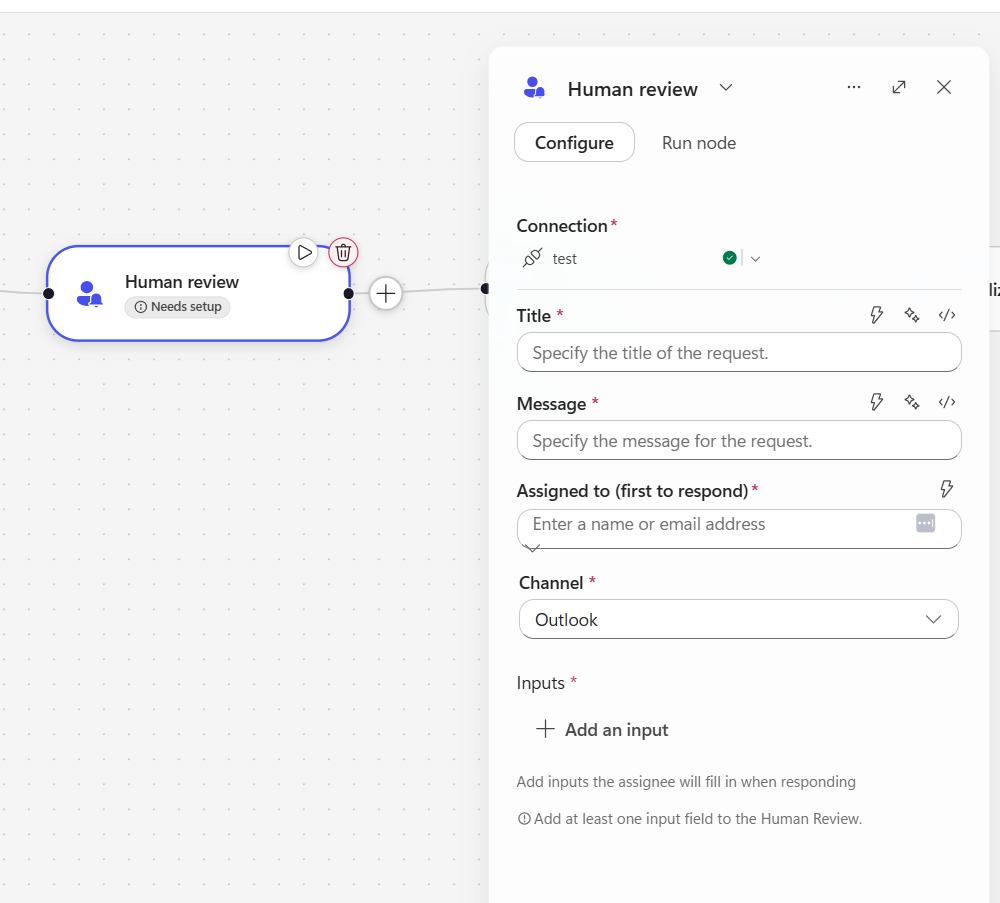
In the Copilot Workflows world, the Human-in-the-loop action is now called “Human review” and it has the following components:
- Title of the request
- Message of the request
- Which user(s) will review the request
- Where will user(s) receive the request (Email or Teams)
- What will the user(s) provide (inputs)
When should AI agents pause for human review?
Not every workflow needs a human. If we add reviews everywhere, people stop paying attention, messages might be ignored and automation loses value.
Here are some general guidelines to follow:
- The action is hard to undo. Payments, deletions, external communications, contract changes.
- The financial or legal impact is high. Set a threshold, such as any amount above a defined value.
- The agent’s confidence is low. Ambiguous inputs, missing fields, or conflicting data.
- The data is sensitive. Personal data, HR information, or customer-specific commitments.
- Compliance requires it. Some processes need a documented human decision and an audit trail.
- The agent is missing information. It should ask rather than guess.
Standard Approval connector
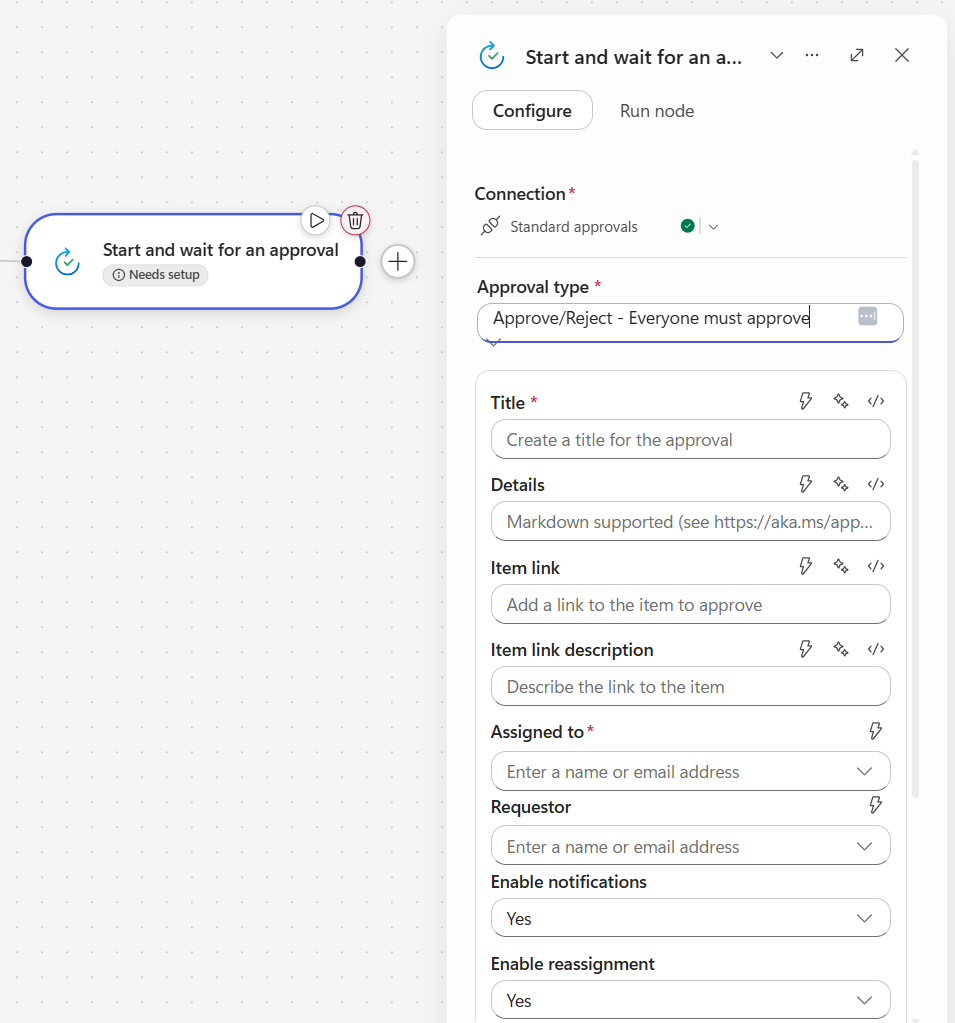
The Standard Approvals connector has been around in Power Automate for quite some time and it’s the official connector for formal approve/reject decisions.
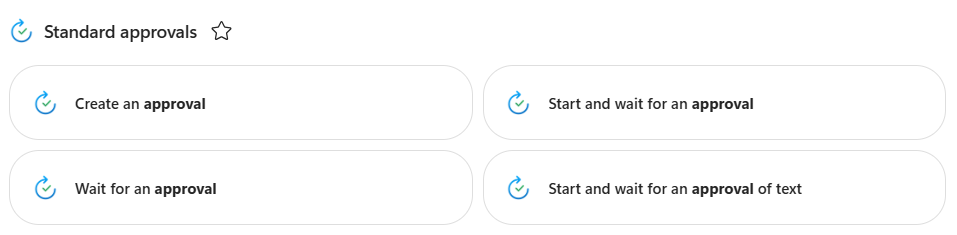
It has four main actions:
- Create an approval (kicks off a request without pausing the flow)
- Start and wait for an approval (pauses execution until a response comes back)
- Wait for an approval (pauses on an approval already created elsewhere in the flow)
- Start and wait for an approval of text (automated text approval process and then waits for it to complete)
The approval connector is connected directly to the Approvals experience in Teams, Outlook, and the Power Automate portal, so everything gets logged behind the scenes in Dataverse tables and approval can happen in any of these three platforms, so logging and auditing is a native feature of this connector.
Even if the Standard Approvals connector originated in Power Automate and has been a staple there for years, it’s also available inside Copilot Studio workflows, so these features can be leveraged from the workflows authoring canvas.
Human in the Loop vs. Standard Approvals: Which Connector Should You Use?
Both connectors pause a workflow and wait for a person, but they were designed with different goals:
- Standard Approvals connector: Built around a formal approval process: a request goes to one or more approvers, who respond, and the outcome is recorded. Everything is logged in Dataverse tables behind the scenes.
- Human review: Built for Copilot workflows where a person needs to do more than just approve or reject, it receives different types of inputs and different types of data: Text, email, number, date yes/no.
The main issue with Human review action is that if the user deletes the email in their Outlook inbox, the request gets lost and the response for the request will never be received. Auditing and logging is where the Standard connector wins the battle: since the approval is linked to Outlook, Teams and the approval portal, the request remains alive even if the user deletes the email or ignores the Team notification, and everything is logged on the default approval tables in Dataverse.
In general, if logging and auditing is important, pick the Standard connector, if a quick review with more inputs is needed, pick the Human Review connector.
How Do You Add Human Review to Copilot Studio Workflows?
Adding the Human review action is pretty straight forward, just find the node where the human review is needed and use the add button.
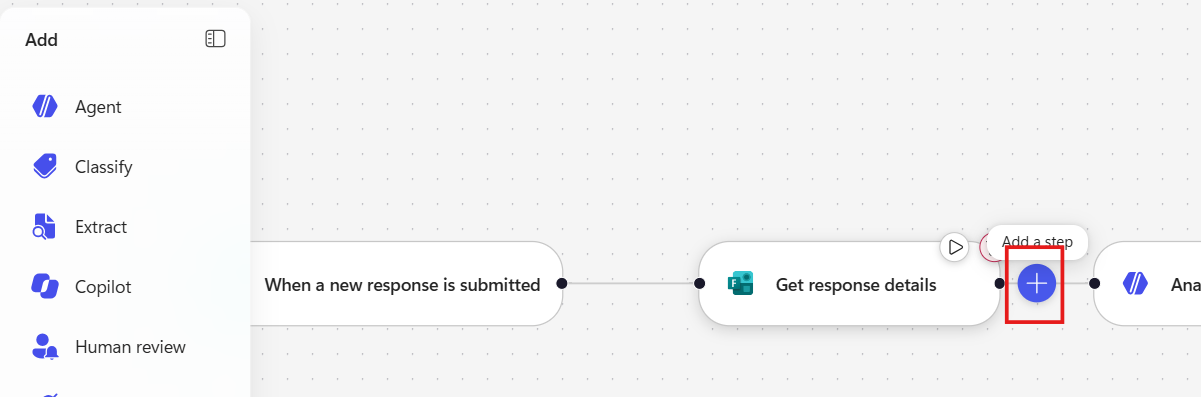
Then find the Human review action
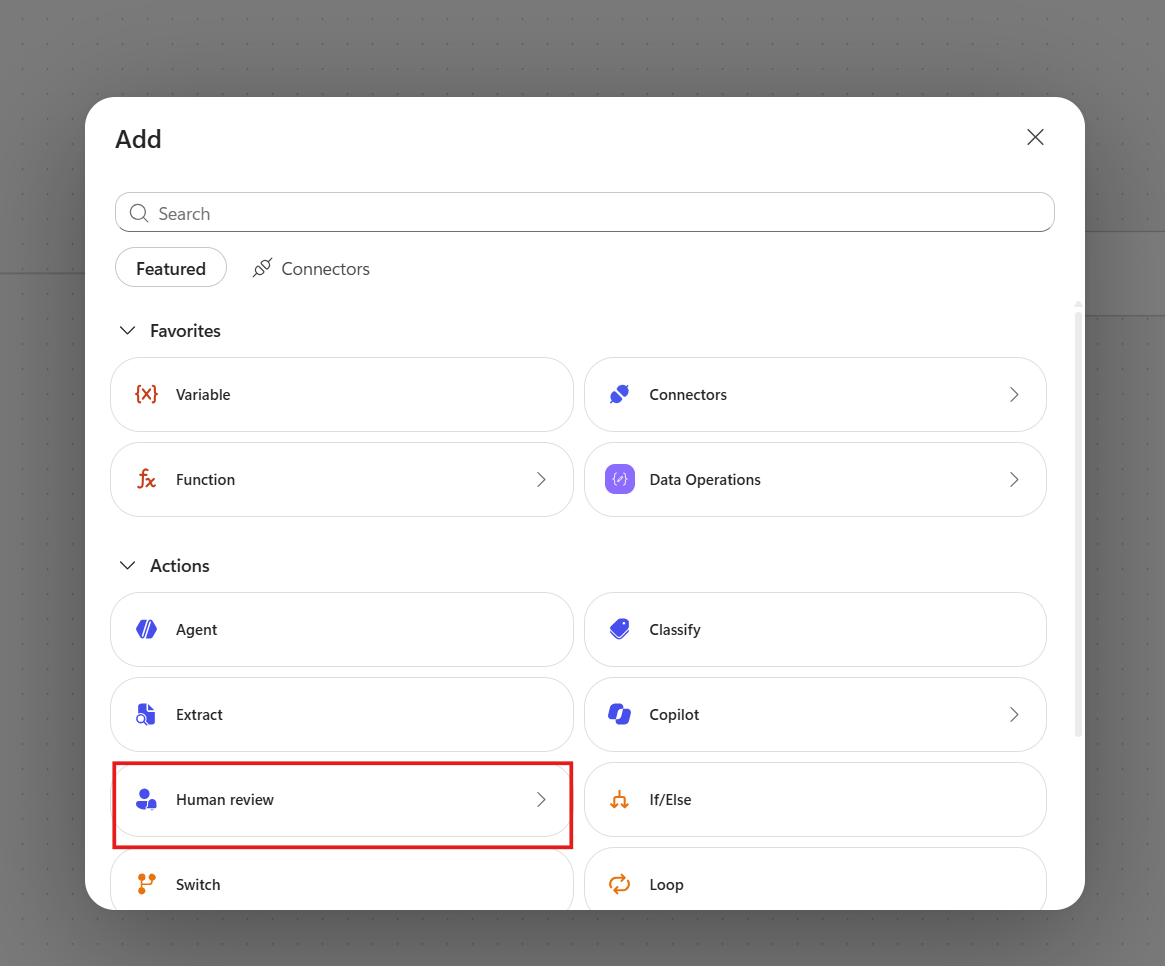
After that, fill out all the required inputs that the approver or reviewer will have to provide:
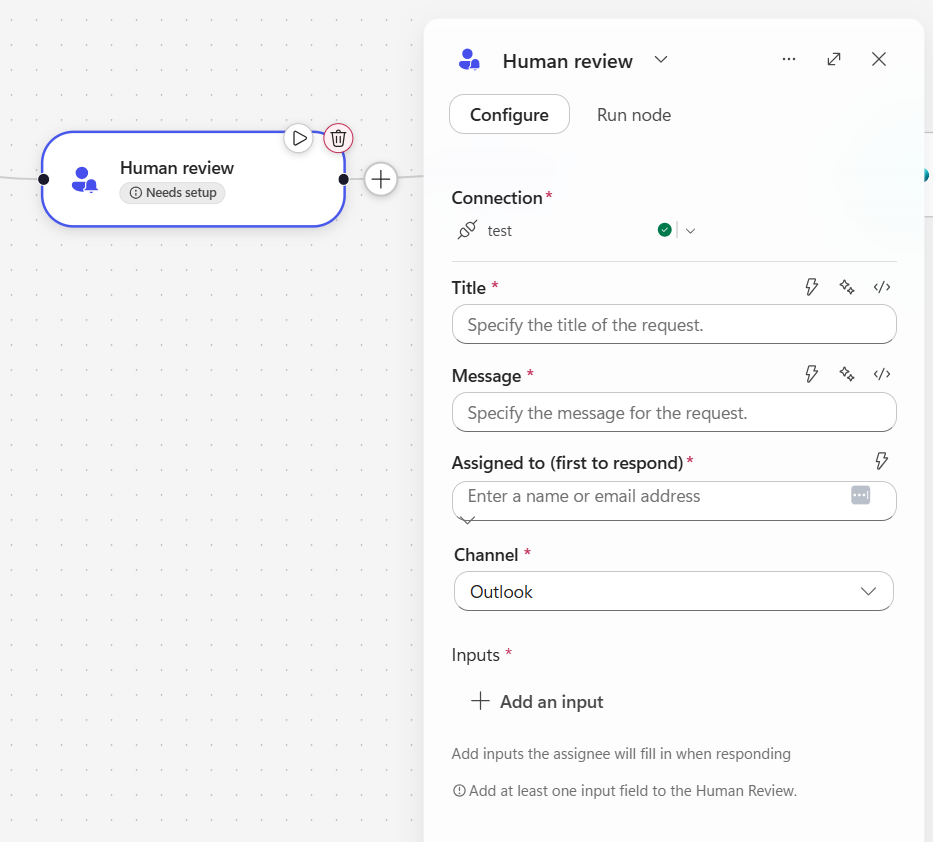
- Title
- Message
- Which user(s) will review the request
- Where will user(s) receive the request (Email or Teams)
- What will the user(s) provide (inputs)
The input types the user can add are:
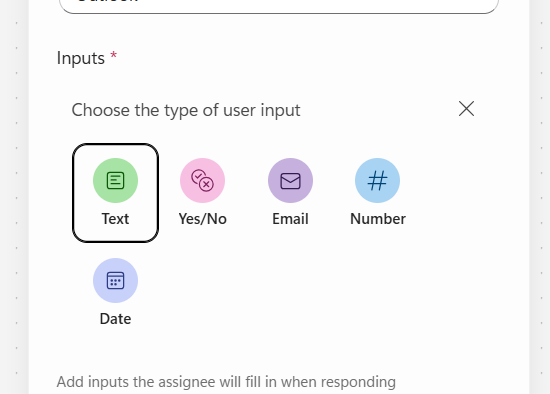
- Text
- Yes/No
- Number
- Date
Using the standard approvals connector from Copilot Workflows follows a similar process to what we already know in Power Automate, it has the very same options and fields:
Build Safer AI Workflows with Power[GI]
Some features in Copilot Workflow shine as gold, but that doesn’t necessarily mean they should be picked over the “old-school” actions. It’s always good to pick the right feature for each business requirement.
Until Microsoft doesn’t add the logging and auditing features that the standard connector has, if auditing is a must, always pick the Approvals connector. Use Human review when the agent needs a person to supply information or review its work but without auditing requirements.
With our wide experience in Power Automate and our Copilot Studio services, at Power [GI], we help teams design AI workflows with the right level of human oversight, from choosing the connector to building secure custom integrations.