Index
New updates have been published recently for Copilot Studio. We previously discussed some of the updates around Copilot Studio but in this blog we will dig deeper into new details that have been revealed by Microsoft in the recent weeks and we will cover some of the new things that have been driving the conversation around Copilot Studio in the last few weeks: Workflows, Agent Flows, the standard harness and the Github Copilot Harness.
What changed in the new Copilot Studio orchestrator? The Github Copilot harness vs the Standard harness
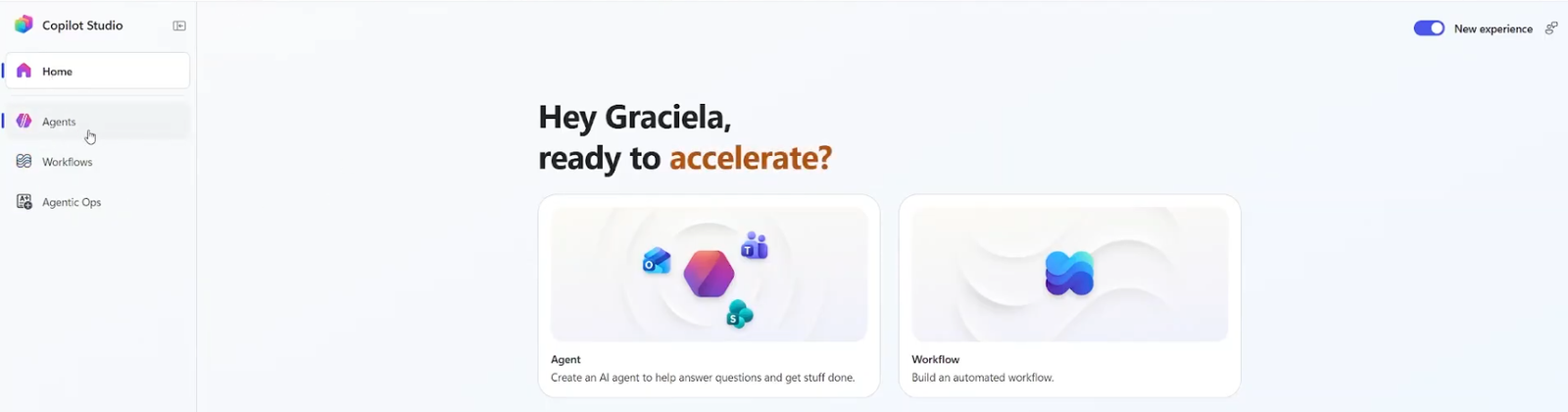
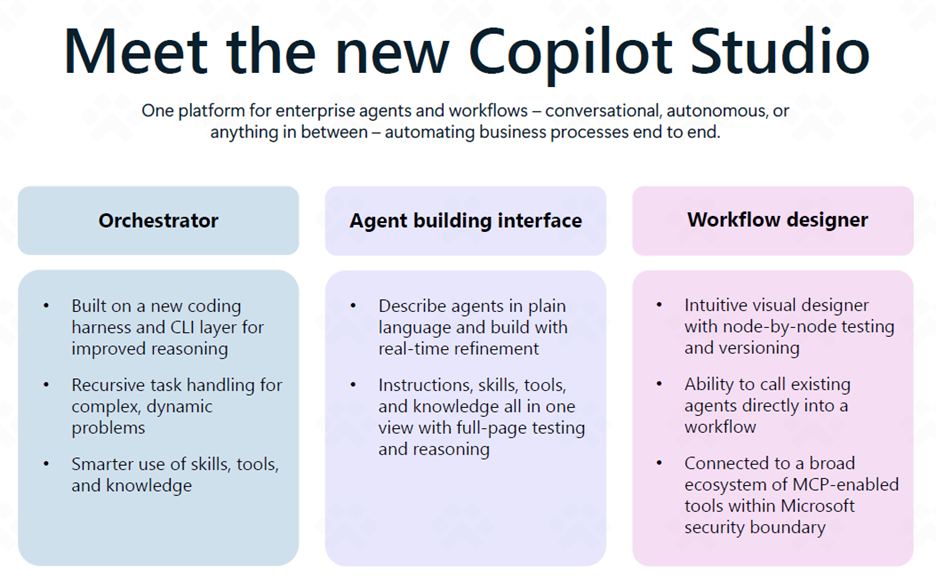
Per official Microsoft documentation, Copilot Studio now runs as a “unified platform” built around three main components:
- An orchestrator for reasoning
- An agent building interface
- A workflow designer for automations
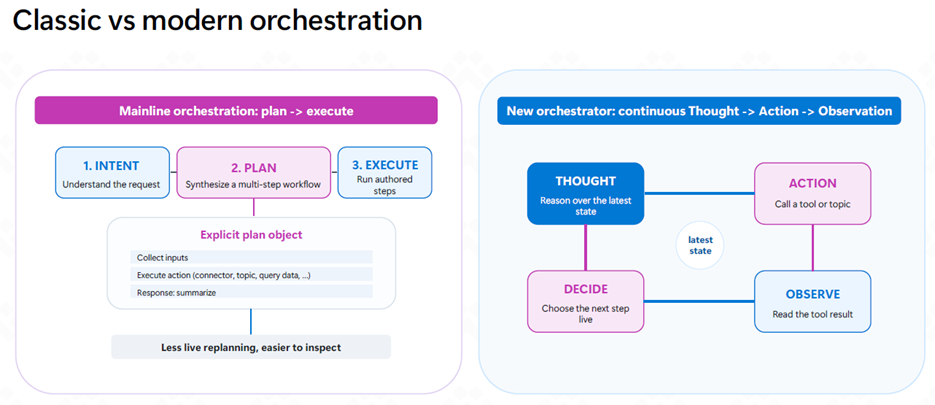
The new Copilot Studio orchestrator runs on what Microsoft calls the “Github Copilot harness“. This new harness runs a continuous Thought>Action> Observation loop, instead of the old plan-then-execute model that the “standard” harness used to have. Below we can see the comparison between the two harnesses, from official documentation published by Microsoft.
Above doesn’t mean we should all run to migrate existing agents or create all new agents in the new Github Copilot harness, each harness will work better for different scenarios and different business requirements. Here is a quick summary based on Microsoft Learn documentation on the capabilities for each harness and when to use.
| Github Copilot harness | Standard harness |
Best for | Complex and multi-step processes | Rule-based and structured conversations |
How it works | Reasoning is its main strength. Plans step by step based on a goal | Mainly through topics and rules defined in the agent configuration |
Works with files | Can work with different file formats: Word, Excel, PowerPoint and PDF | Yes, but limited |
Skills | Yes | No, instructions and knowledge source can be used but they are not skills themselves |
Memory | Yes | Limited. You can use variables to remember information about the user |
Billing | Copilot Credits | Can vary depending on where it was published |
Copilot Studio Workflows: What’s new?
Now it’s time to talk about the other part of Copilot Studio: Workflows. Workflows are a combination of Power Automate features + agentic and modern automation and they come as an improvement or optimization of the “classic” agent flows. In a way, it’s fair to say that Workflows are almost the same as Power Automate (connectors, actions, triggers) but with a few more actions that we don’t have in Power Automate. The main difference between these two is how it’s billed:
- Power Automate gets billed using the Power Automate licensing structure
- Workflows consume Copilot Credits
To understand where Workflows sit in the Microsoft landscape, it helps to compare Power Automate with Workflows.
| Cloud Flows (Power Automate) | Workflows (Modern Workflows) |
Best for | Automation across apps and services and deterministic automations | Agentic automation built natively in Copilot Studio |
Runs within | Power Automate | Copilot Studio |
Connectors | Standard and premium connectors | Same connector ecosystem, plus a few added general and AI capabilities |
AI capabilities | You can bring your own services such as MS Foundry, AI Builder or external services | Native AI action nodes and an inline agent designer |
Billing | Power Automate licensing | Copilot Credits |
When it comes to how the interface looks, Workflows have a cleaner inline designer canvas that reassembles n8n a little bit.
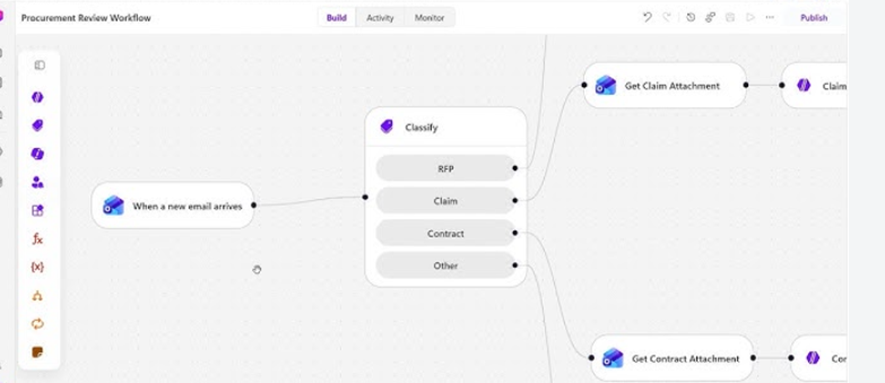
Now, when it comes to Agent flows vs Workflows, the core difference is that Agent Flows were built to trigger automations tied to an agent as a tool. Workflows are a modern version of Agent Flows + Power Automate where multi-step orchestration can happen with a few pre-built AI features.
Which Copilot Studio experience should you use?
Microsoft’s official recommendation as to which tool to pick is: “Start with the simplest platform that meets the need“. The Microsoft Power CAT team released an official guideline for the criteria to use when it comes to picking the right harness and the right tool
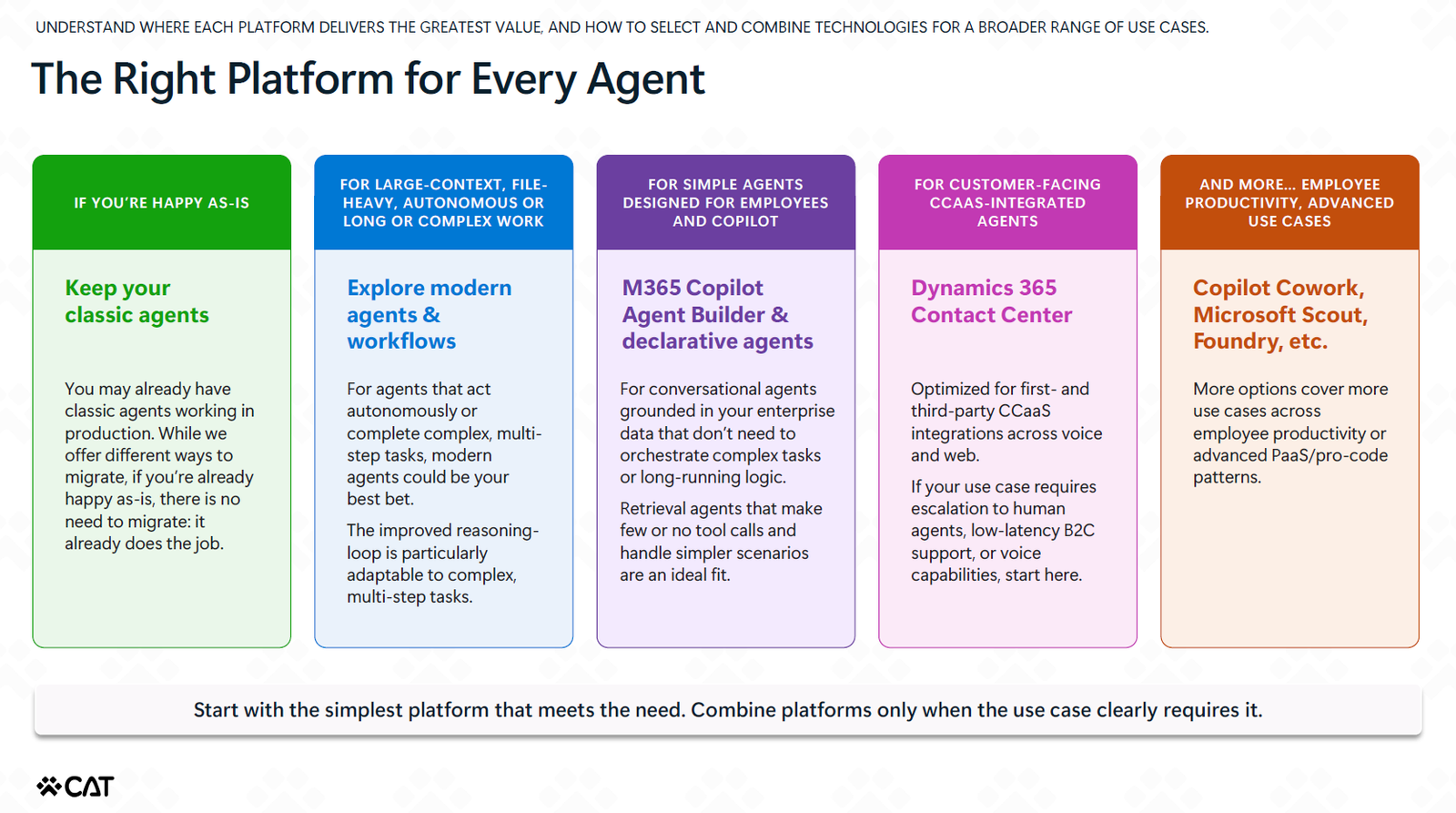
The right choice comes down to one question: how simple or complex or deterministic or predictable is your process?
- For rule-based or simpler scenarios: pick the Standard harness
- For more complex and dynamic processes: pick the Github Copilot harness
When to use the new Github Copilot harness in Copilot Studio
The Github Copilot harness is the most capable option, it’s meant for agents and workflows that complete complex business processes. The new harness has some key components:
- Instructions. This is where we define everything that is general: role, scope, tone, safety rules.
- Knowledge. Documents, sites, files, anything that is searchable or that has semantic facts should go here Tools. What do we want the agent to be able to do? Create or cancel orders? Receive an email confirmation? Anything that relates to what the agent has to do will go here (usually relates to other systems: D365, Outlook, SharePoint, APIs, Hubspot)
- Memory. Which context do we want the agent to remember?
- Skills. How does the agent have to proceed for specific processes, requests or tasks? This is where we define context, procedures, planning for tasks or topics.
When using a combination of all the components above, the new harness will not follow a fixed script, it will take a goal, break it into steps and then it will execute them.
When to keep using the standard harness in Copilot Studio
The new harness is great but you do not need to migrate everything right now. Keep your Agent Flows and Agents built on the standard harness when:
- You are already happy as-is. If a classic agent or Agent Flow is working in production and does the job, there is no requirement to migrate.
- The process requires rule-based and simpler task processing
How to plan a migration from the standard harness to the new Github Copilot harness
We already covered some of the main differences between the new authoring experience vs the standard one. We have learned that some of the key components of the standard harness are no longer present in the new experience (such as topics, variables or adaptive cards), so there is no a 1-1 mapping of features. If you do decide to migrate to the new harness, the guiding principle is to migrate capabilities, not components.
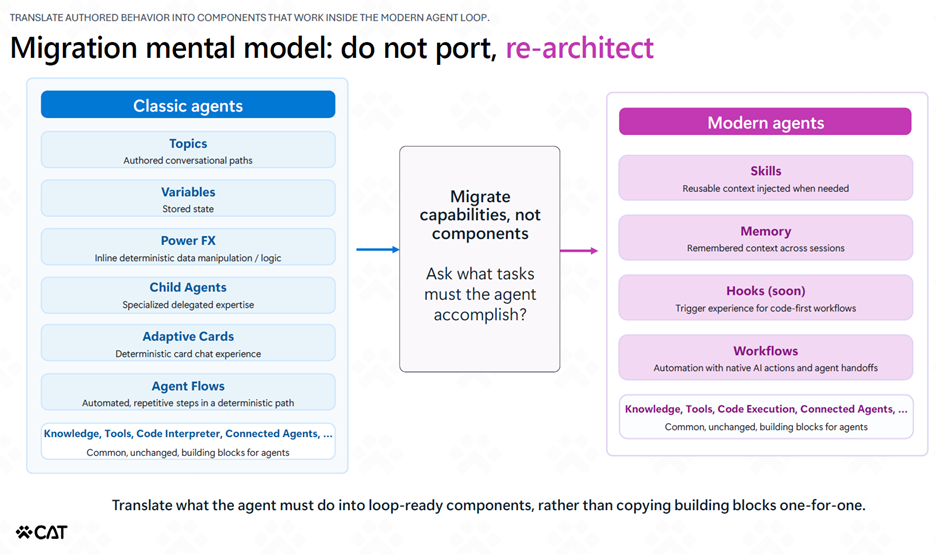
Some key points to consider if you’re thinking with migrating are:
- Understand what tasks the agent has to accomplish
- Keep the use case in mind: who are the users, the inputs the agent receives, and the outcomes it needs to deliver.
- Build an inventory the existing agent: knowledge source, tools, topics, flows and variables, and why each design choice was made in the first place.
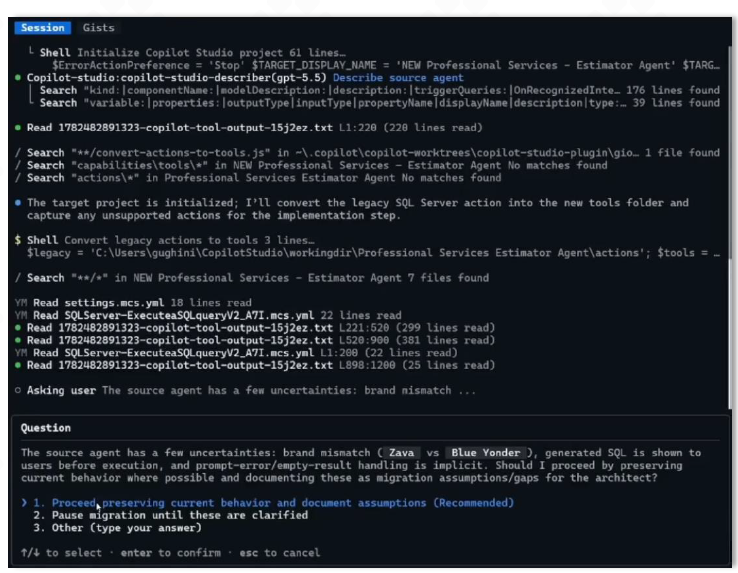
To try to make this task easier, Microsoft’s Copilot Acceleration Team (CAT) published a Copilot Studio Plugin to inspect an existing agent and propose a target architecture using Microsoft’s own best practices and the new harness capabilities.
We built a general guideline of the old vs new capabilities based on the most recent documentation shared by Microsoft, this is not meant to be a 1-1 mapping but a high level overview on how a classic feature can be replaced by its closest or more similar feature in the new experience.
Old (Classic) | New (Modern) | Notes |
Topics | Instructions + Skills | The agent decides what to ask and when, instead of following an authored conversational path. Some initial testing indicates that simpler topics can be transferred to skills, but more complex logic is still a big question mar |
Variables | Conversation history / Memory / Dataverse | Short-lived context stays in the loop; durable task context goes to Dataverse; user context goes to Memory; derived values go to the Agent Sandbox |
Power Fx formulas | Code Execution (Agent Sandbox) or workflow delegation | Python/bash in the sandbox, or helper code in a tool/skill — less low-code than Power Fx, but more capable |
System / environment variables | Instruct the agent to call a tool that fetches context | No system variables in modern agents; context becomes a tool call instead |
System topics & triggers (On message received, On AI response generated) | No general equivalent yet | A plan for “hooks” is in progress |
Adaptive Cards (display + input capture) | No equivalent yet | Active work underway on a framework for rich UI components |
Toggle to disable general/LLM knowledge | Not offered by design | Modern agents have autonomy to decide when to generate content vs. ask |
“Raise an Error” / “Continue on error” | Agent reads the error and retries or reroutes | More flexible recovery, but can also be instructed to stop or handle errors in a specific way |
Code Interpreter (preview, 1 file, no system commands, orchestrator-gated) | Agent Sandbox (full shell + Python, multi-file, on by default) | Always available, not gated per environment |
Child Agents | Connected Agents | Same delegation concept — a separate agent spun up to handle one bounded task |
Knowledge, Tools, Connected Agents | Knowledge, Tools, Connected Agents (unchanged) | Common building blocks that carried over as-is |
Conclusion: Build the right Copilot Studio automation with PowerGI
The updates that happened since June 2026 to Copilot Studio are not only name updates or an interface update. These updates come with big improvements and big decisions to make, so there is a lot to navigate.
Whether you’re building a new agent or migrating an existing one into the new harness, with our Copilot Studio development services, we can help you design and deploy an agent that helps you get work done the right way. Contact us today and discover the joy of automation!