During the Microsoft Build event, Microsoft announced that a new Copilot Studio editor was coming, and that this new editor was not only a UI update but also a rebuild from the ground-up. The announcement was also published in Microsoft’s official blog back in June 9th.
In this blog, we will talk about the new features, the removed functionalities and everything in between.
Table of Contents
How to access the new editor for Copilot Studio?
You can access the new editor by opening Copilot Studio from an environment with early access enabled. Or, by going directly to this link:
https://copilotstudio.preview.microsoft.com/environments/{environment-id}/home
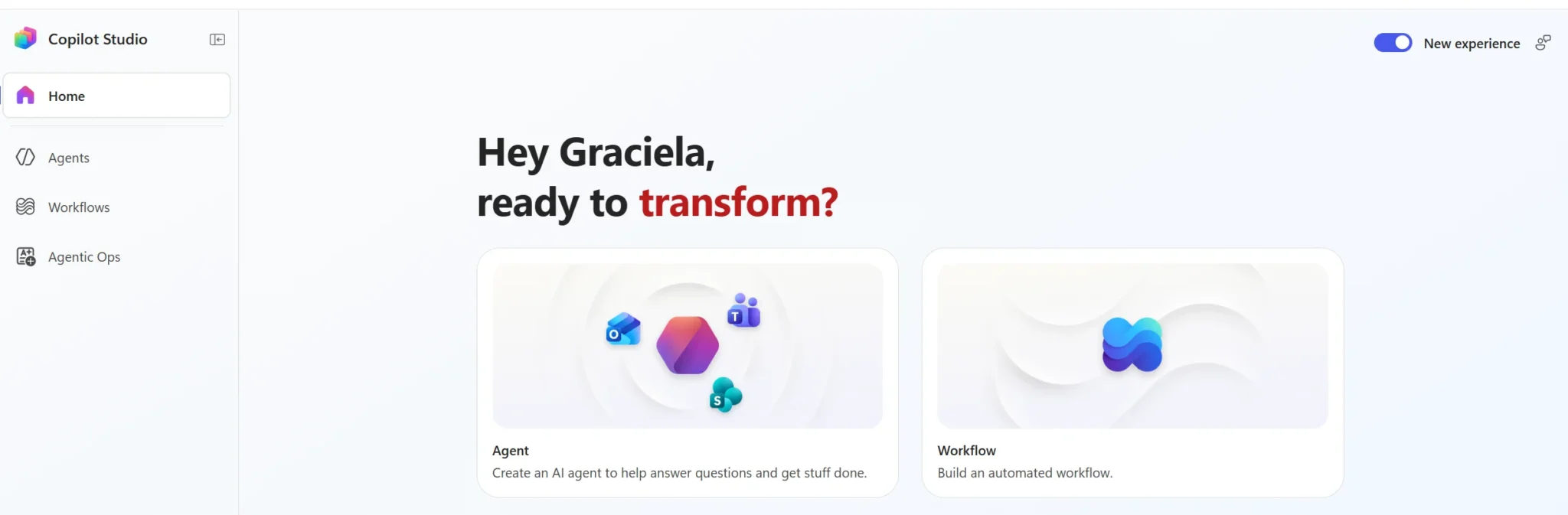
What changed in Copilot Studio in June 2026?
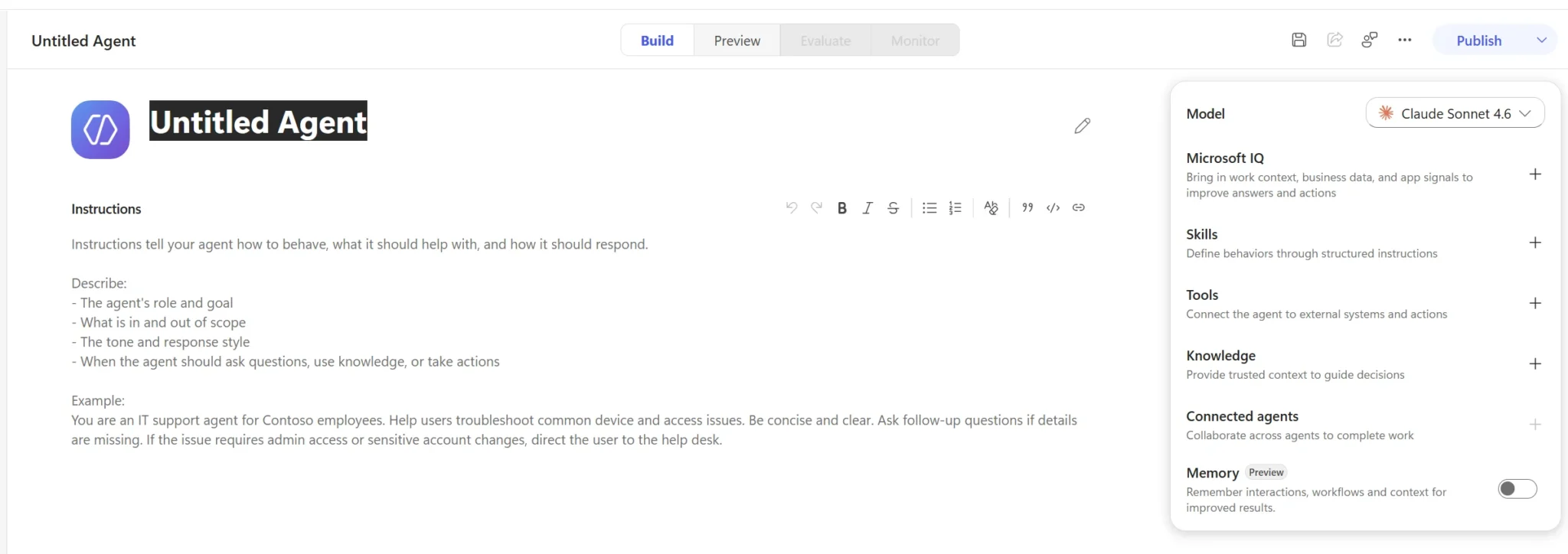
The new Copilot Studio comes with a completely new authoring experience. The previous editor had different tabs for configuring the agent. Now we only see four tabs at the top:
- Build
- Preview
- Evaluate
- Monitor
Tools and knowledge are now part of the Build tab.
New features were added:
- Integration with Microsoft IQ (connect all your Microsoft tools)
- Skills (instructions for behavior and criterias for the agent to follow)
- Memory (still in preview, but it allows the agent to remember interaction and context)
At the same time, some familiar features have been removed or live outside the build interfac:
- Topics are gone for now (some research shows that some simple or medium complexity topics can be replaces by Skills and workflows, but more complex scenarios are still a mistery!)
- Inline child agents are gone
- Triggers no longer live inside the agent editor, autonomous agents can now be triggered from the Workflow section by calling the agent.
- The channel publishing experience has changed, the new editor only has Teams, Copilot, Demo website and embed as channels to publish.
- The solution-first setup that many makers relied on when creating a new agent has been pushed to a post-creation settings screen.
Why the new Copilot Studio experience matters for AI agents
The classic Copilot Studio was built around instructions, knowledge sources and some type of structured conversation trees (topics, triggers).
The new experience is built around the idea that the orchestrator should do more of the heavy lifting. The new agentic orchestrator (powered by Claude and built on a new coding harness) supports deep reasoning, can execute code based on Python, JavaScript, and Bash, and comes quite a few pre-loaded with built-in skills for extracting content from documents such as Excel or PDF.
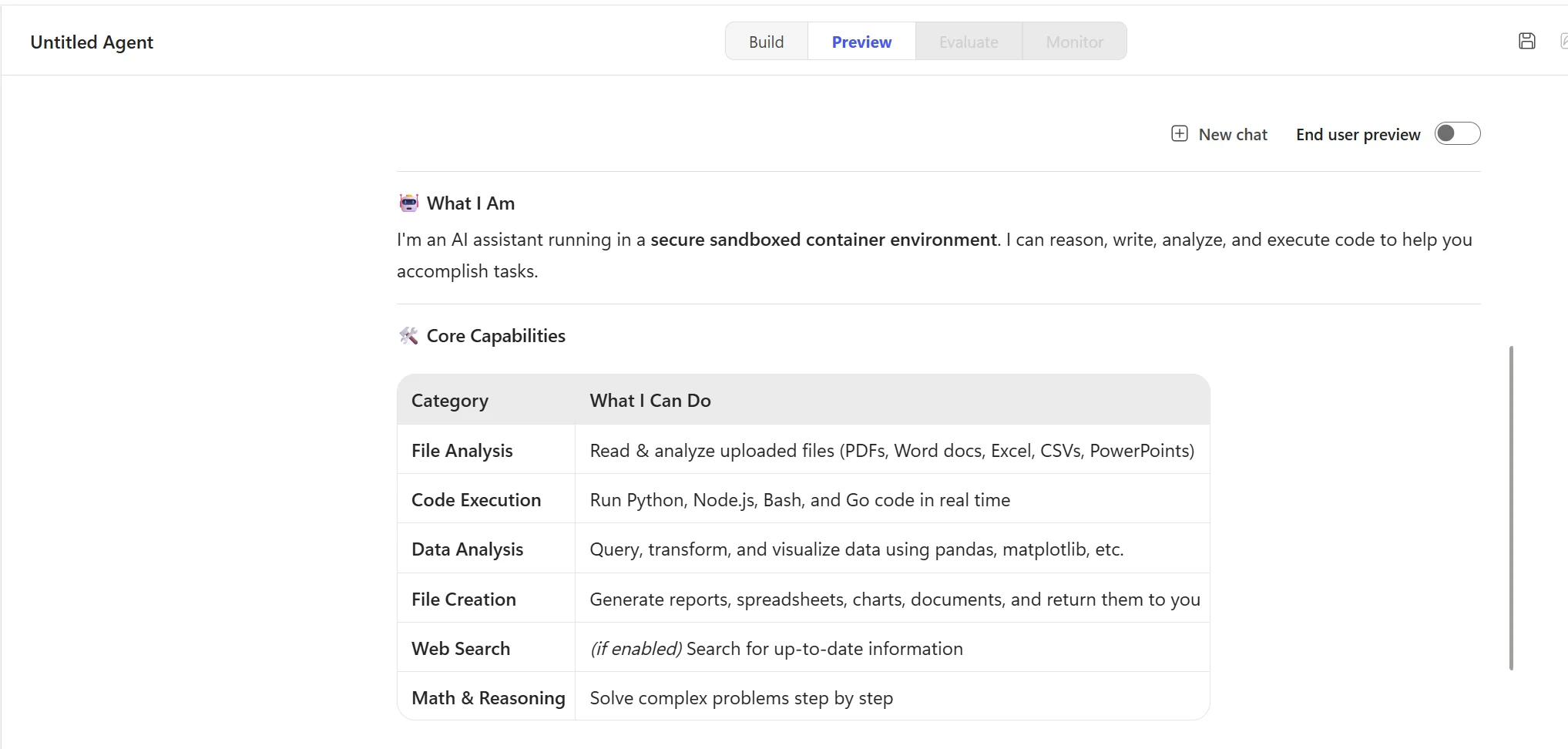
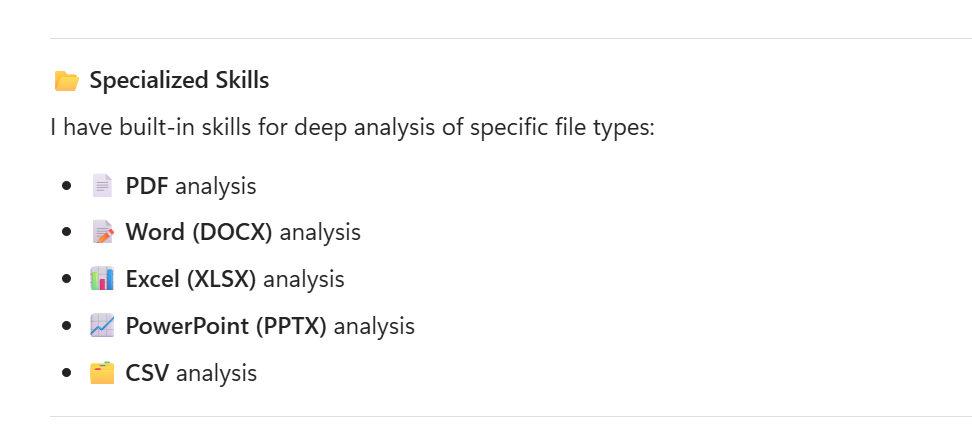
This change is important because as the AI hype continues to shape how businesses are adopting their day-to-day, the demand for agents that can handle more complex scenarios has grown.
The most important Copilot Studio changes
1. A redesigned agent authoring experience
The top navigation now consists of four modes: Build, Preview, Evaluate, and Monitor.
Skills, tools and knowledge are part of the Build tab.
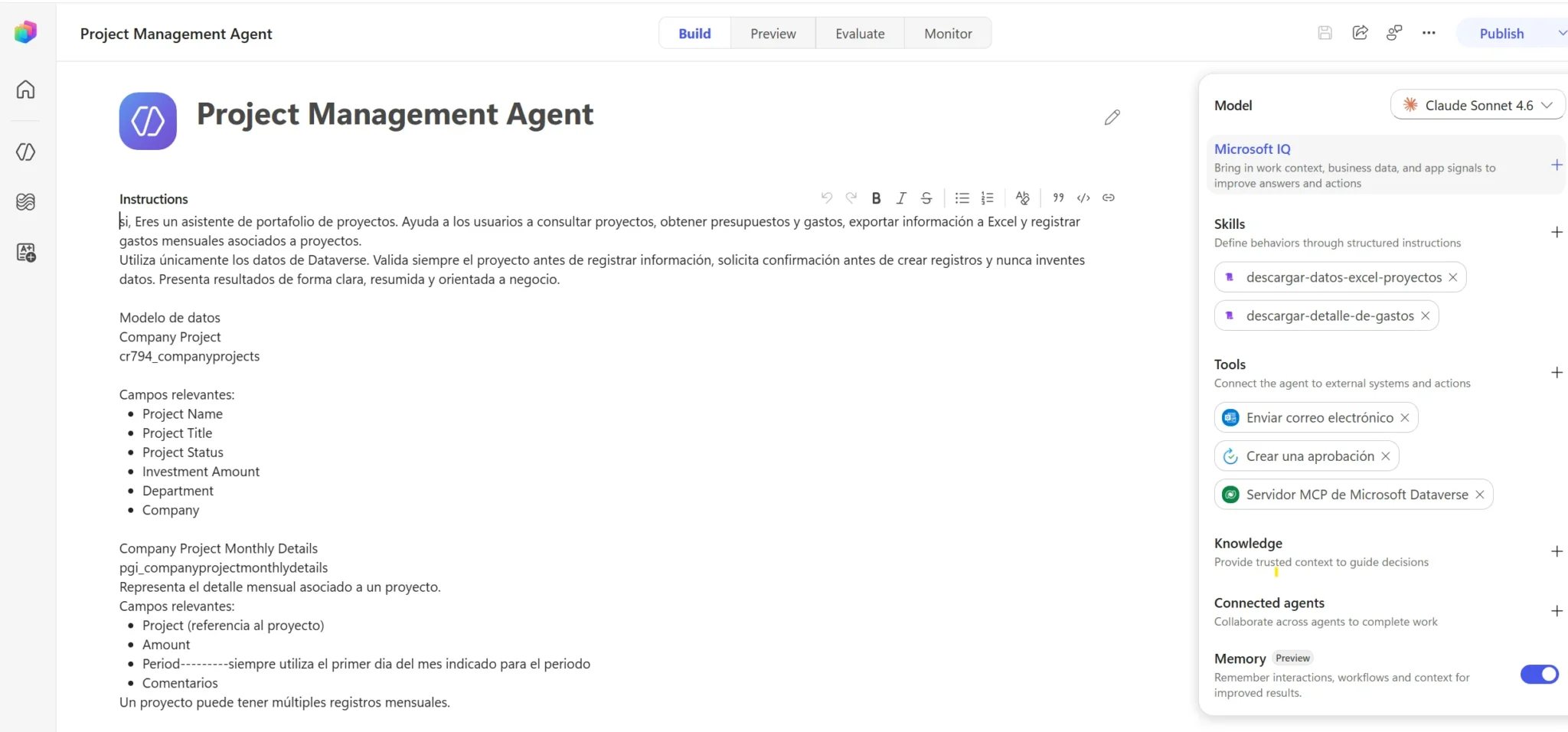
This is a meaningful UX improvement for complex agents, where understanding how instructions, skills, and tools are related is critical.
2. Natural-language-first agent creation
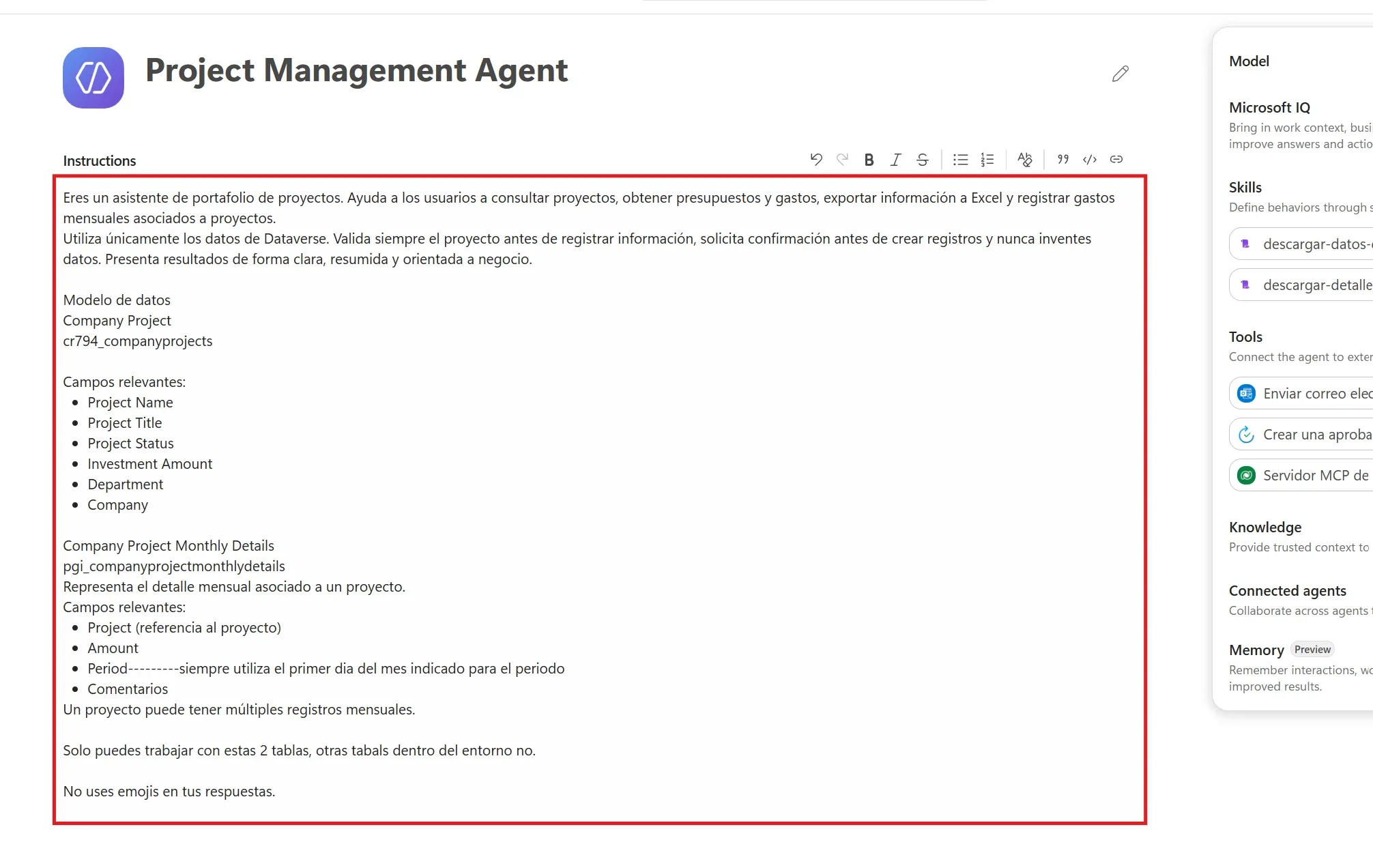
Clicking “New Agent” now takes you directly into the build screen, where the instructions can be directly added:
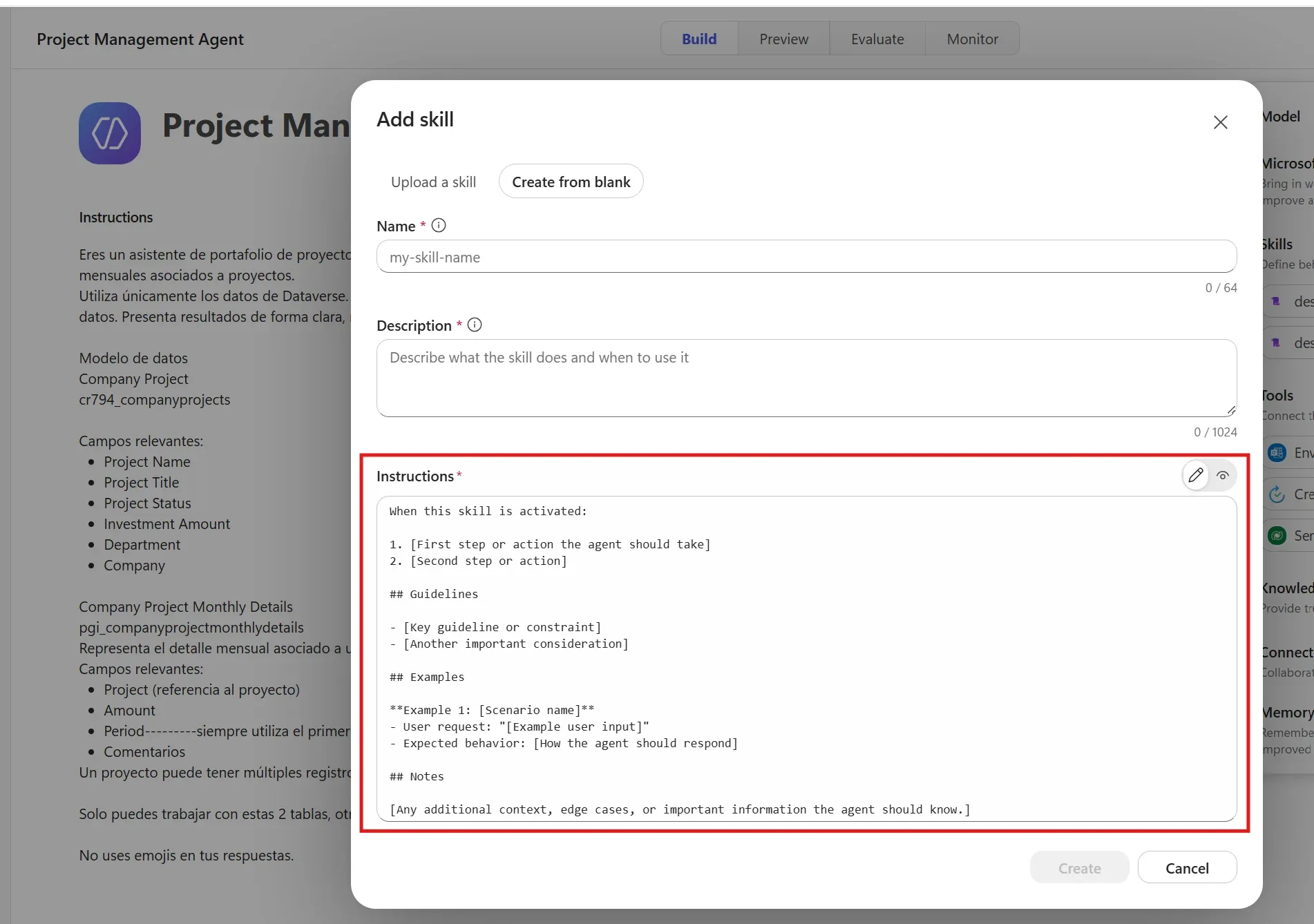
Also, when working with skills, even though the Upload a file experience requires a specific format to be uploaded, when creating it manually, natural language can be used to create the skill and provide all the guidelines and examples
3. Improved orchestration for complex multi-step work
The orchestrator can run shell commands, execute Python and Node.js scripts, and manage a session workspace that holds uploaded files, created files, scratch space, and reference data.
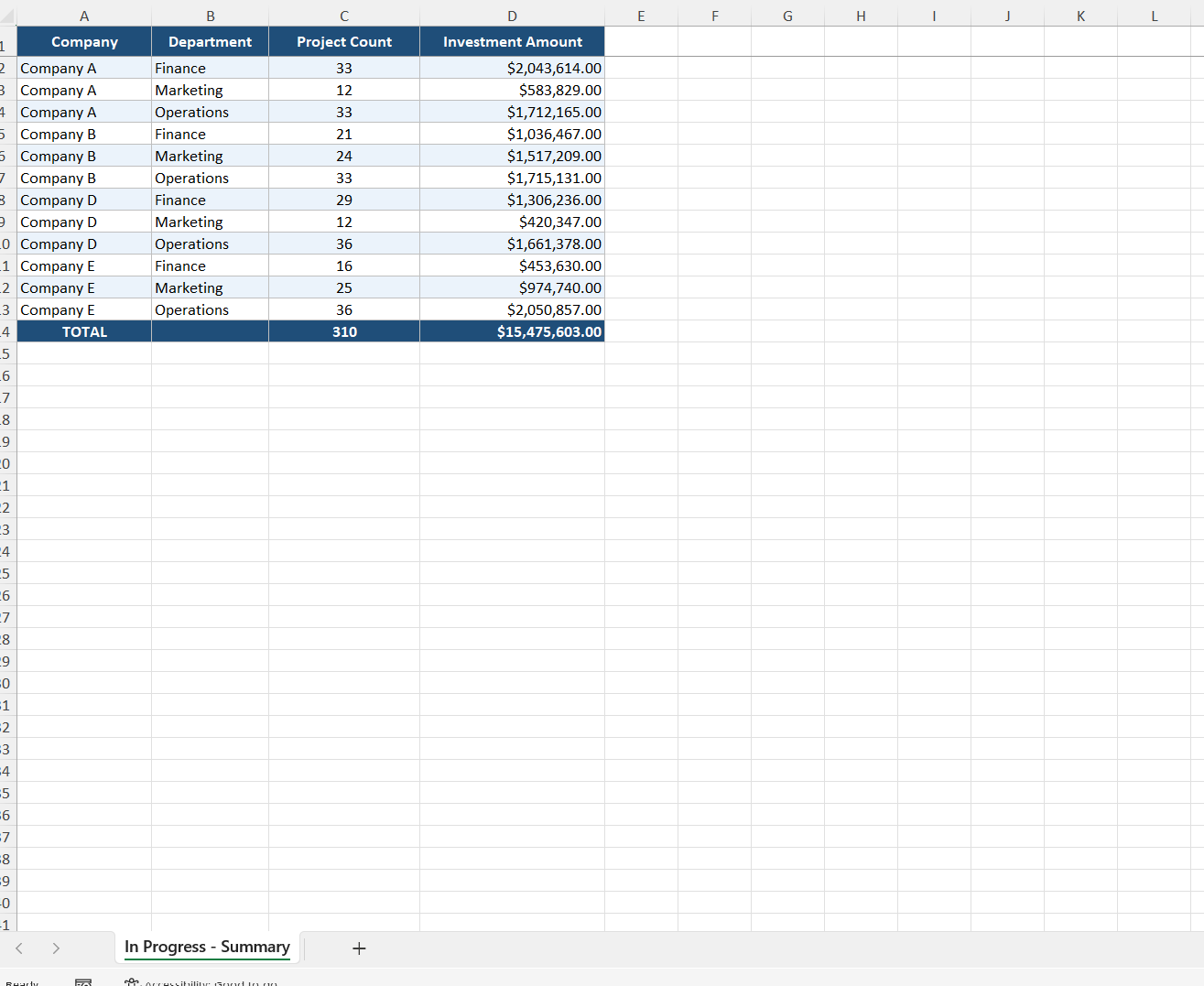
In practice, this means an agent can autonomously generate an Excel spreadsheet with a summary of projects by company, create a PDF project brief template, and attach it to an outbound email, all by using the orchestrator defaults and tools:
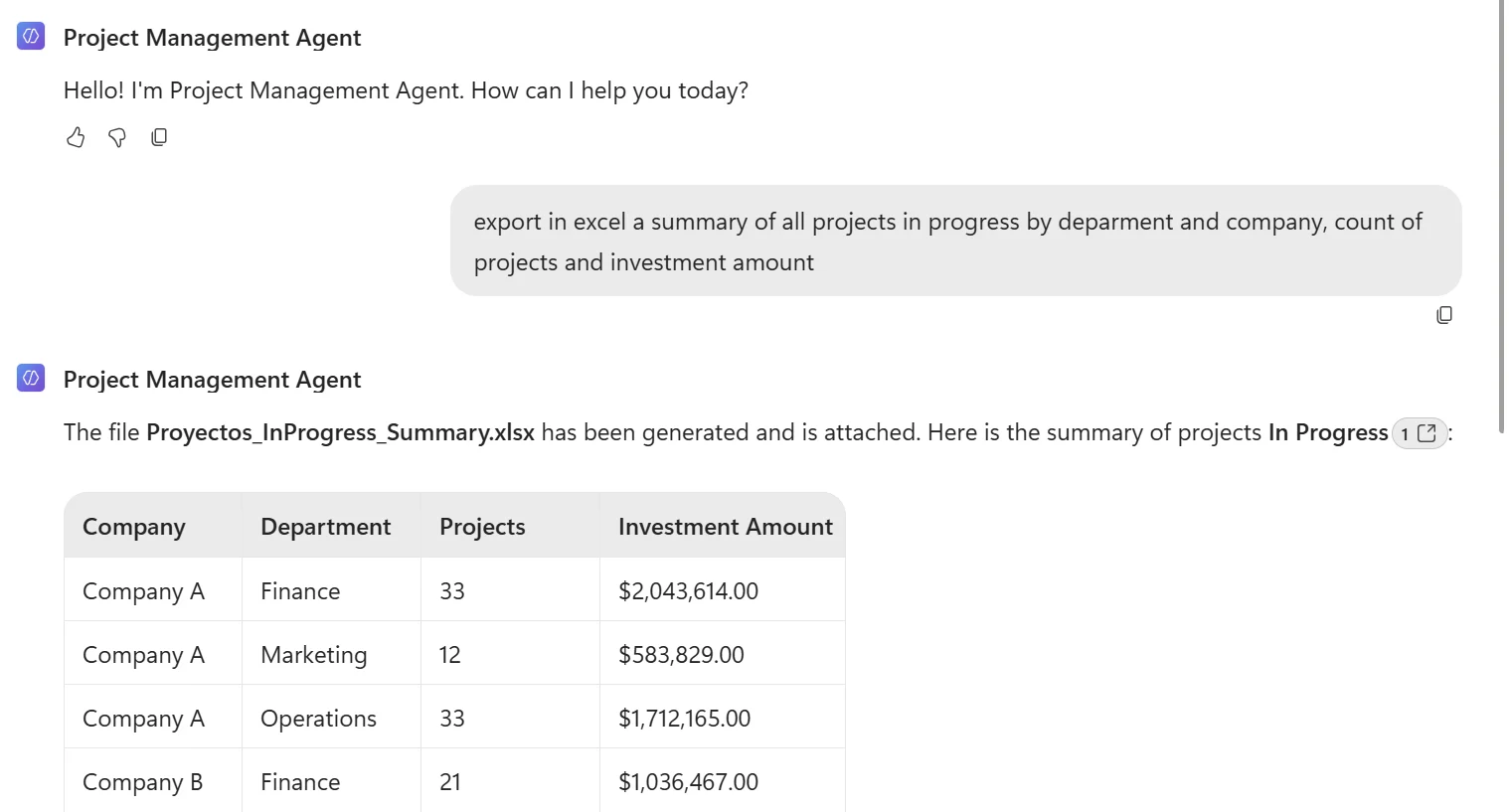
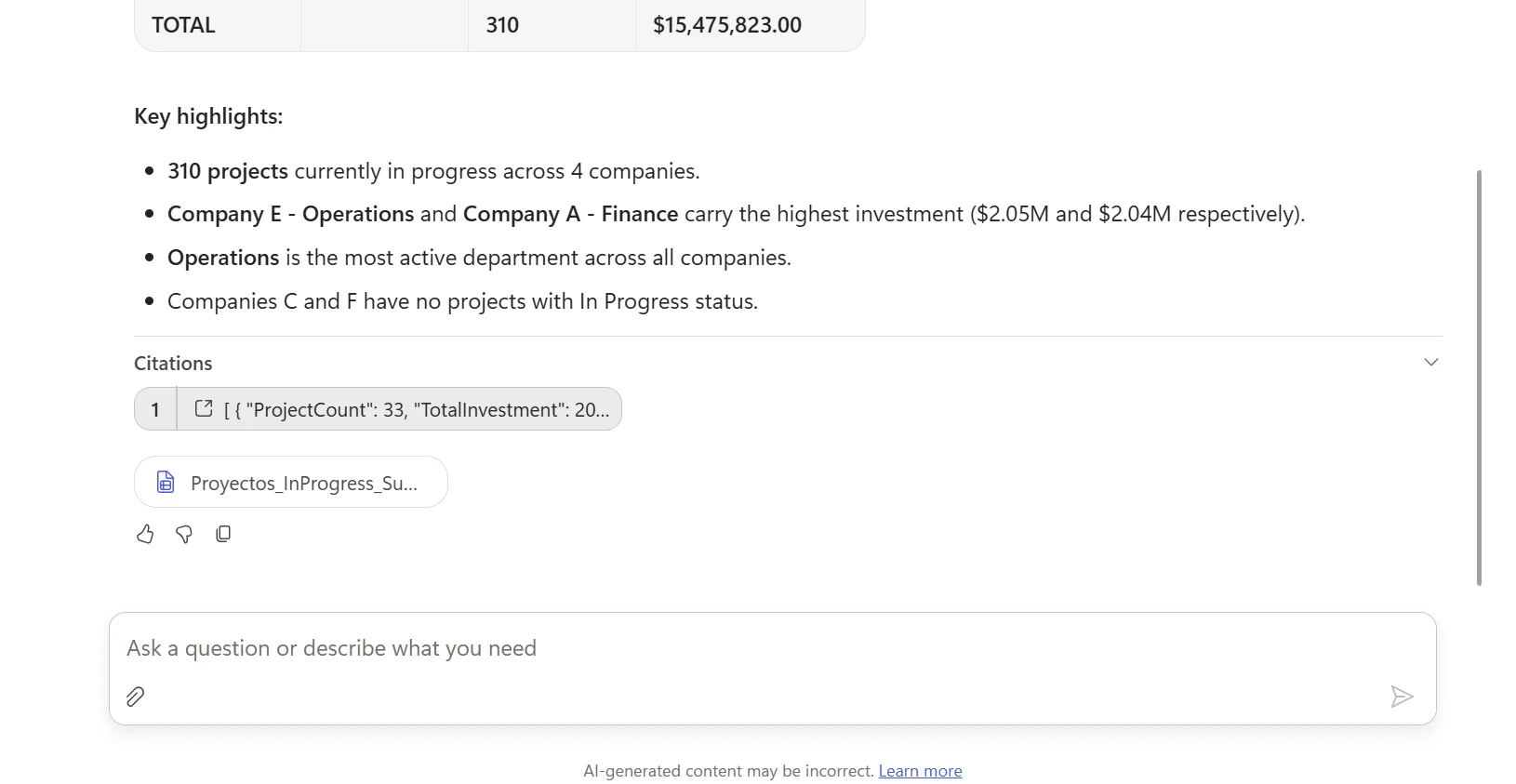
This is an example of an excel file generated by the agent:
4. Tools, skills, and workflows in a more unified experience
In thew editor, three building blocks define what an agent can do:
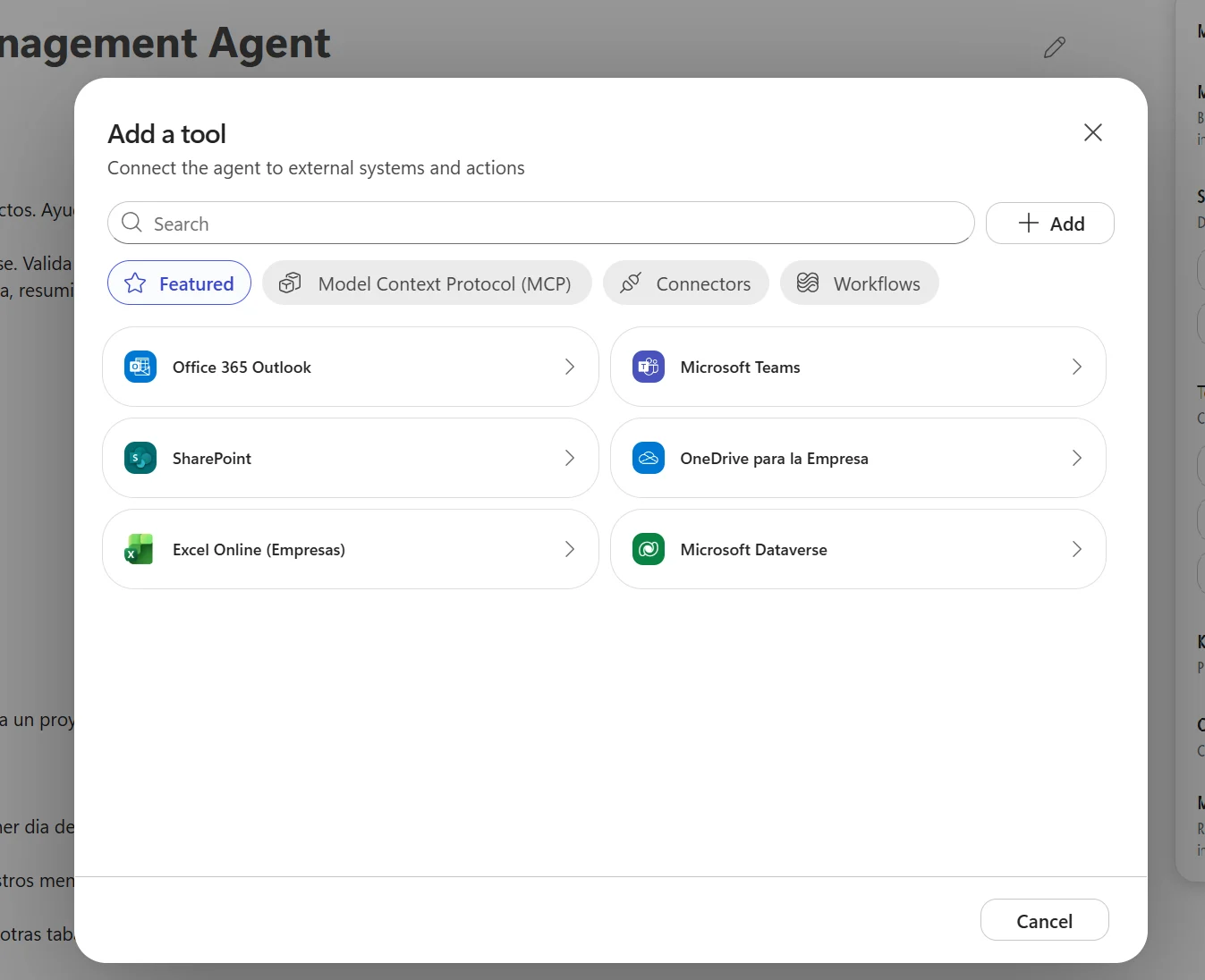
- Tools: the concept remains as it was in the “classic” editor. Tools allow to connect the agent to external systems. Connectors from the full Power Automate ecosystem are still available for single-action tasks (send email, insert a row in Dataverse, create item in SharePoint). MCP servers are also available.
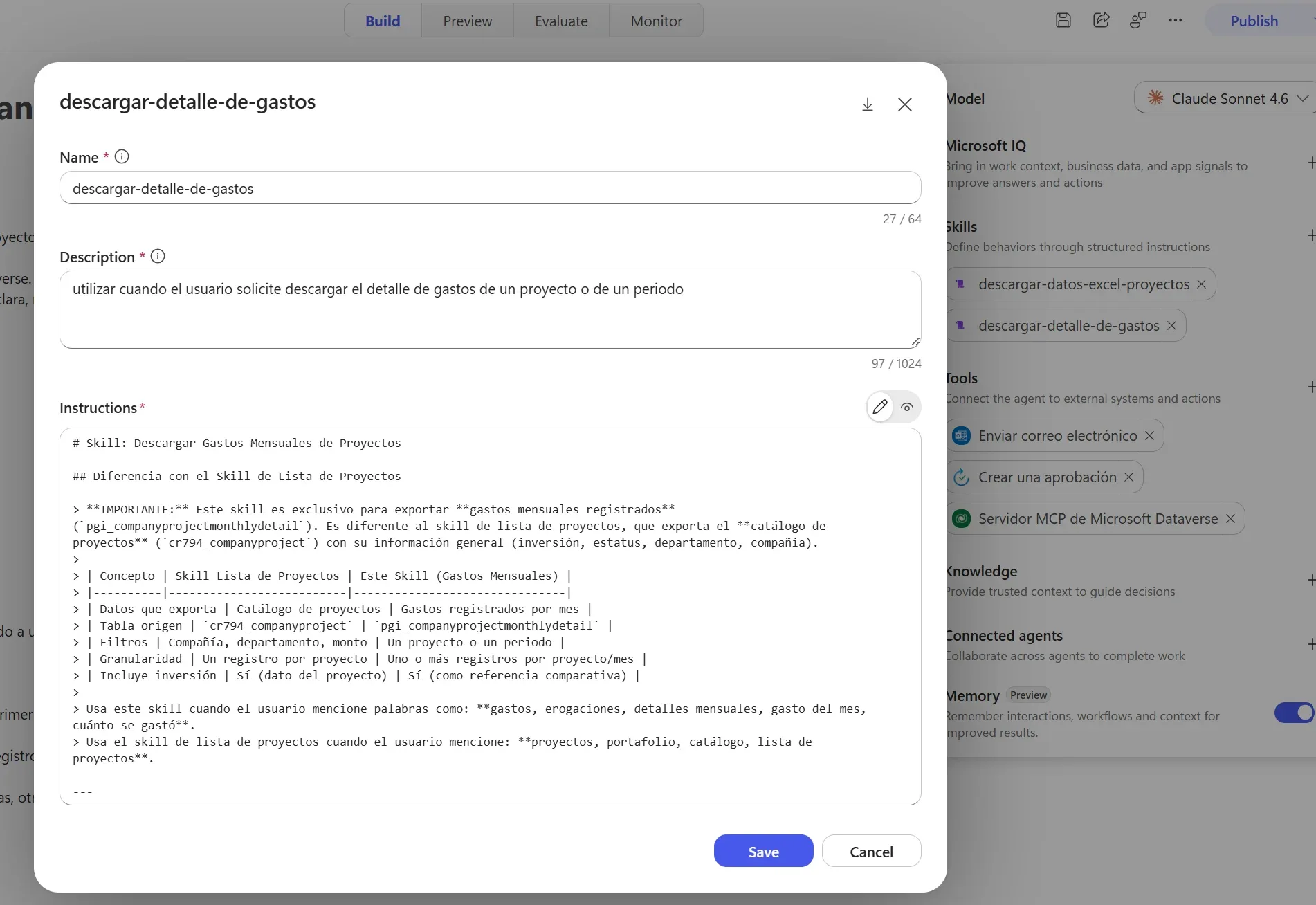
2. Skills: this is a new concept for Copilot Studio. Skills are reusable, structured instructions that are written in markdown, in general following an almost natural language format. Skills define specific agent behaviors, for example:
A. How to handle a password reset, how to triage a support ticket
B. How to generate a project brief PDF
C. How to generate a project expenses summary in Excel.
Skills can be uploaded as .md files or created from scratch in the editor.
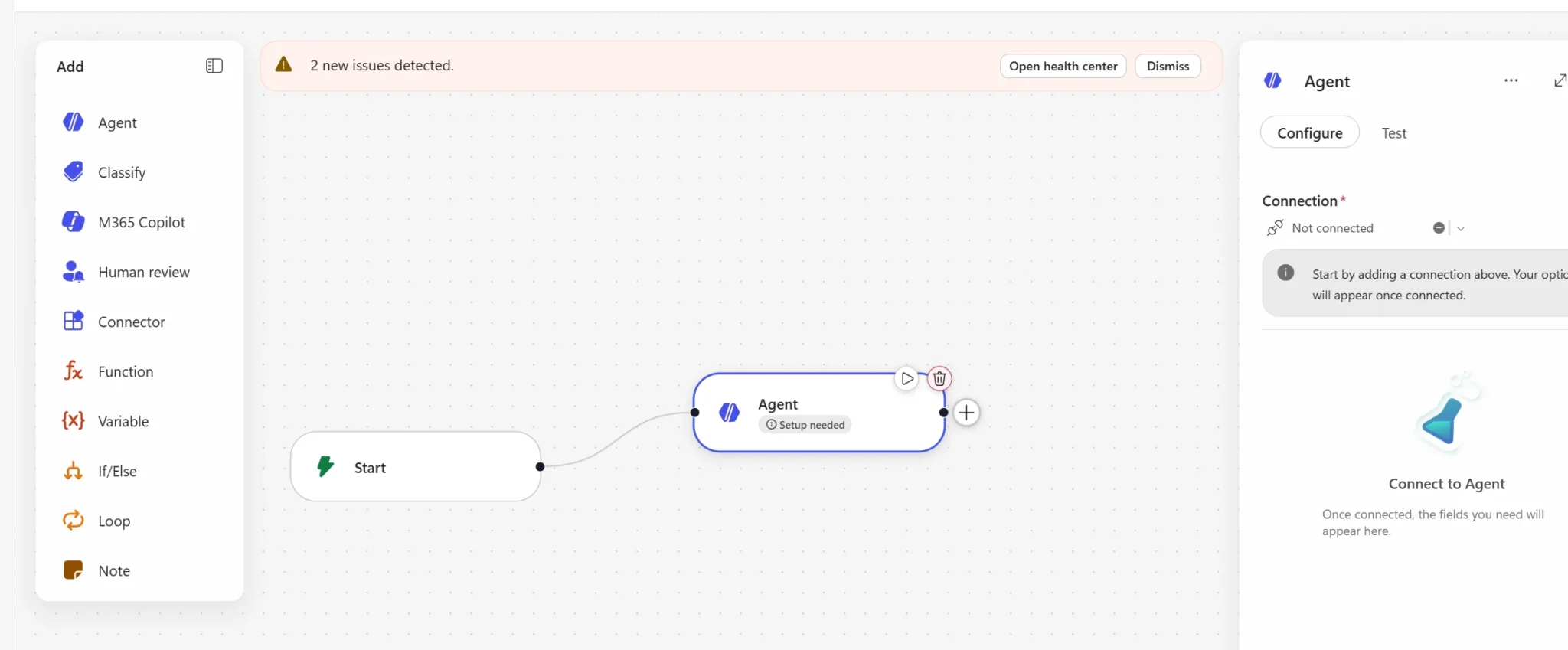
- Workflows:these changed earlier in2026 and the idea is that they will replace what were previously called agent flows and Power Automate cloud flows in the context of agents. The new workflow designer has been around for some time now and supports sequential actions, conditional branching, loops, parallel branches, and bi-directional communication with the agent. We previously covered agent flows in the previous Microsoft Copilot Workflows, which are still available to use but now they will be most likely replaced by the new workflow experience at some point.
Workflows are also where autonomous triggering now lives: instead of adding triggers inside the agent editor, you set up a workflow with a recurrence or connector trigger and position the agent as a step within it.
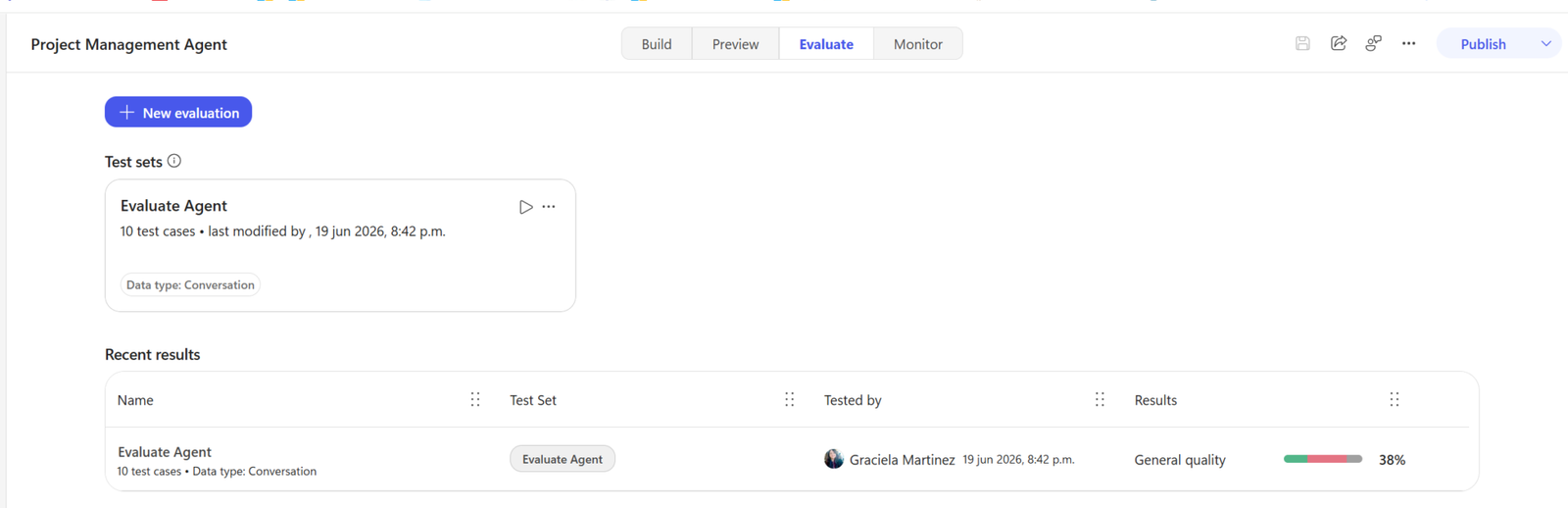
5. Better testing and evaluation for agent quality
The Evaluate mode in way carries over from the classic experience, but it has some differences.
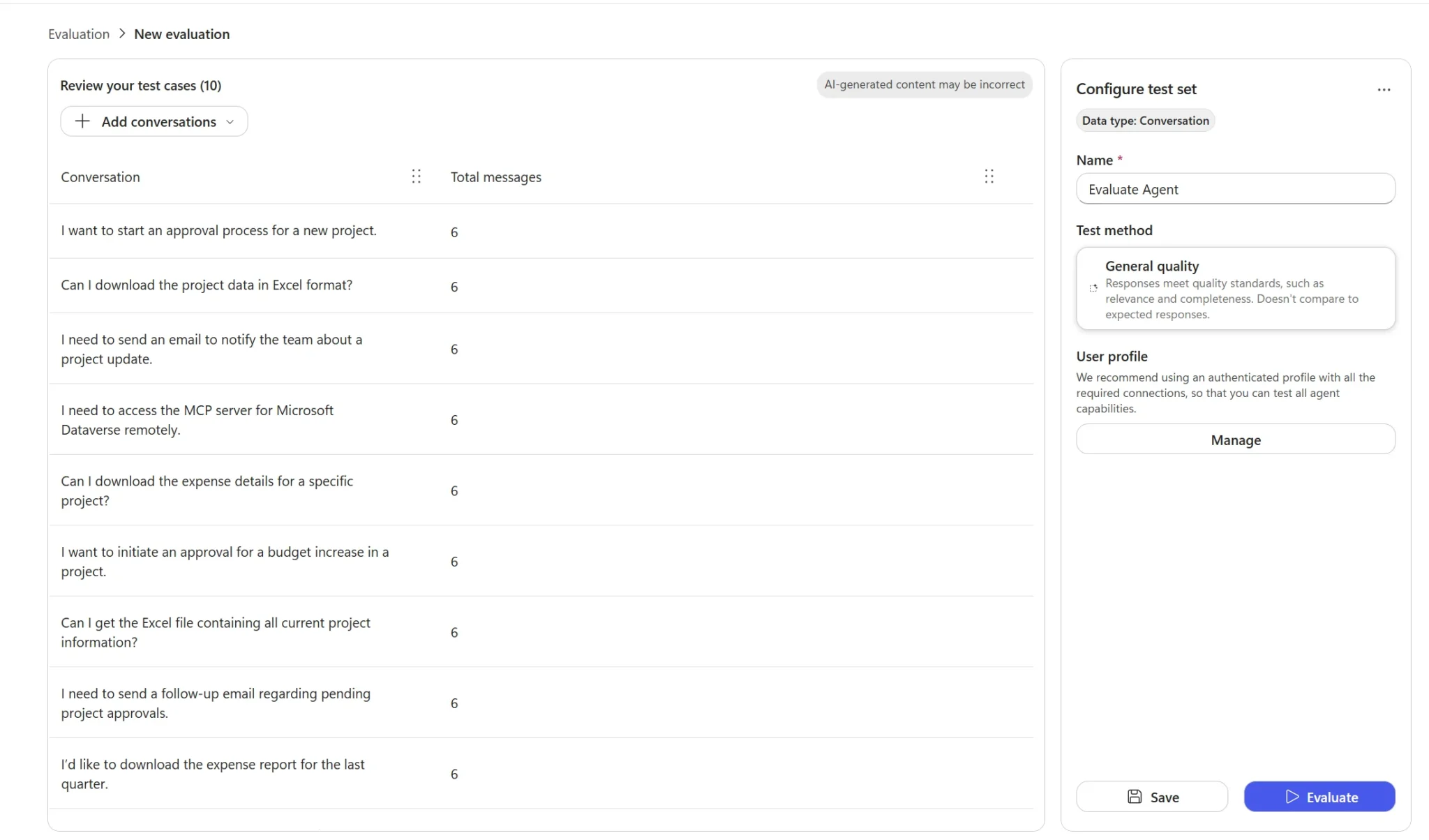
The quick conversation set feature uses AI to generate 10, 25, or 50 test conversations based on the agent’s instructions but some advanced test methods from the classic evaluator (text similarity, keyword match, tool use, exact match) are not present in the new version at launch.
6. Monitoring agents
Analytics has been renamed Monitor, though the functionality is almost the same. Makers can track traffic, review interaction details, and define the value the agent is generating (savings).
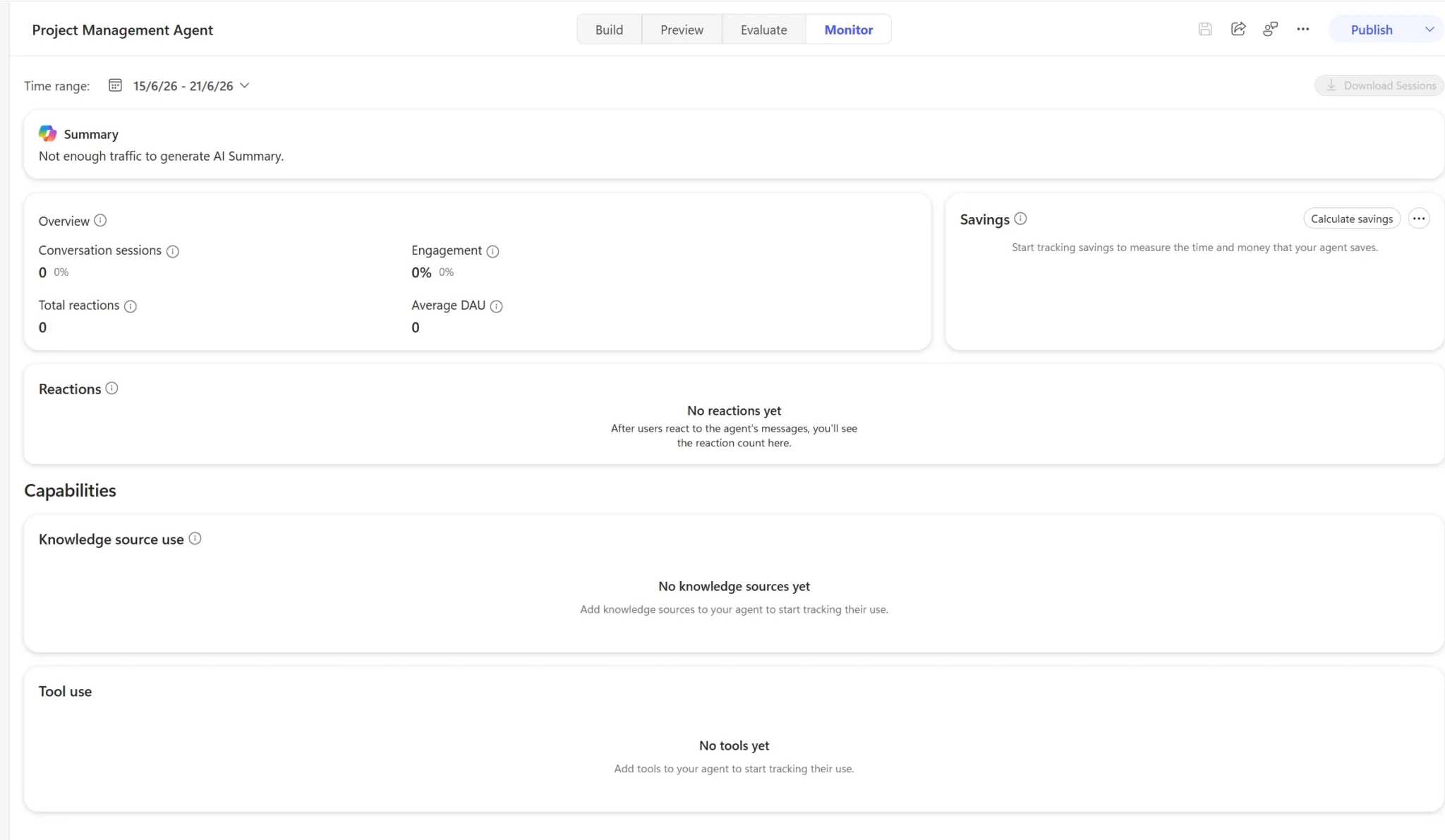
The Activity tab from the classic experience — which showed conversation maps, transcripts, and step-by-step execution details — is not fully replicated in the new experience. This has been flagged as a gap by the community, particularly for debugging during testing.
7. Lifecycle management for deployed agents
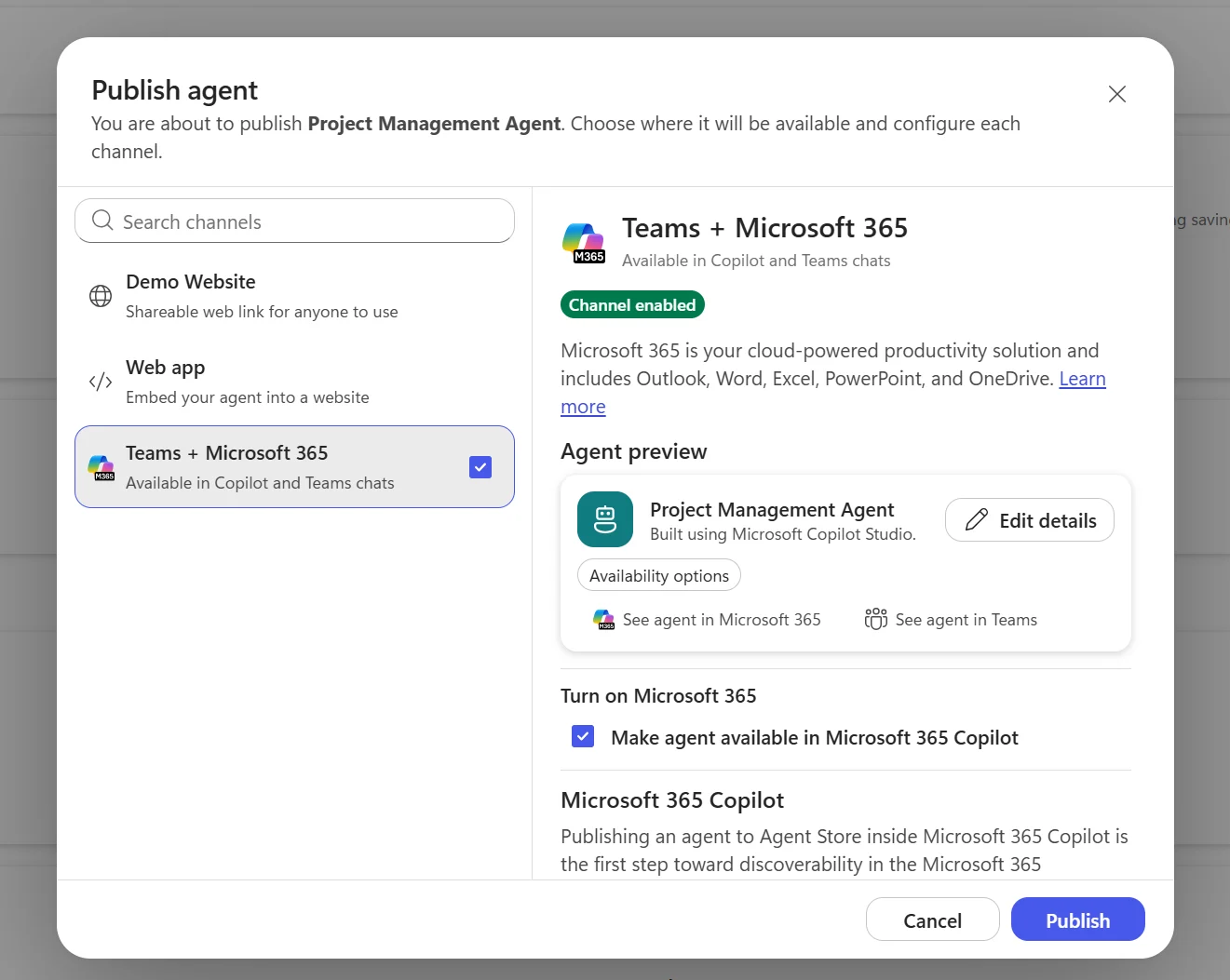
On the publishing side, channels are now accessed via a dropdown under the Publish button. Teams and Microsoft 365 Copilot remain the primary supported channels. The SharePoint channel is not present in the new experience so far.
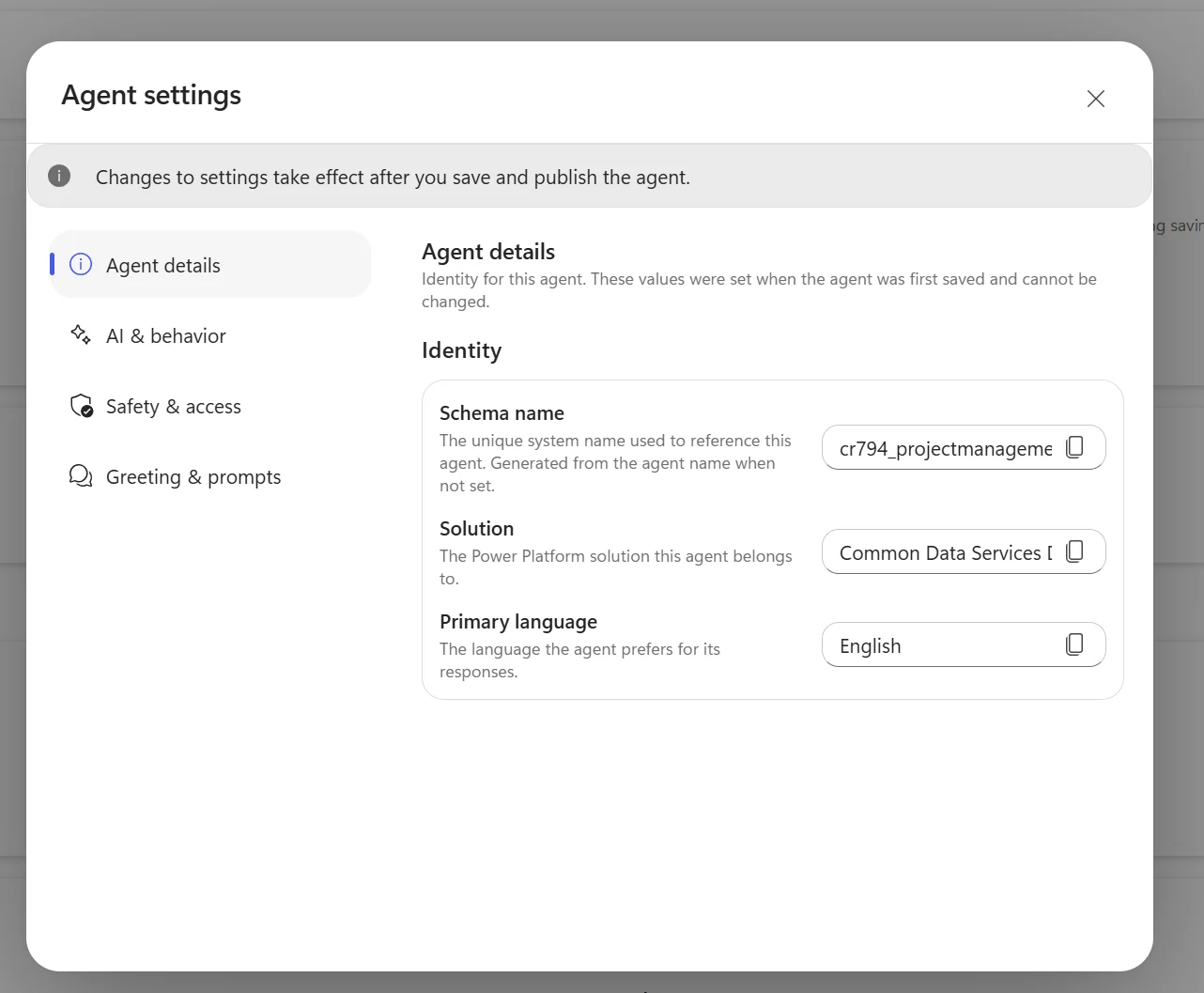
When it comes to deployment through different Power Platform environments, in the classic Copilot Studio, when we clicked “Create Blank Agent” a dialog would let users set the agent’s solution and schema name upfront. In the new experience, that pre-creation step is completely gone, and creating an agent means adding the agent to the environment’s default solution.
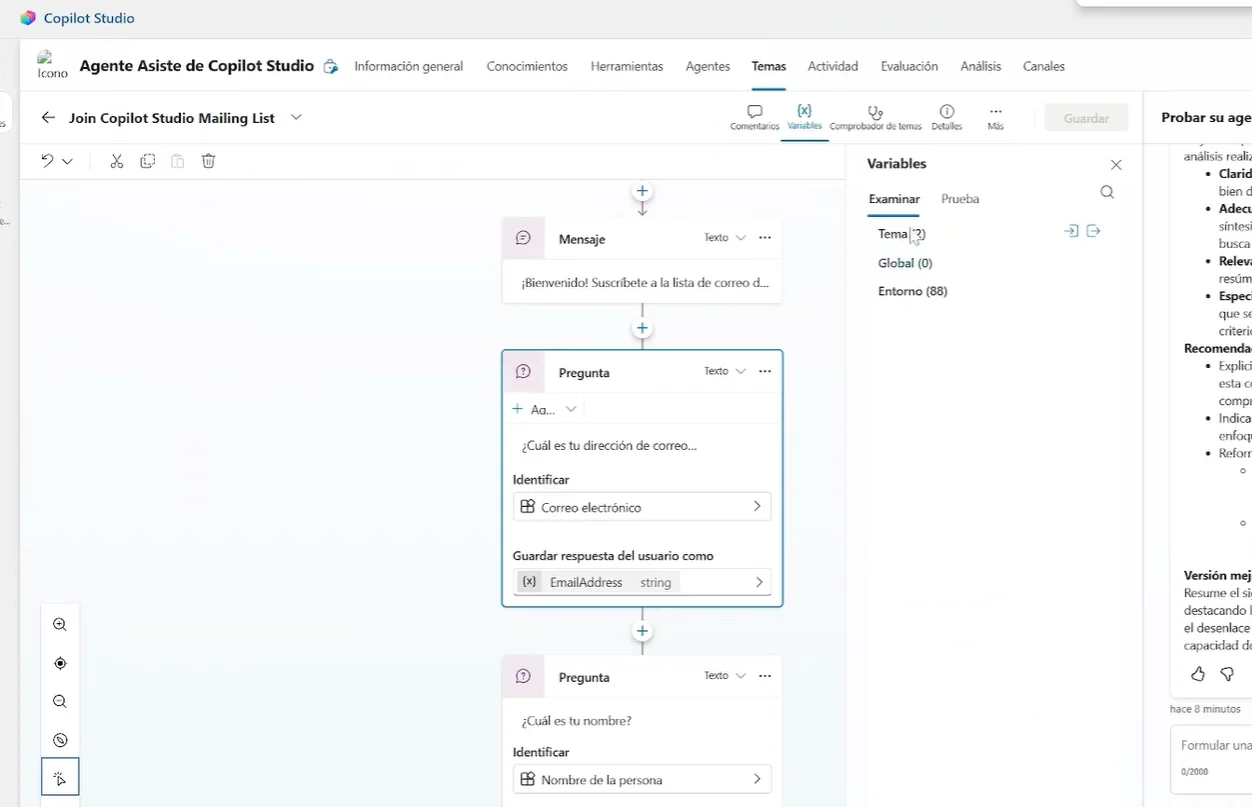
8. Topics are nowhere to be found
One of the most discussed removals in the new Copilot Studio is topics. In the classic experience, topics were the primary mechanism for controlling conversation flow.
In the new experience, documentation and some research and testing shows that these features could potentially be replaced by Skills and by Workflows, but skills and topics are not the same thing and do not do the same job.
As of June 2026, the workaround is to create a skill with instructions on the conversation structure and trust the new orchestrator to follow them, but this may not work for some complex scenarios.
New Copilot Studio vs classic experience: what should teams consider?
A key point to consider today (and the most important one) is that the new editor is still NOT under General Availability (GA), so using it for production solutions is not recommended for now.
The second most important thing to understand is that today (as of June 20th) there is no migration options between the two experiences. Agents built in the classic experience stay in the classic experience. Agents built in the new experience cannot be transferred back. This means any decision to start using the new Copilot Studio is a long-term one.
These are some guidelines based on our testing of the new studio so far:
Choose the new experience if you need to:
- Reason across multiple steps autonomously
- Generate files or reports (Excel, PDF, etc.)
- Process files and analyze them
- Handle complex triage and approval workflows
Stick with classic if you rely on:
- Structured conversation flows and branching dialogue
- Adaptive card button interactions
- Topics-based routing (skills do not replace topics)
Starting with Copilot Studio requires a paid license, a trial or a pay-as-you-go subscription.
Build smarter Copilot Studio agents with Power GI
Whether you’re starting fresh with the new Copilot Studio experience, migrating an existing agent, or trying to figure out whether skills, workflows, or connected agents are the right approach for your use case, with our Copilot Studio development services, we can help you build Copilot Studio agents that actually help you get the work done.
Contact us today and discover the joy of automation!