Table of Contents
We can use Power Query to pull records from APIs where our data resides, but most of the time each API we connect to will work in different ways:
- Some APIs might bring all records on the same page
- Some APIs will limit the number of records you can retrieve
- Some APIs will pull data into pages so you can only bring X amount of records at a time
In this blog, we will cover the scenario where we need to paginate to extract all available records based on the data we requested from the API. If you’re working with Microsoft Power Platform consulting services, understanding API pagination is crucial for optimizing data retrieval and integration processes.
Solution description
Let’s suppose we want to extract the list of invoices for the current from our accounting system, when we send this request to the API we get the following:
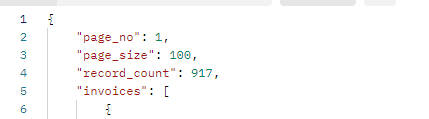
The total invoices we get in the result are 917 but the current page only has 100 records, that means we need to pull 10 different pages to extract the full set of records available.
To achieve this in Power Query we will use Power Query’s List.Generate() function. This function is the closest feature we have in M language to loop through a set.
The way we use List.Generate depends on the type of results the API returns. We will cover 2 scenarios in this blog:
- API gives us information about how many pages the results will have
- API only returns a list of records and we need to “skip” records to find the next available batch
As a team deeply entrenched in Microsoft Power Platform consulting services, we’re uniquely positioned to guide businesses through the complexities of API pagination with Power Query. Our expertise ensures that organizations can optimize their data retrieval processes, allowing them to focus more on strategic initiatives rather than getting bogged down by technical hurdles.
Scenario 1. API uses page numbers to paginate
Some APIs will include in the results attributes we can use to calculate the number of pages we need. In the below example we can use the number of records and page size to calculate how many times we need to paginate.
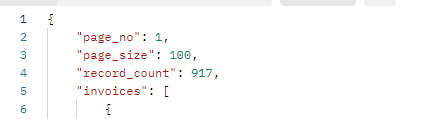
Note: Some other APIs will give us directly the number of pages available so we can loop them directly.
API GET request looks like this:
https://abc.abc.com/api/Invoices?page_no=1&page_size=100
Power Query to extract pages for this API would be as follows:
					//make an initial request to calculate the number of pages to loop through
Source_pages = Json.Document(Web.Contents("https://abc.abc.com/api", [
  RelativePath="Invoices",
  Query=[ page_no="1",page_size="100"],
  Headers=[#"Content-Type"="application/json", Authorization="xxxxx"]])),
//get number of pages: Records available in the result / Number of records in each page
         total_pages = Number.RoundUp(Source_pages[record_count]/Source_pages[page_size]),
//create a function to extract each page
//this function will be looped by each of the pages
    GetDataAPI = (pageNum as number) =>
        let
            Source = Json.Document(Web.Contents("https:// abc.abc.com/api", [
  RelativePath=" Invoices ",
  Query=[page_no=Number.ToText(pageNum),page_size="100 "],
  Headers=[#"Content-Type"="application/json", Authorization="xxxxx"]])),//connect to API
//obtain page if results are available
            items = if pageNum <= Number.RoundUp(Source[record_count]/Source[page_size]) then Source[invoices] else null //drill down to query results
        in
    items,
    Source = List.Generate( () =>//create a loop to iterate through the pages and append results
                 [Result = try GetDataAPI(1) otherwise null, Page =1 ], //connect the first time and set number of pages
     each ([Result] <> null and [Page] <= total_pages) ,
                 // establish the conditions to keep looping through the pages:
                 // loop until finding an empty result
                 each [Result = try GetDataAPI([Page]+1) otherwise null, Page =[Page]+1 ], //what to do each loop
                 each [Result] //append results in the list
),
    #"Converted to Table" = Table.FromList(Source, Splitter.SplitByNothing(), null, null, ExtraValues.Error),//convert list to table
//add following steps to convert your data into a table
Scenario 2. API uses offset records to paginate
Some APIs will not return the number of available records, it will only give us back the current page:
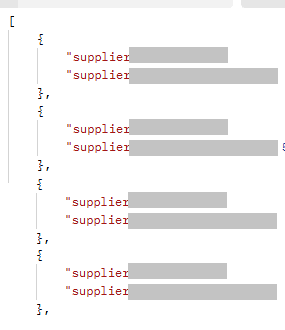
When this is the case, usually APIs will have an “offset” attribute that we can use to extract all available pages. This “offset” parameter will “skip” X number of records to extract the next page’s result.
For example, if we know our API will bring 100 records at a time, we will need to “skip” these 100 records each time until we find less than 100 records. On the first page, our offset will be 0 because we don’t need to skip any record, but once we reach the second page, we need to offset the first 100 records to bring records from 101 to 200 and so on.
API GET request looks like this:
https://abc.abc.se/abc -webapi/v1/projects?company=SE&limit=100&offset=200
Power Query to extract pages for this API would be as follows:
					Source = List.Generate( () =>
//start with offset = 0 because in the first pull we need to get the first 100 records, send API request with headers, auth and query parameters if needed
        [ Offset = 0 , Result = Json.Document(Web.Contents("https://abc.abc.se/abc -webapi/v1/", [
        RelativePath="/projects",
        Headers =[#"Content-type"="application/json",
              #"Authorization"="Basic xxxx"],
        Query=[company="SE",limit="100",offset="0"]
        ])) ],
//This parameter helps us verify when to stop paginating. If the page has less than 100 records or if it’s empty it will stop. If the page has 100 records it will continue (Mod = 0)
        each Number.Mod([Offset],100) = 0 and not List.IsEmpty([Result]),
//Here is where we loop the next time to get the following pages. As soon as Mod = 0 (i.e., the number of records is = 100) Power Query will execute this step until the end of the results
        each [  Offset = [Offset]+List.Count([Result]) , Result = Json.Document(Web.Contents("https://abc.abc.se/abc -webapi/v1/", [
        RelativePath="/projects",
        Headers =[#"Content-type"="application/json",
              #"Authorization"="Basic xxxxxx"],
        Query=[ company ="SE",filter=datefilter,limit="100",offset=Number.ToText(Offset)]
        ])) ],
//append the results to a list
       each [Result]
    ),
//convert list to table
    #"Converted to Table" = Table.FromList(if List.IsEmpty(Source) then {{}} else Source, Splitter.SplitByNothing(), null, null, ExtraValues.Error)
//add following steps to convert your data into a table
Conclusion
APIs will work in different ways but Power Query’s List.Generate() function is amazing and can adjust to multiple scenarios and we can use it to pull data from APIs.
At Power GI, we understand the challenges of integrating data from multiple sources. Power Query’s capabilities enable you to automate and simplify the data extraction process, making it a valuable tool for business intelligence and reporting tasks. Whether you’re working with Power BI, Excel, or another platform, Power Query ensures efficient and reliable API data handling.