How to connect SharePoint with Azure OpenAI in Power Automate

Convert your unstructured files from PDFs and images stored in SharePoint into structured data using Azure OpenAI, Microsoft Foundry and Power Automate. Embedding AI into day-to-day tasks is more important than ever for businesses to operate faster and more efficiently.  

The SharePoint > OpenAI workflow is useful for automating tasks related to reading diagrams from documents, understanding contracts, reading long forms or documents that may be similar but can have differences.  

In this blog, we will discuss everything about extracting documents from SharePoint and sending them to Azure Open AI for analysis. 

Table of Contents

What does it mean to connect SharePoint with Azure OpenAI?

When working in a Microsoft 365 environment, SharePoint is usually where the organization’s documents live: all kind of forms, contracts, event presentations, invoices, reports and much more. More than ever, today AI has a lot of capabilities for reading documents, regardless of the format or if data comes in an unstructured format, with a good prompt, the AI models can understand the context of documents, read it through and return a response in a format that can be consumed and transformed into data that is useful for businesses.  

In the Power Platform world, this automation is orchestrated by Power Automate: 

  • A flow retrieves a file from SharePoint, converts it to the format Azure OpenAI expects (base64-encoded) 
  • The flow sends the alongside a text prompt via an HTTP call 
  • The LLM model (Azure Open AI) analyzes the prompt and the document, and it sends a response back the flow 
  • The flow receives a structured response that can be used to insert rows in a database, to send an approval or to send an email. 

Benefits of sending SharePoint files to Azure OpenAI

Connecting SharePoint and OpenAI through Microsoft Foundry and Power Automate, removes a lot of manual work and manual analysis of documents: 

  • Automated data extraction (pull structured field such as names, dates, amounts from unstructured PDFs, eliminating copy-paste). 
  • Enterprise-grade security. Everything stays in the Microsoft 365 tenant. SharePoint lives under the MS umbrella and Azure OpenAI is deployed in Microsoft Foundry, so everything runs on your own Azure subscription with your own keys. 
  • Consistent, structured output. We can always ask the LLM model to return JSON. Regardless of the format of the original document, the response will be standardized based on the instructions we include in the prompt. 
  • This approach works with PDFs and images. The same process we will review in this blog applies to images with a minor payload change. 

What you need before connecting SharePoint and Azure OpenAI

Before building the flow, make sure the following things are in place: 

Automate tasks that slow you down

Free up your team’s time and focus on strategic work with digital and robotic automation.

  • An Azure subscription and a resource group. 
  • A Microsoft Foundry resource in the Azure portal. 
  • A deployed model in Microsoft AI Foundry.  
  • Your Azure OpenAI endpoint URL and API key. These can be found in the Foundry Azure portal homepage or under Keys & Endpoint in the Azure portal 
  • A Power Automate license. The flow uses the HTTP action, which requires a premium Power Automate plan.  
  • Files stored in SharePoint. 

To learn more about the Azure requirements and how to create a Microsoft Foundry resource, you can have a look at this step-by-step walkthrough. 


How to send SharePoint files to Azure OpenAI from Power Automate

For this use case, we will work with some PDF files that are stored in SharePoint that contain information about events held by Power Platform community in El Salvador.
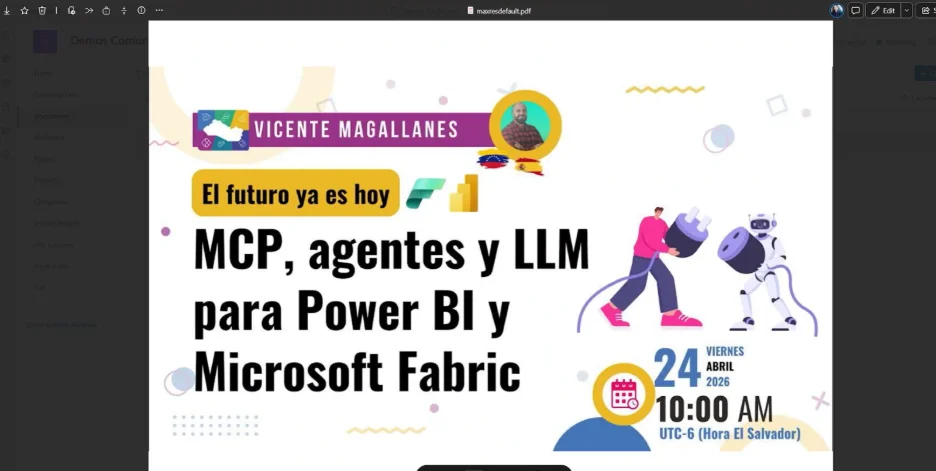
We want to send these files to Azure OpenAI to have them read and extract the following: 

  1. Event name 
  2. Event speaker
  3. Event date and time 


Create a new instant flow in Power Automate

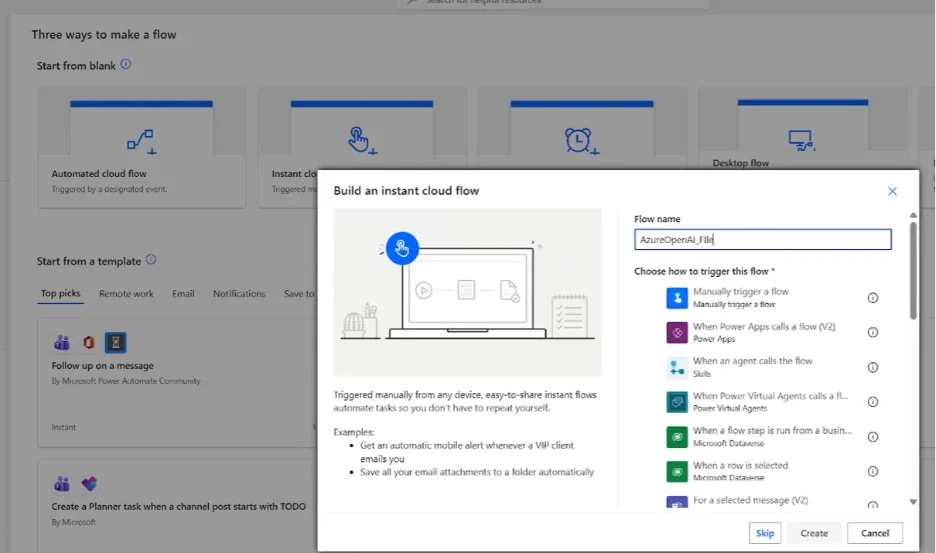
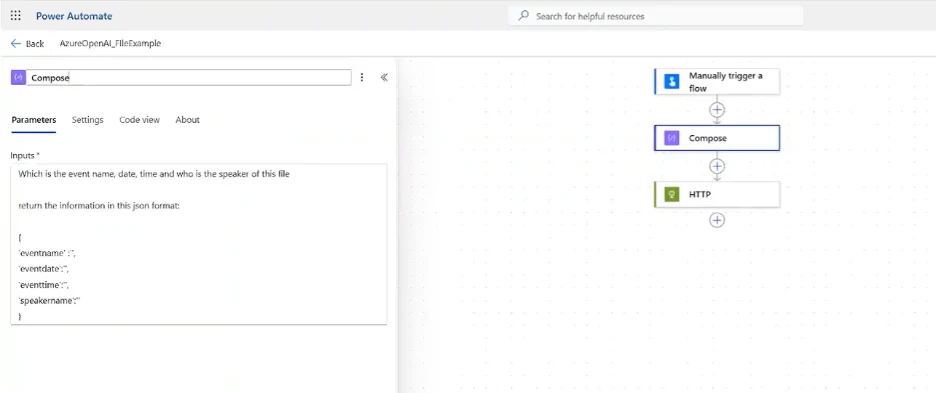
Go to Power Automate portal and create a new flow. Choose Instant cloud flow with a manual trigger.

Add a Compose action to hold your prompt

Add a Compose action and paste the instructions to the model as plain text. Rename the step to something like Compose Prompt. 

Example prompt for the tutorial scenario: 

				
					{ 

  "event_name": "", 

  "date": "", 

  "time": "", 

  "speaker_name": "" 

}           


Retrieve the file from SharePoint

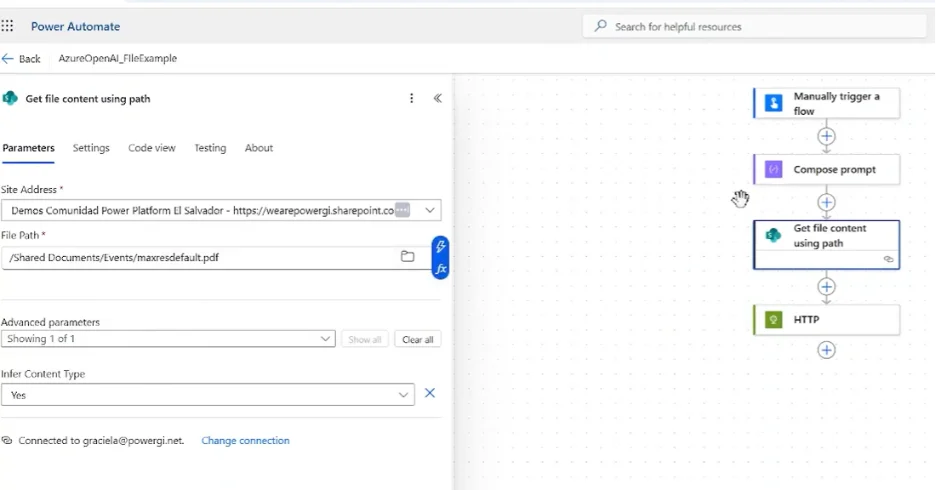
Add the Get file content using path action from the SharePoint connector. Select the SharePoint site and navigate to the file’s location. 

This action returns the raw binary content of the file, which we will need to convert to base64 in the following steps. 
Add an HTTP action and build the request body

				
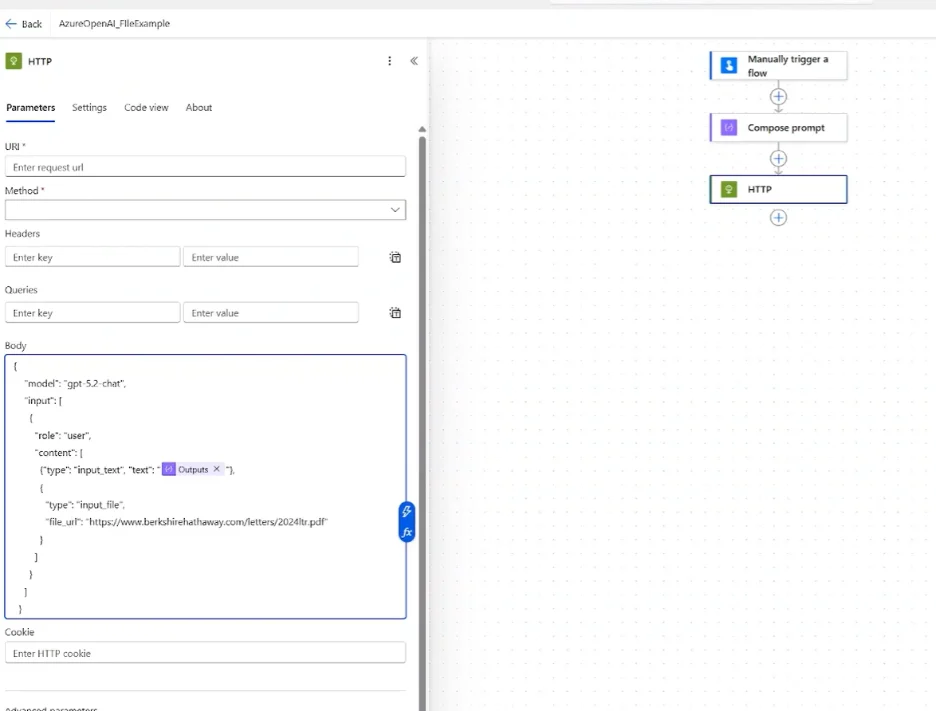
					Add an HTTP action.  
Method: POST  

URL: the Azure OpenAI endpoint with /responses appended: 

https://<your-resource-name>.openai.azure.com/openai/v1/responses </your-resource-name>


Set the following headers: 

				
					"Content-Type": "application/json"  

"Authorization": "Bearer <your-api-key>"</your-api-key>


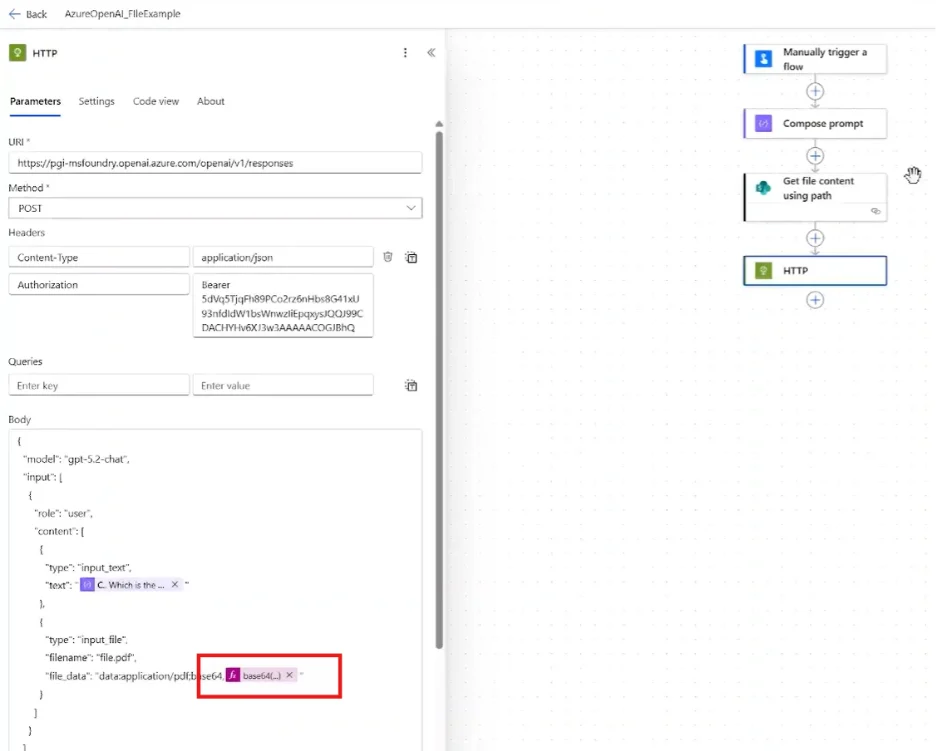
Then build the request body. The key structure uses input as an array with two content types — a text instruction and the file itself: 

				
					{ 

  "model": "<your-deployment-name>", 

  "input": [ 

    { 

      "role": "user", 

      "content": [ 

        { 

          "type": "input_text", 

          "text": "<outputs of compose prompt>" 

        }, 

        { 

          "type": "input_file", 

          "filename": "document name.pdf", 

          "file_data": "<base64 expression>" 

        } 

      ] 

    } 

  ], 

  "text": { 

    "format": { 

      "type": "json_object" 

    } 

  } 

} </base64></outputs></your-deployment-name>


Important 

The “text”: { “format”: { “type”: “json_object” } } parameter ensures the model always returns a clean JSON response without stray characters or markdown fencing. Always include it when you expect structured output. 
Convert the SharePoint file content to base64

We need an expression to convert the binary format into base64. 

				
					concat('data:application/pdf;base64,', base64(body('Get_file_content_using_path'))) 


Test the flow and read the response

The response follows a consistent structure regardless of whether you sent a file or plain text. Navigate to:

Is your business ready for automation?

Automate processes with Microsoft Power Platform.

				
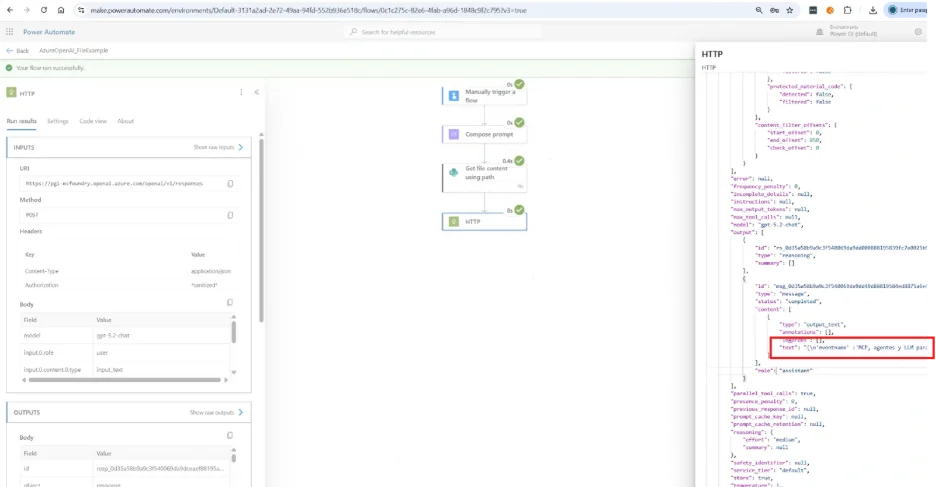
					outputs → body → output[0] → content[0] → text 


This text field contains the JSON string returned by the model. In the tutorial example, it returned:

				
					{ 

  "event_name": "Power Platform Community El Salvador", 

  "date": "April 24", 

  "time": "[time from PDF]", 

  "speaker_name": "[speaker from PDF]" 

} 


To parse this into usable Power Automate values, we can use a Parse JSON action in subsequent steps with the schema matching your expected output fields. 


Video tutorial: send SharePoint files to Azure OpenAI

You can also watch the step-by-step walkthrough in our YouTube channel where Graciela shows how to extract the keys and endpoints from the Azure portal and how to create the workflow in Power Automate where the file is extracted in SharePoint, converted to base64 and finally sent to the OpenAI service.  

Add Your Heading Text HereAutomate AI workflows with PowerGI

If you’re taking your first steps into AI automation for document processing or if looking to scale what you’ve already built, we can help you with our Microsoft Power Automate consulting services and Copilot Studio and AI integrations. 

Contact us today! 

Author
Power Platform Consultant | Business Process Automation Expert
Microsoft Certified Power Platform Consultant and Solution Architect with 4+ years of experience leveraging Power Platform, Microsoft 365, and Azure to continuously discover automation opportunities and re-imagine processes.