Table of Contents
What are workflows in Copilot Studio?
Workflows in Copilot Studio are automations that keep the structure and rules of Power Automate and add the intelligence of agents. Workflows combine deterministic and dynamic steps in the same process and run behind the scenes.
You don’t chat with a workflow the way you chat with an agent. A workflow starts automatically when something happens, such as a new form response, an agent that calls the workflow, a new email or a scheduled time.
Some key points:
- Workflows are one of the three main things you can build in Copilot Studio. The others are agents and managed apps.
- They work much like Power Automate: triggers, connectors, conditions, loops, variables and expressions.
- They add two capabilities that Power Automate doesn’t have: AI nodes and human-in-the-loop steps.
- They are billed per use with Copilot Credits, not through a per-user Power Automate license.
- Agent Flows are the previous version of workflows.
Power Automate: the foundation of workflows
To understand workflows, start with Power Automate. Workflows in Copilot Studio work in a very similar way.
Microsoft 365 Copilot is the umbrella over the Microsoft services you use every day, such as Excel, Teams and Outlook. Under that umbrella, the two main automation tools are Power Automate and Copilot Studio.
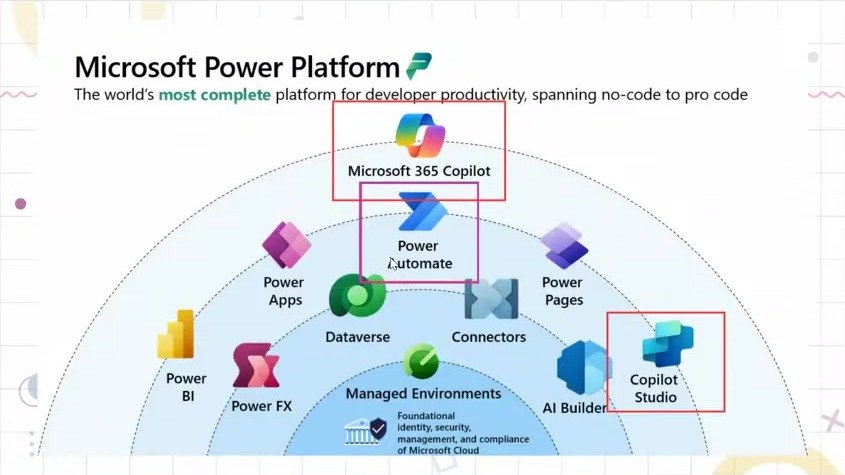
Power Automate is the go-to tool for workflow automation in Power Platform and the Microsoft ecosystem. You define rules and steps, and design a flow from those instructions. For example: you receive a supplier invoice, analyze it, send it for validation and approval, and finally upload it to your accounting system.
Power Automate is often described as a tool only for deterministic processes, where you know the input, the process and the output in advance. That isn’t the whole picture. You can also add generative AI to a flow, for example to read invoices, contracts or non-standard documents with AI Builder and Microsoft Foundry.
Power Automate works for both simple and critical processes. It can notify you when an email arrives from a specific person, and it can also run sales or operations processes. If you are new to automation, learn logic first, then Power Automate, and then move on to workflows.
The three Copilot Studio harnesses
A harness is the engine an agent or workflow runs on. Choosing the harness is the first decision, made before you build anything.
Harness | Where you find it | Best for |
Copilot harness | Microsoft 365 Copilot Chat, and simple agents created there | Answering questions inside Microsoft 365 Copilot Chat. It is the simplest harness and isn’t designed for memory or custom skills. |
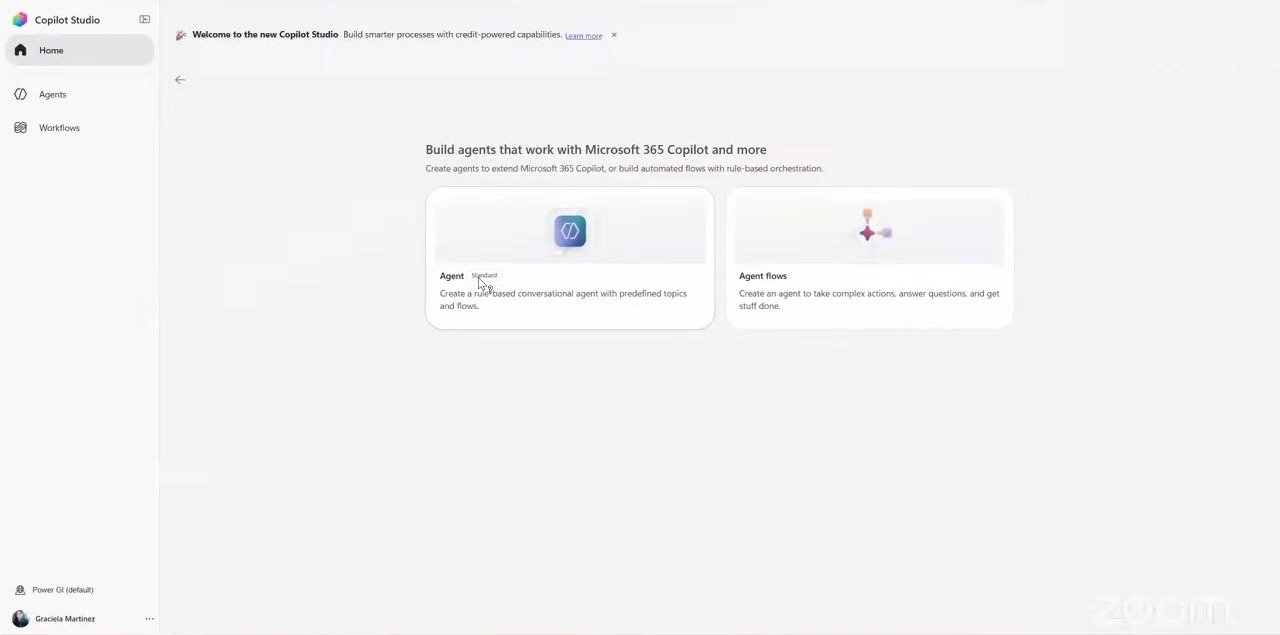
Standard harness | Copilot Studio, under Other ways to build: Agent (Standard) and Agent flows | Rule-based agents with fixed, well-mapped routes. For example, an IT help desk where a license request always goes to approval and a password reset always follows the same steps. |
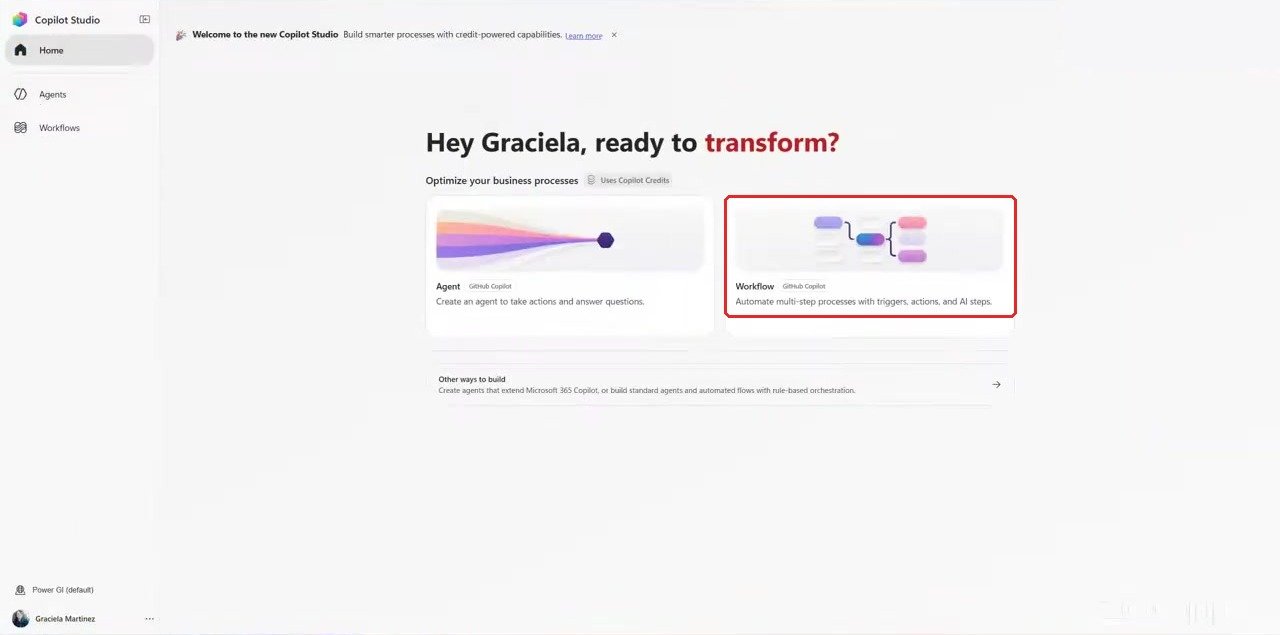
Microsoft Copilot harness (previously known as Github Copilot Harness) | The default Agent and Workflow options on the Copilot Studio home page | Complex, multi-step processes. It has memory and custom skills, plans its own steps, retries on its own, interprets content and changes route. It is especially strong with Word, Excel, PDF and PowerPoint documents. |
The new Copilot Studio with the GitHub Copilot harness was released around June 2026, and Microsoft now puts it first. The standard options take an extra click: on the home page, select Other ways to build to find the standard agent and Agent Flows.
The standard harness isn’t outdated; it serves a different purpose. Microsoft’s own guidance is to start with the simplest platform that meets the need, and to combine platforms only when the use case clearly requires it. A complex agent running a fixed, rule-based process costs more and stays underused. Optimizing token usage, sometimes called tokenomics, keeps your automations affordable if AI costs rise in the future.
Cloud flows vs. Agent Flows vs. workflows
Workflows are the latest step in an evolution that started with Power Automate cloud flows.
| Cloud flows | Agent Flows (classic) | Workflows (modern) |
What they are | A flexible way to automate processes across apps and services | An experience optimized for automations linked to Copilot Studio agents | An improved canvas for building agentic automations |
Where they run | Power Automate | Copilot Studio | Copilot Studio |
Building blocks | Standard and premium connectors | Connectors optimized for agent actions | Native AI nodes and a built-in agent designer (inline agents) |
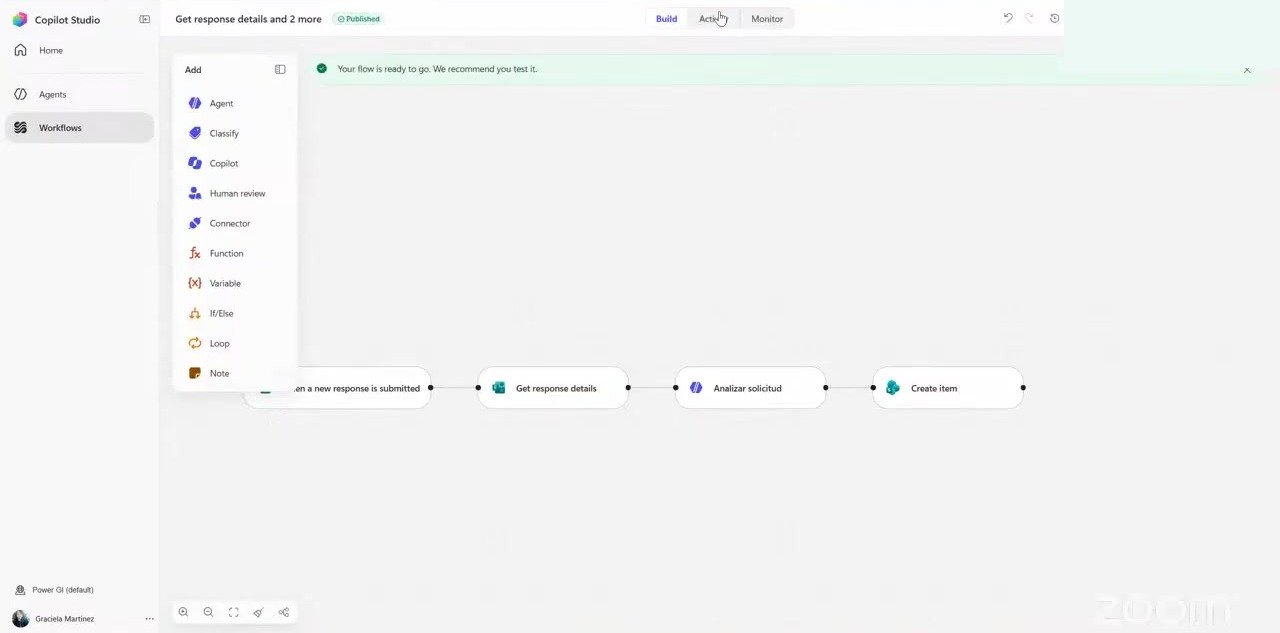
The workflows canvas looks more modern than Power Automate. It flows left to right by default instead of top to bottom, and its look and feel resembles tools like n8n. Under the hood, though, the automation structure is very similar to Power Automate.
How workflows are billed
This is one of the most important differences:
- Power Automate: with a premium license of about $15, you can run many automations. Usage counts against your Power Platform request quota.
- Workflows: you pay per use with Copilot Credits. Each execution and each action consumes credits, and each type of action has a different cost, listed in Microsoft’s documentation.
In Power Automate it’s common not to worry much about how many actions a flow has. In workflows, every action costs money, so it pays to keep them lean.
The building blocks of a workflow
Most workflow building blocks will feel familiar if you know Power Automate.
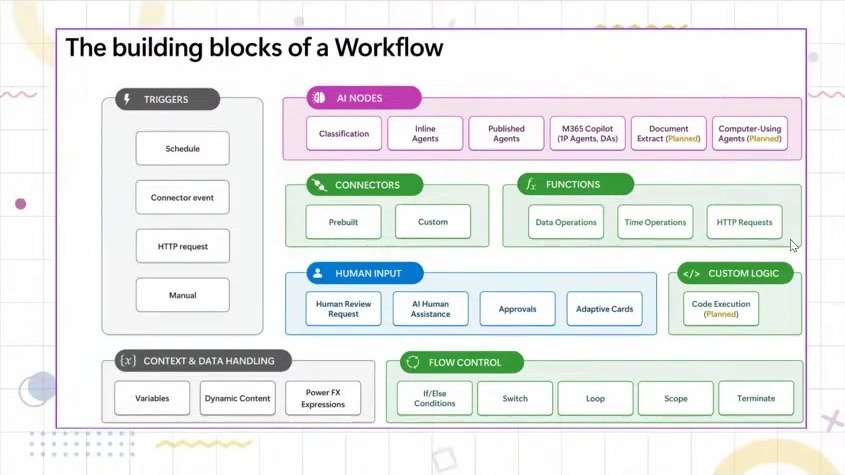
- Triggers start the workflow: a schedule, a connector event, an HTTP request from an external service, or a manual start.
- Connectors work exactly as in Power Automate, with prebuilt connectors such as Outlook and Teams, plus custom connectors.
- Functions cover data operations, time operations and HTTP requests.
- Flow control includes if/else conditions, switch, loops, scopes and terminate.
- Context and data handling covers variables, dynamic content and Power Fx expressions.
- Human input brings a person into the process: human review requests, AI human assistance, approvals and adaptive cards.
- AI nodes add intelligence: classification, inline agents, published agents and Microsoft 365 Copilot agents. Document extraction and computer-using agents (a form of RPA) are planned.
- Custom logic for running code, such as Python or JavaScript, is also planned.
The two main differences from Power Automate are human-in-the-loop steps, where a person reviews part of the process, and AI nodes, which connect the workflow to Copilot Studio agents or to inline agents built just for that process.
Deterministic vs. AI-powered steps
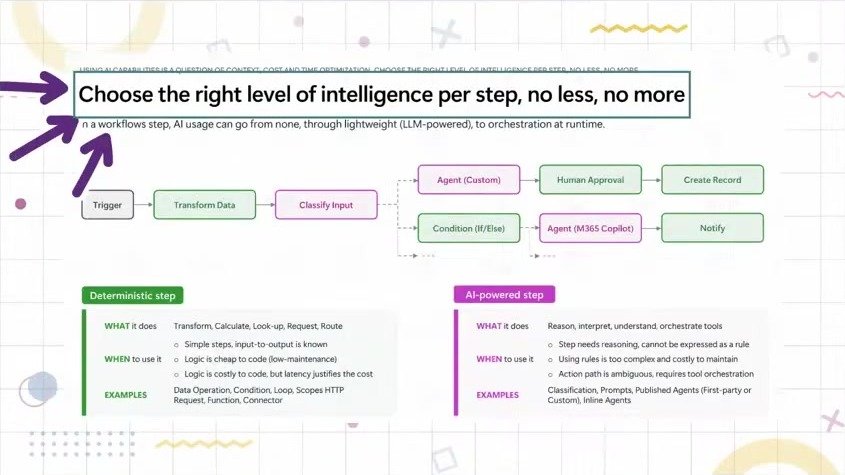
A workflow can mix deterministic steps and AI-powered steps. The rule is to choose the right level of intelligence for each step: no less, no more.
| Deterministic step | AI-powered step |
What it does | Transform, calculate, look up, request, route | Reason, interpret, understand, orchestrate tools |
When to use it | The steps are simple and the input-to-output is known, the logic is cheap to code, or the logic is costly to code but latency justifies the cost | The step needs reasoning that can’t be expressed as a rule, rules would be too complex and costly to maintain, or the path is ambiguous and needs tool orchestration |
Examples | Data operations, conditions, loops, scopes, HTTP requests, functions, connectors | Classification, prompts, published agents, inline agents |
In a deterministic step you always know the inputs, the outputs and every variable. Most workflows combine both kinds of steps.
Example: classifying customer complaints, two ways
The best way to see what workflows add is to build the same process in Power Automate and in a Copilot Studio workflow.
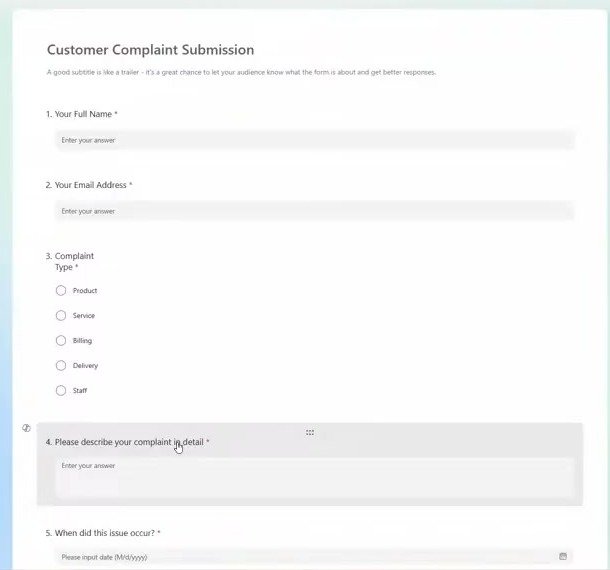
The scenario: customers report problems through a Microsoft Forms form, such as an order that never arrived or a double charge on a credit card. The form asks for their name, email, complaint type (product, service, billing, delivery or staff), a description, the date of the issue and whether they have contacted the company before. The goal is to classify each complaint, assign a category and an urgency level, and save the result to a SharePoint list.
Option 1: Power Automate with an AI Builder prompt
- Create an automated cloud flow, because an external event starts it. Use the Microsoft Forms trigger When a new response is submitted and select the complaint form.
- Add Get response details, select the same form and pass the Response ID from the dynamic content.
- Add Run a prompt (AI Builder, the AI service inside Power Automate) and create a new prompt. The instruction tells the model to act as a customer service analyst, analyze the complaint and return only a JSON object, with no explanations or markdown. The JSON includes a one-sentence summary, the complaint type and its code, a sentiment score from 1 to 4, an urgency level (low, medium or high), an urgency score from 1 to 10, and whether it is a repeat contact.
- In the prompt, use Add content to create one text input for each form answer (name, email, complaint type, description, date and previous contact), each with a sample value. Set the output to JSON and select Test.
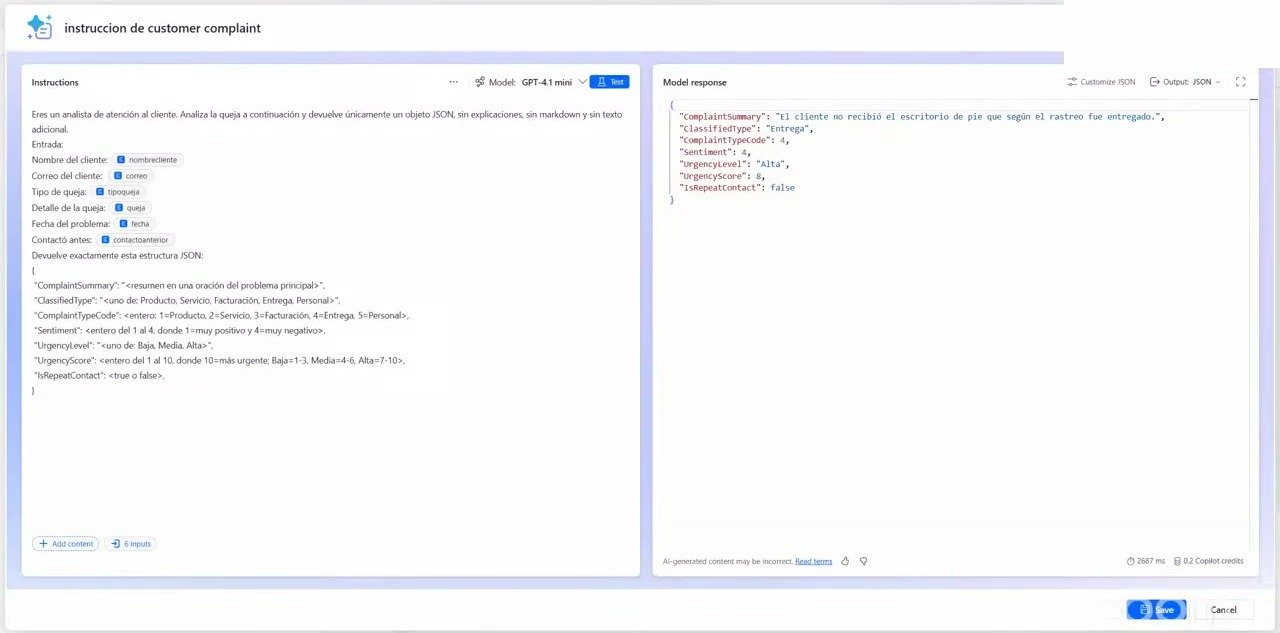
- Remove anything the flow already has. In this example, the customer name and issue date were dropped from the JSON output, because returning them only spends tokens on data the flow already knows. Then save the prompt and map each input to the matching form answer.
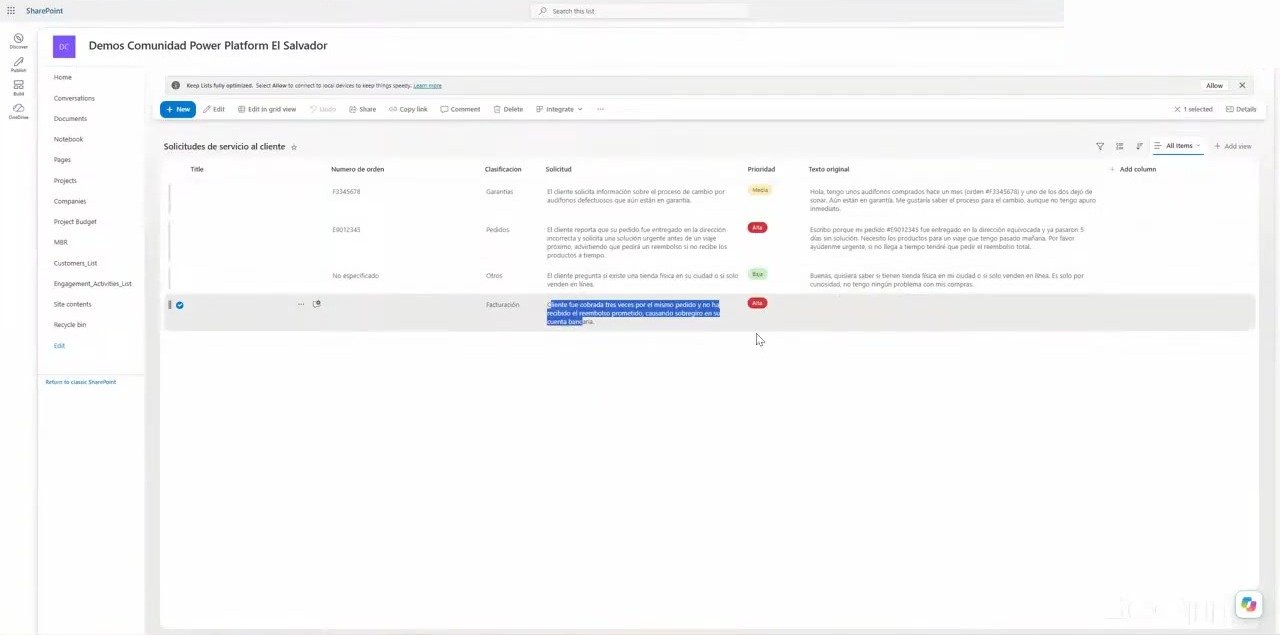
- Add Create item (SharePoint), select the site and list, and fill in the classification, request summary and priority. Because the prompt returns JSON, each field from the result appears as dynamic content.
- Submit a test response. The flow runs, the prompt classifies the complaint and the new item appears in the SharePoint list. The instructions were written in Spanish, so the summary came back in Spanish even though the complaint was in English.
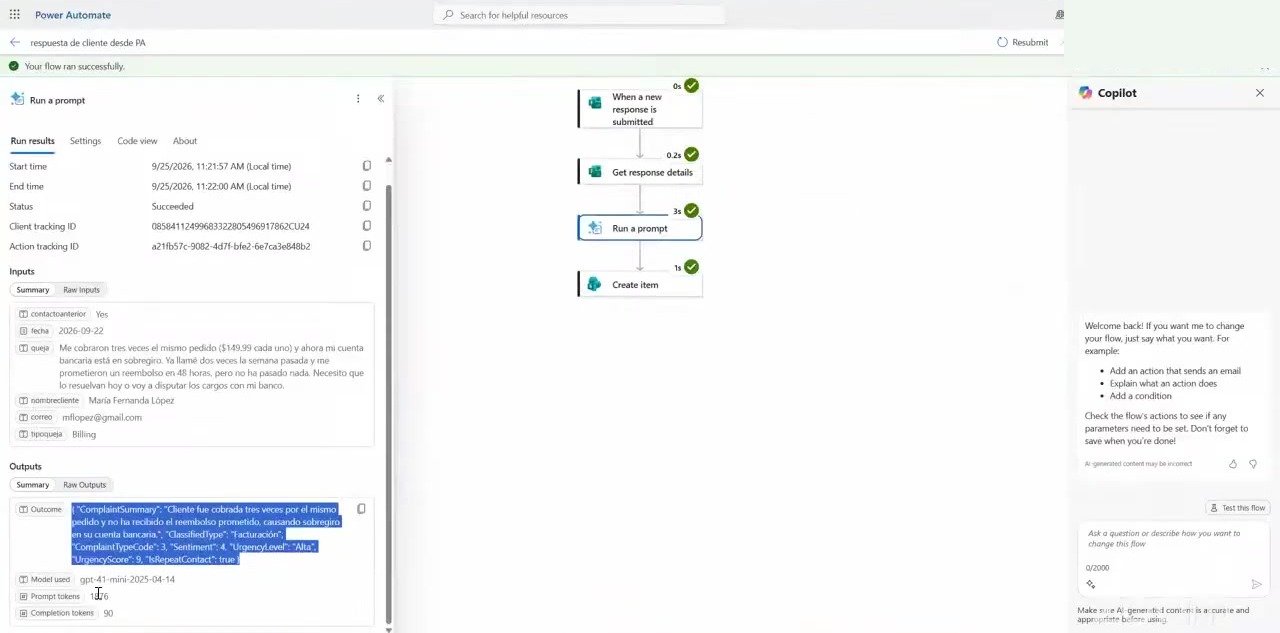
Which one should you use? A practical rule: if you already pay for a Power Automate premium license (about $15), use workflows only when Power Automate can't do the job. AI Builder usage is still paid, but the rest of the flow runs on your license as long as you stay within your quota. Some companies still prefer pay-per-use workflows, or want to adopt the newest technology, and that's a valid choice too. Keep in mind that a Power Automate flow can respond to an agent or be called by one, but it can no longer call an agent; that is only possible in workflows.
Option 2: a workflow in Copilot Studio
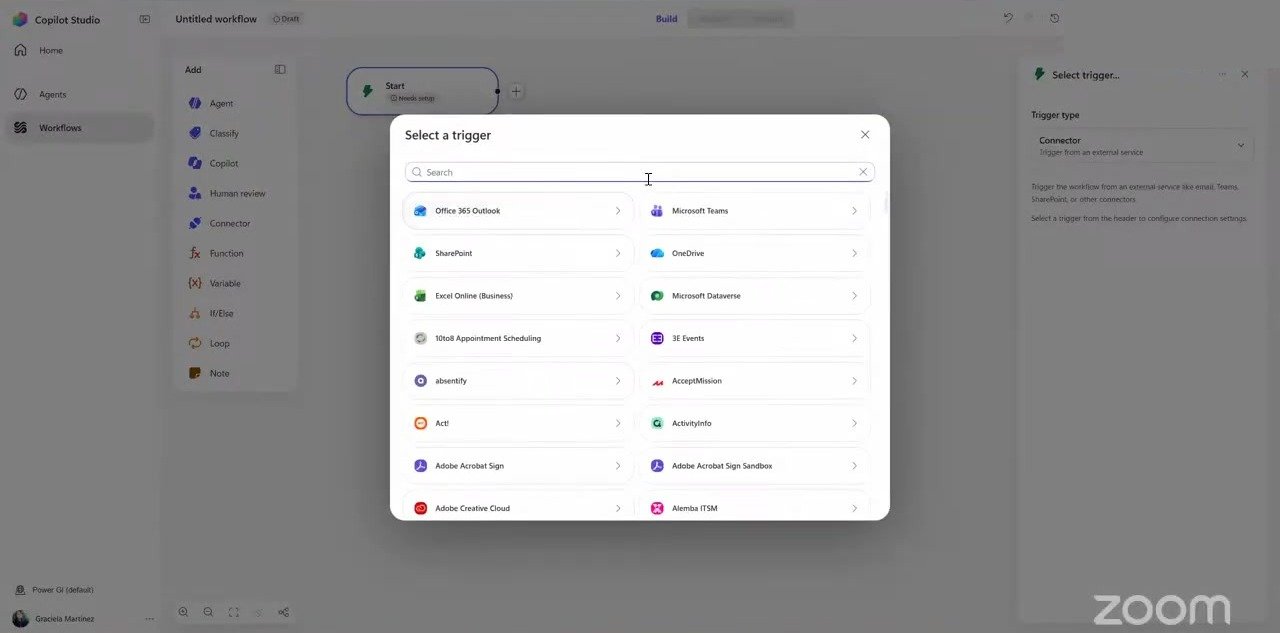
- On the Copilot Studio home page, select Workflow. The first question is what starts it. The options include when an agent calls the workflow, an HTTP request from an external service, a connector, a manual start or a schedule. Because a form response is an external event, choose a connector, search for Microsoft Forms and select When a new response is submitted. Even the wording matches Power Automate. The connection is created automatically, and then you select the form.
- Add Get response details from Microsoft Forms, select the form and set the Response ID. Workflows show a Suggested section on top of the full list of dynamic values, and here it recommended the Response ID directly. A button at the bottom of the canvas switches the layout between horizontal and vertical.
- Add an Agent node. An agent created only for this workflow is an inline agent (or embedded agent). If the same agent will be reused across several workflows or processes, create a regular agent instead. Name it (for example, “Analyze request”), paste the same instructions used in the AI Builder prompt and insert the form answers as dynamic content.
- Choose the model. For a task that only classifies text, pick the simplest model that does the job; there is no need to pay for a more advanced one.
- Set the Output. The default is plain text. To use the results in later steps, choose a structured output and either add each property by hand or paste a JSON schema. A quick way to get the schema is to take a sample JSON response, for example from the Power Automate run, and generate the schema from it. Use only one of the two methods: mixing them can make the dynamic content show the wrong fields.
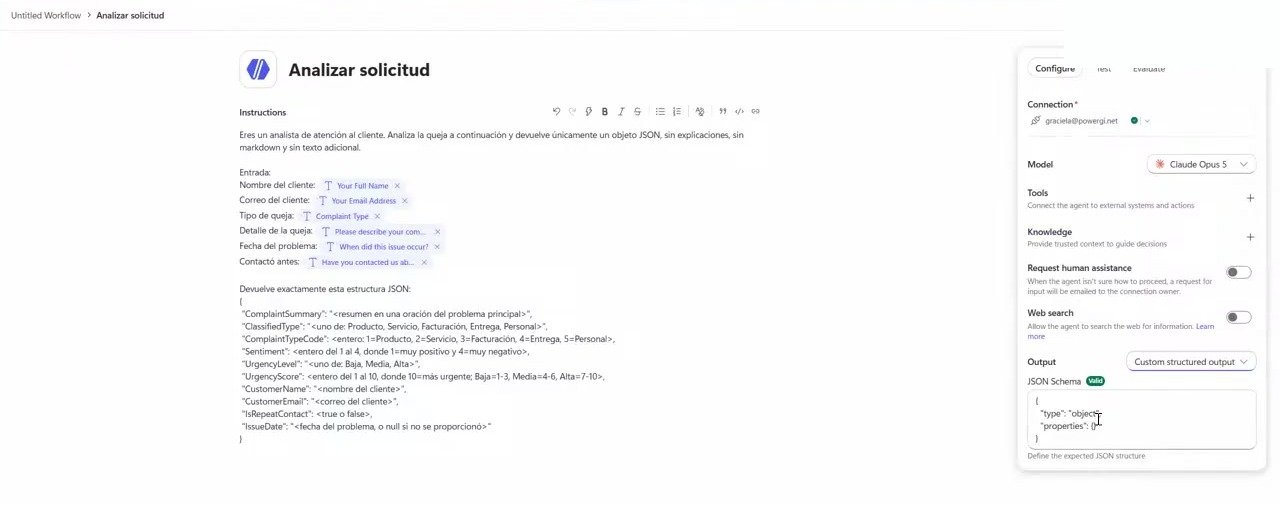
- Review the extra options on the agent node: Knowledge (public websites and SharePoint sites or documents), Tools, Request human assistance (the agent emails someone when it doesn’t know what to do) and Web search. These options aren’t available in Power Automate.
- Add Create item (SharePoint), select the site and list, and map the classification, request and urgency level. Unlike the modern Power Automate designer, the workflow editor shows every column in the list, so you can’t pick only the parameters you want to fill in.
- Save and Publish. If a Power Automate flow already handles the same form, turn it off so the item isn’t created twice. Then submit a test response.
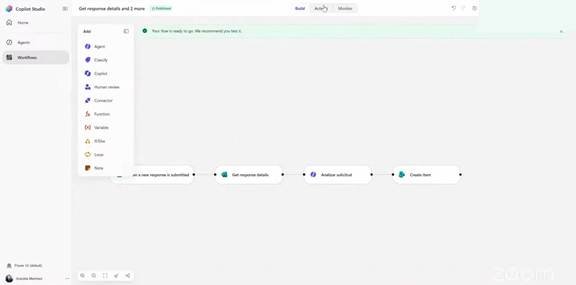
The Activity tab shows each run and lets you return to the builder with one click, with no need to keep the run history open in a separate tab as you would in Power Automate. The Monitor tab shows the number of runs and actions, which helps you track usage and token consumption.
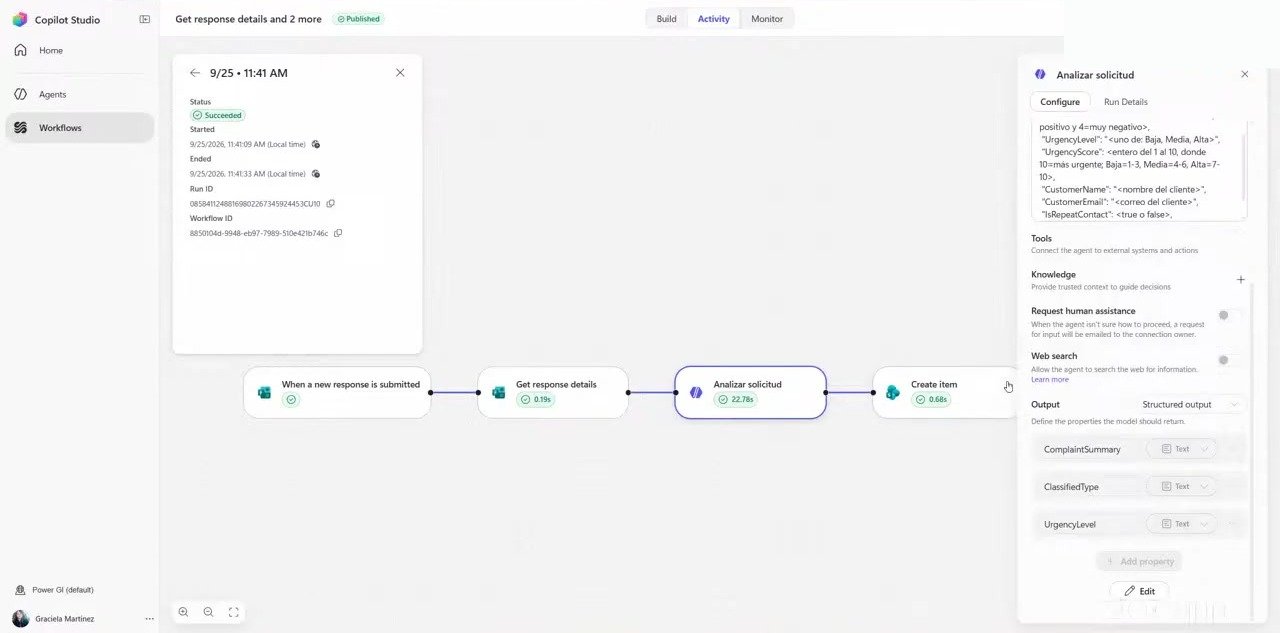
In this example, the summary from the Claude model in the workflow was richer than the one from GPT-4.1 mini in AI Builder. It included details such as the number of charges and the promised 48-hour refund. Either way, write instructions that are as specific as possible.
Good to know: A workflow created in Copilot Studio also appears in your flow list in the Power Automate portal. Selecting Edit opens it in Copilot Studio.
What workflows add beyond Power Automate
For this complaint-classification example, both tools do the job equally well, and Power Automate is the recommended choice: it solves the problem and you already pay for the license. Workflows add real value when you need the nodes that Power Automate doesn’t have.
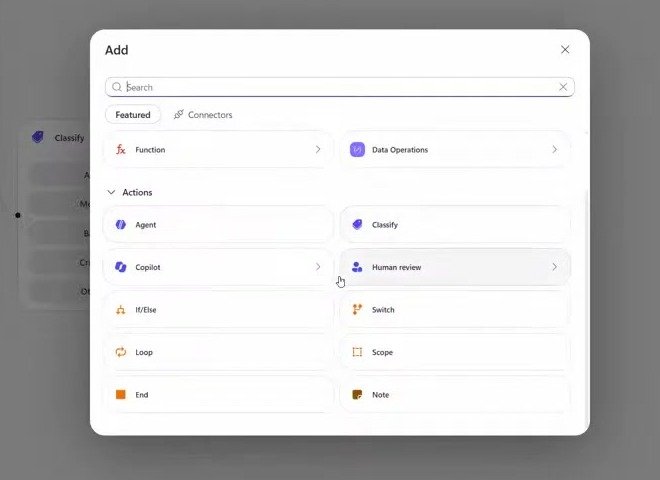
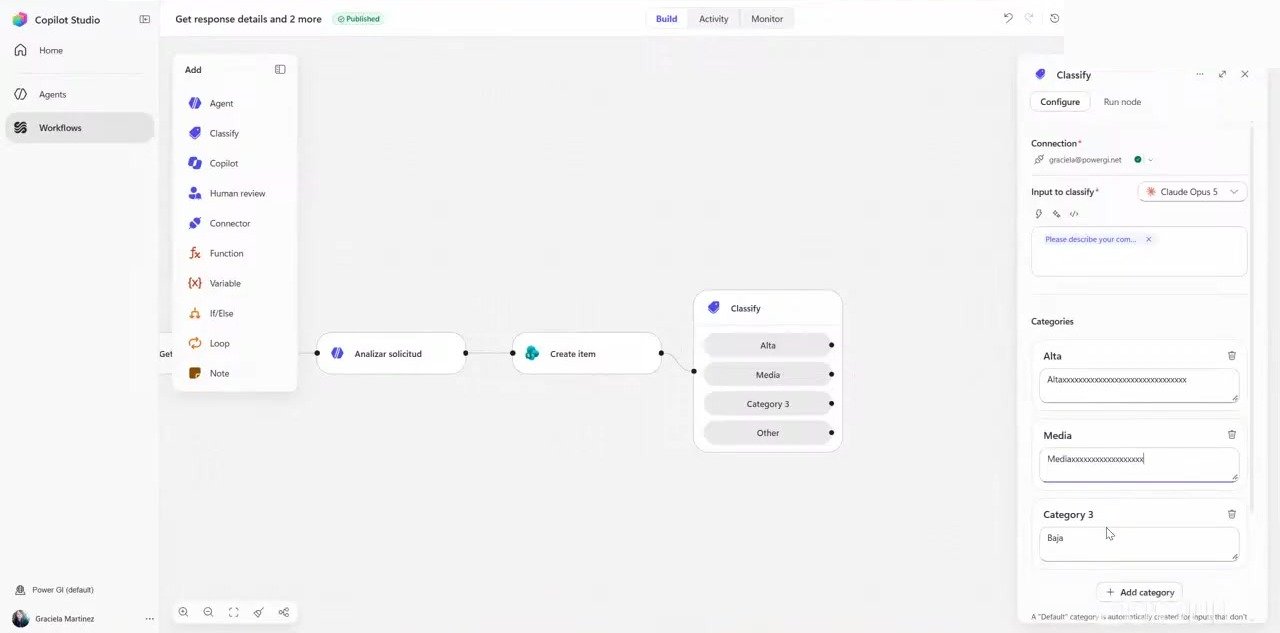
- Classify: pass a text and define categories, each with its own criteria, such as high, medium and low urgency, plus Other. Each category connects to its own next step: an email to one reviewer for high urgency, an email to another reviewer for medium, and a SharePoint item for low. In Power Automate you would build this with a condition or a switch and a separate branch for each case. The Classify node does it in one step.
- Human review: there are two ways to bring in a person. On an agent node, turn on Request human assistance, and the agent itself decides when it needs help and sends the email, with nothing else to configure. Or add a Human review node, for example on a critical branch, to send a request for manual review. It works much like an approval.
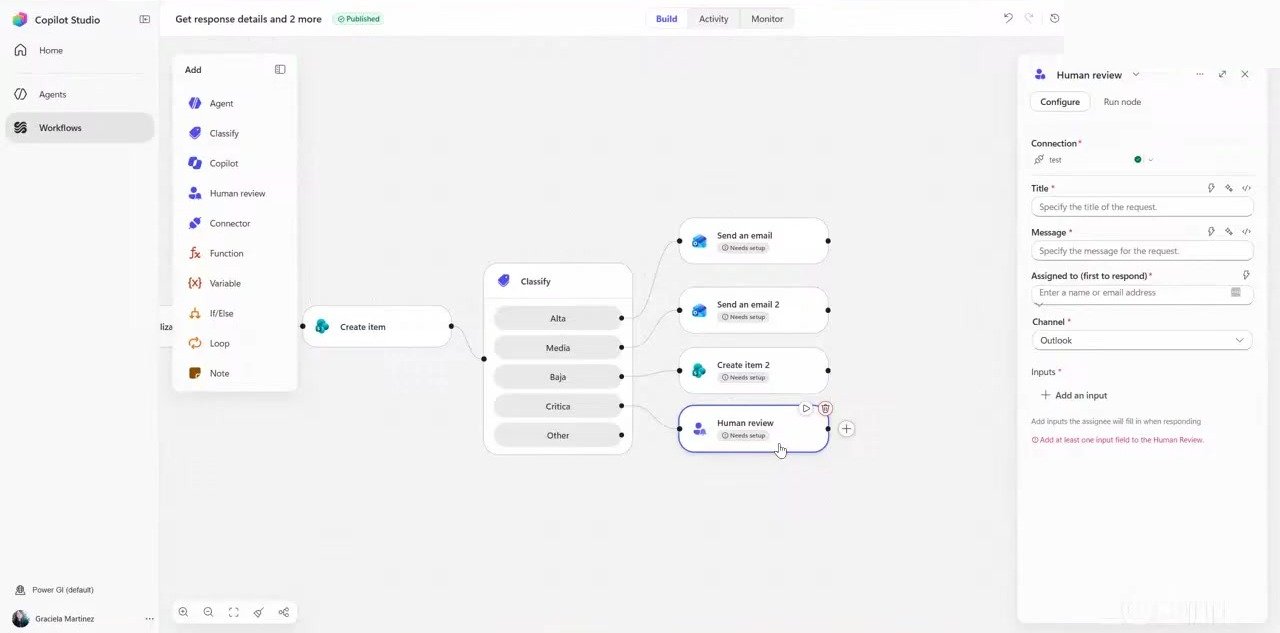
Human review vs. approvals: In testing, human review requests could not be found again in the Power Automate portal. If the email is lost, there is no other place to respond and no audit trail. Approvals are recorded, can be answered from the Power Automate portal or Teams, and keep an audit history. If you need an audit log, use approvals.
- Copilot: call Copilot Chat or Copilot Cowork from the workflow with instructions, for example to create a document and share it with someone, or to create a folder for a critical request. For something like scheduling a meeting, a regular Outlook action is still a better fit.
- Agents and models: call your Copilot Studio agents or inline agents built for the workflow, and choose the model for each AI step. Only the newest GPT and Claude models are listed, along with a smaller mini model.
What it costs
- Testing an AI Builder prompt is free. Running it consumes Copilot Credits: the prompt in this example used about 0.2 credits per run, and one credit is worth roughly one cent.
- In workflows, there is no free testing. Every run consumes credits, and the amount depends on the type of action. Use the Monitor tab and Microsoft’s documentation on Copilot Credits to estimate your costs.
Frequently asked questions
What is the difference between Power Automate and workflows in Copilot Studio?
Both automate processes with triggers, connectors, conditions and expressions, and their structure is very similar. Workflows add AI nodes (such as Classify and inline agents), human-in-the-loop steps and the ability to call Copilot. They are also billed differently: Power Automate uses a per-user license, while workflows consume Copilot Credits per use.
What are Agent Flows in Copilot Studio?
Agent Flows are the previous version of workflows. They run in Copilot Studio on the standard harness and do almost the same thing, with fewer capabilities. You can still find them under Other ways to build on the Copilot Studio home page.
What is an inline agent?
An inline agent, or embedded agent, is an agent you create inside a workflow for one specific process. If the agent needs to be reused across several workflows, create a regular Copilot Studio agent and call it instead.
What can trigger a Copilot Studio workflow?
A workflow can start on a schedule, from a connector event (such as a new Microsoft Forms response), from an HTTP request, when an agent calls it, or manually. Workflows run behind the scenes; you don’t chat with them.
How are Copilot Studio workflows billed?
Workflows are billed per use with Copilot Credits. Each run and each action consumes credits, and different types of actions cost different amounts. There is no free testing.
Can I build workflows without Copilot Credits?
You can create a workflow without credits, but you can’t test or run it.
When should I use the standard harness instead of the GitHub Copilot harness?
Use the standard harness for rule-based agents with fixed, well-defined routes. Use the GitHub Copilot harness for complex, multi-step processes that need memory, planning, document handling or changes of route. Microsoft’s guidance is to start with the simplest option that meets the need.
Should I use Human review or approvals?
Human review is quick to set up inside a workflow. If you need an audit trail, or a way to respond if the email gets lost, approvals are the safer choice because they are recorded and can be answered from the Power Automate portal or Teams.
Do workflows appear in Power Automate?
Yes. A workflow created in Copilot Studio is listed with your flows in the Power Automate portal, and selecting Edit opens it in Copilot Studio.
Conclusion
Workflows in Copilot Studio are the newest way to automate processes in the Microsoft ecosystem. If you know Power Automate, they will feel familiar: the same triggers, connectors and logic, plus AI nodes, inline agents, human review and Copilot built in. Use them when a process truly needs those capabilities, and stay with Power Automate when a simpler, license-based flow already does the job.
Need a hand with your apps and automations?
If you need help building your solutions or you’re not sure which tool (Power Automate, Copilot Studio agents or workflows) is the best fit for your use case, we’re here to help through our Copilot Studio development services or with out Power Automate consulting services.
Contact us today and let’s talk about your project.